

Search
The search feature lets you find any content across the intranet — articles, events, Knowledge Base pages, documents, and more.
How to search
Section titled “How to search”There are two ways to start a search:
- Header search bar — Type a keyword in the search field at the top of any page and press Enter.
- Search page — Navigate directly to the search page for advanced filtering.
Search results
Section titled “Search results”After searching, you see a results page showing:
- The total number of results (e.g. “36 results”)
- A content type filter dropdown — narrow results to a specific type (News article, Event, Knowledge Base Page, Basic page, etc.)
- A search field to refine your query
- Result cards with thumbnail, title, publication date, author, and tags
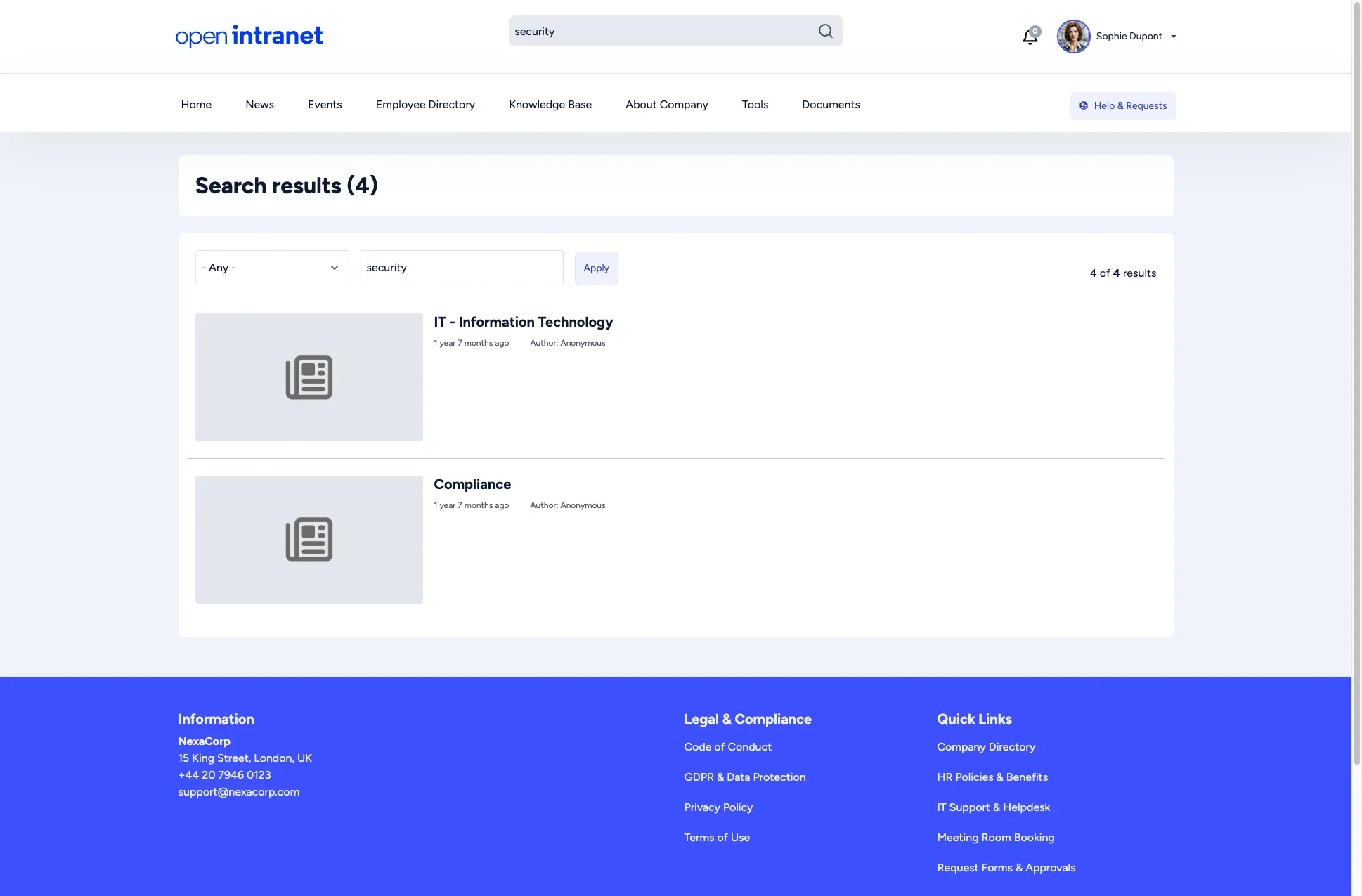
Results are paginated. Use the page numbers at the bottom to browse more results.
Filtering results
Section titled “Filtering results”Use the content type dropdown to focus on a specific kind of content:
| Filter | Shows |
|---|---|
| - Any - | All content types (default) |
| News article | Company news and announcements |
| Event | Upcoming and past events |
| Knowledge Base Page | Internal documentation |
| Basic page | Static pages (About, Departments, etc.) |
| Book page | Pages within a book hierarchy |
| Webform | Forms and surveys |
Select a content type and click Apply to filter the results.
Tips for effective searching
Section titled “Tips for effective searching”- Use specific keywords rather than generic terms for better results.
- If you get too many results, use the content type filter to narrow down.
- Search looks at titles, body text, and tags, so you can find content even if you only remember a keyword from the text.