

Roles and permissions
A permission is a single thing a user may do, such as News article: Create new content. A role is a named set of permissions. You never give permissions to a person directly: you give the person a role. This page shows how to add a role, change what it allows and hand it out. For what the roles in a stock install can do, see Roles: what you can do and the list of default roles.
Roles answer what people can do. Which restricted content they can see is a separate question, answered by department groups. See Access Control.
Where to find it
Section titled “Where to find it”Open People in the administration sidebar (/admin/people). Besides the user List, it has these tabs:
| Tab | Address | What it is |
|---|---|---|
| Roles | /admin/people/roles | All roles. Add, rename, delete a role or open its permissions |
| Permissions | /admin/people/permissions | One big table with every permission and every role side by side |
| Role settings | /admin/people/role-settings | Choose the Administrator role: the role that is automatically granted all permissions |
| Custom permissions | /admin/people/custom-permissions/list | Extra permissions that control who can open certain administration pages |
| Groups | /admin/openintranet/oi-groups | Department groups, see Access Control |
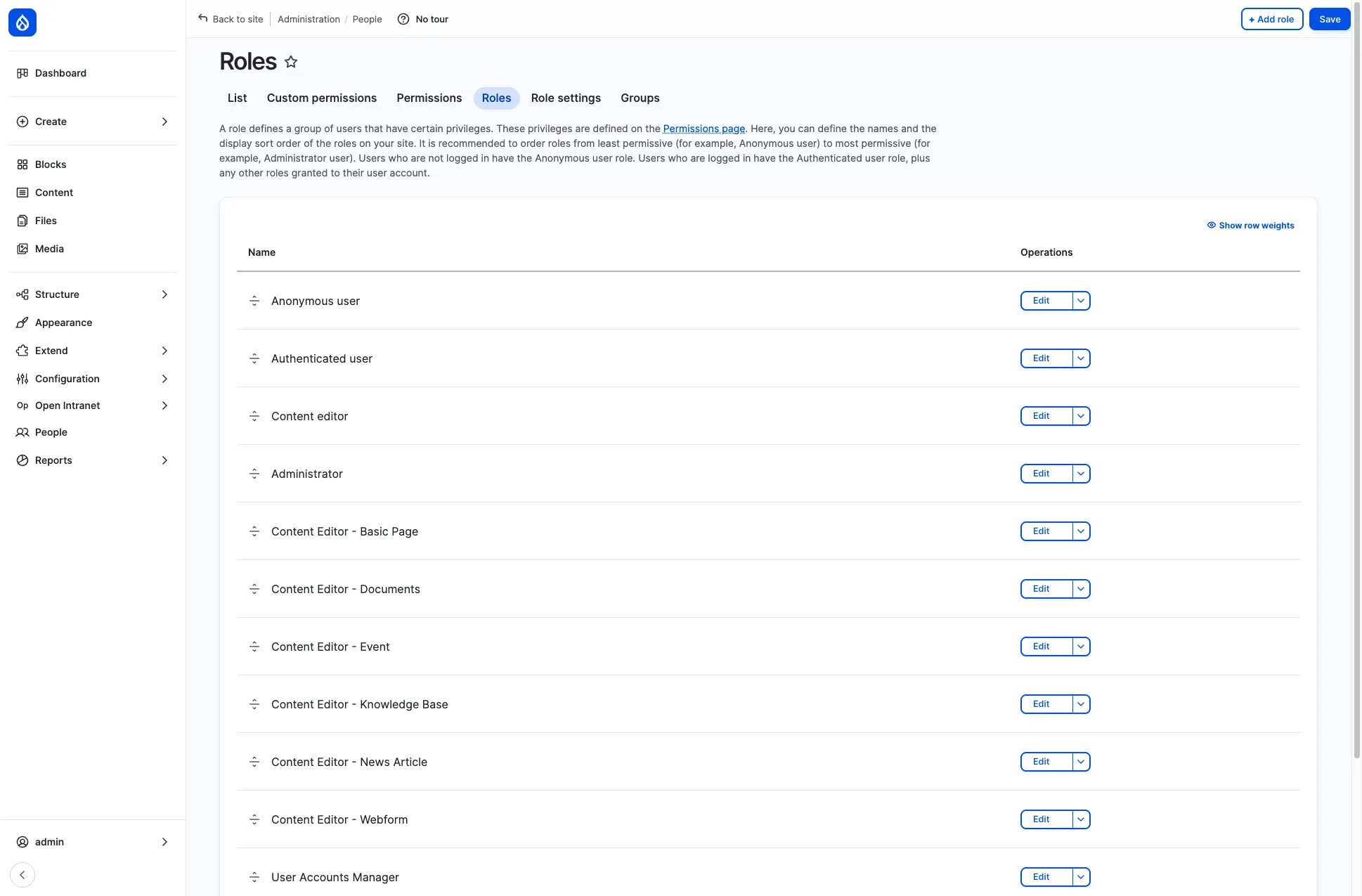
Each role has an Edit button and a menu next to it with Edit permissions, Translate and Delete.
Add a role
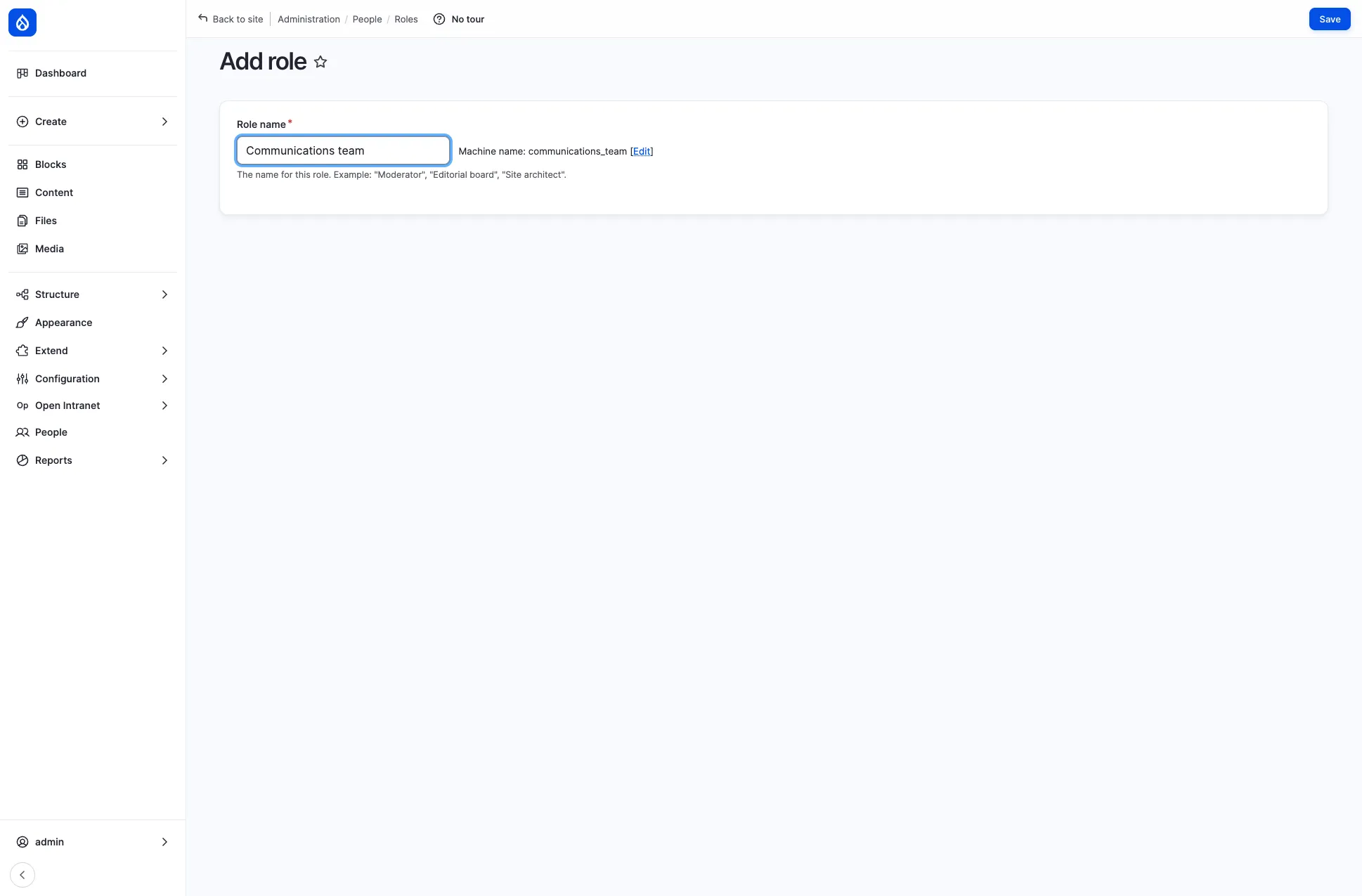
Section titled “Add a role”- Open People → Roles and click Add role.
- Type a Role name, for example Communications team. The Machine-readable name (
communications_team) is filled in for you. - Click Save. The new role appears in the list.
- Give the role its permissions, as described next. Until you do, it adds nothing to what a logged-in user can already do.
Set a role’s permissions
Section titled “Set a role’s permissions”- On the Roles page open the menu next to the role’s Edit button and choose Edit permissions. You land on
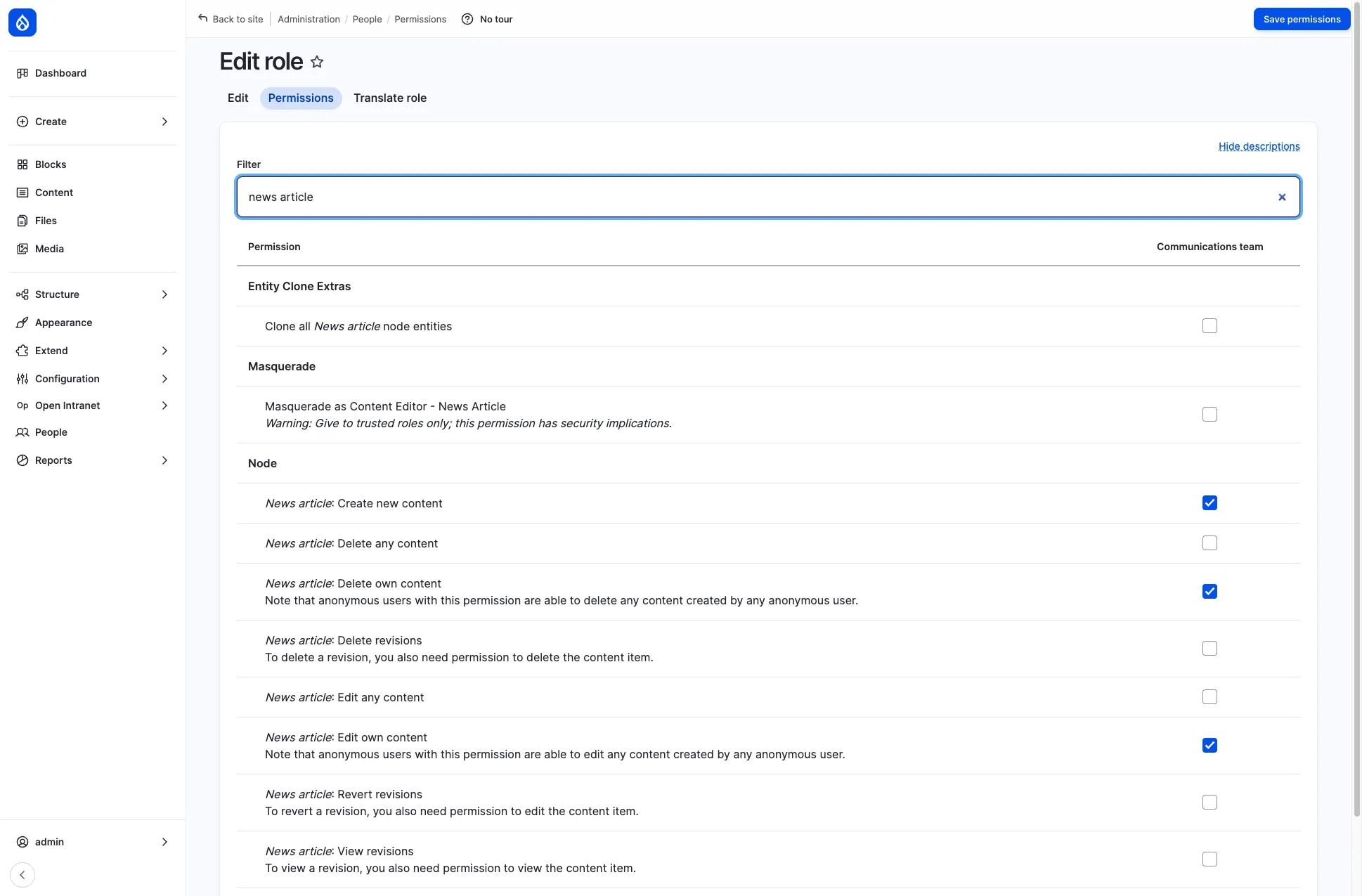
/admin/people/permissions/<machine name>. - Type part of a permission name into Filter, for example news article, to show only matching permissions.
- Tick the permissions the role should have. Hide descriptions makes the list shorter, but read the descriptions first: some permissions carry a warning such as Give to trusted roles only.
- Click Save permissions.
Example: let a team publish news and events
Section titled “Example: let a team publish news and events”For a Communications team role that may create news articles and events, and edit and delete only its own, tick:
| Area | Permissions |
|---|---|
| News article | Create new content, Edit own content, Delete own content |
| Event | Create new content, Edit own content, Delete own content |
| Reaching the editing screens | Use the toolbar, Access navigation bar, Use the administration pages, View the administration theme, Access the Content overview page |
| Writing and media | Use the Full HTML text format, Create media, Image: Create new media |
We tested this set: a user with only this role saw News article and Event in the Create menu (plus Booking, which every logged-in user can create when Room Booking is enabled) and could open both forms, while Basic page and Knowledge Base Page answered Access denied.
Edit own lets people change only what they created. Add Edit any content and Delete any content to let them change everything of that type.
Give a role to users
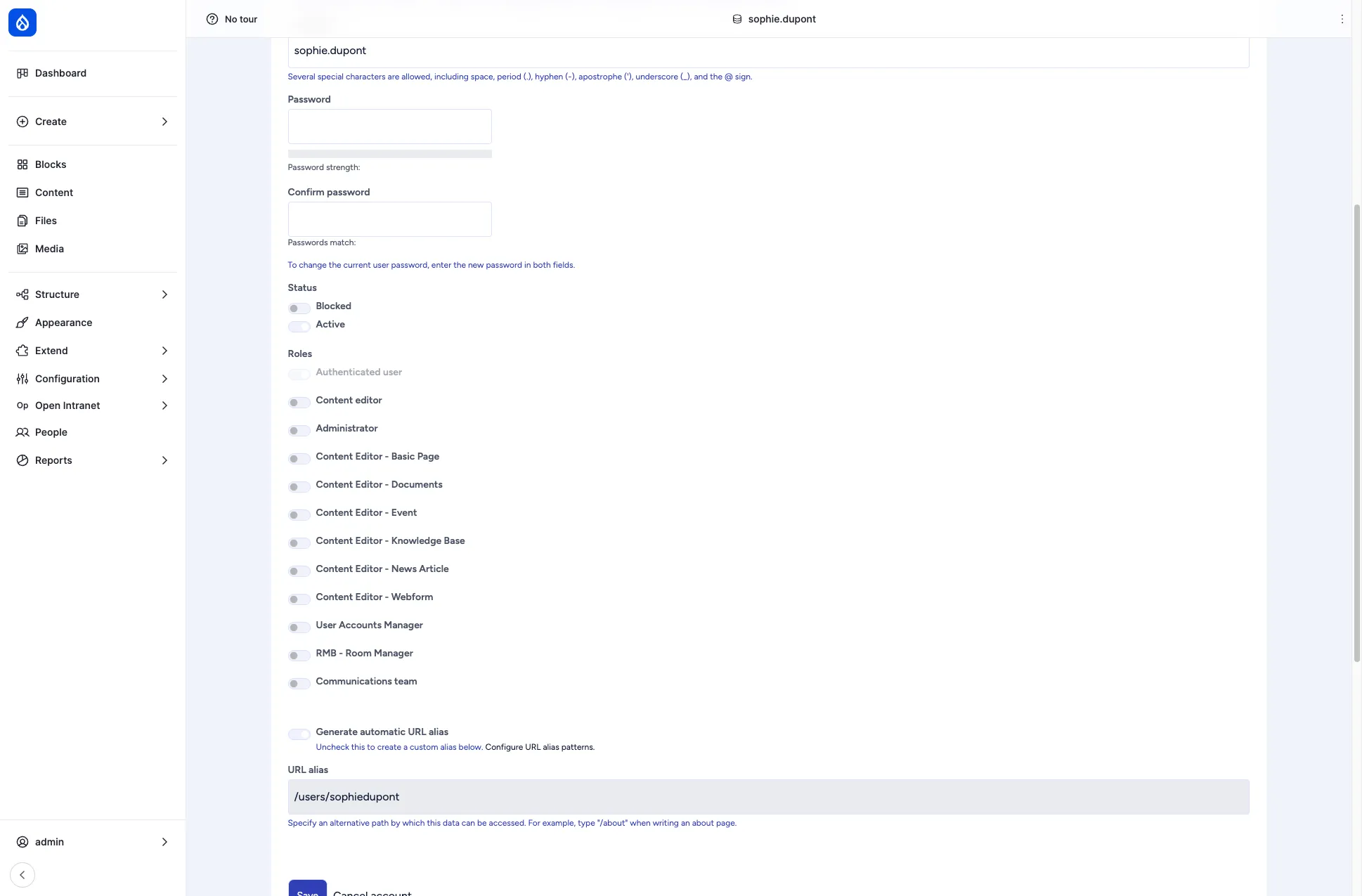
Section titled “Give a role to users”One user: open People, click Edit next to the user, open the Account tab and switch on the role under Roles. Save.
Many users at once: on the People list tick the users. A bar appears at the bottom. Choose an Action such as Add the Communications team role to the selected user(s) (there is a matching Remove the … role from the selected user(s)) and click Apply to selected items.
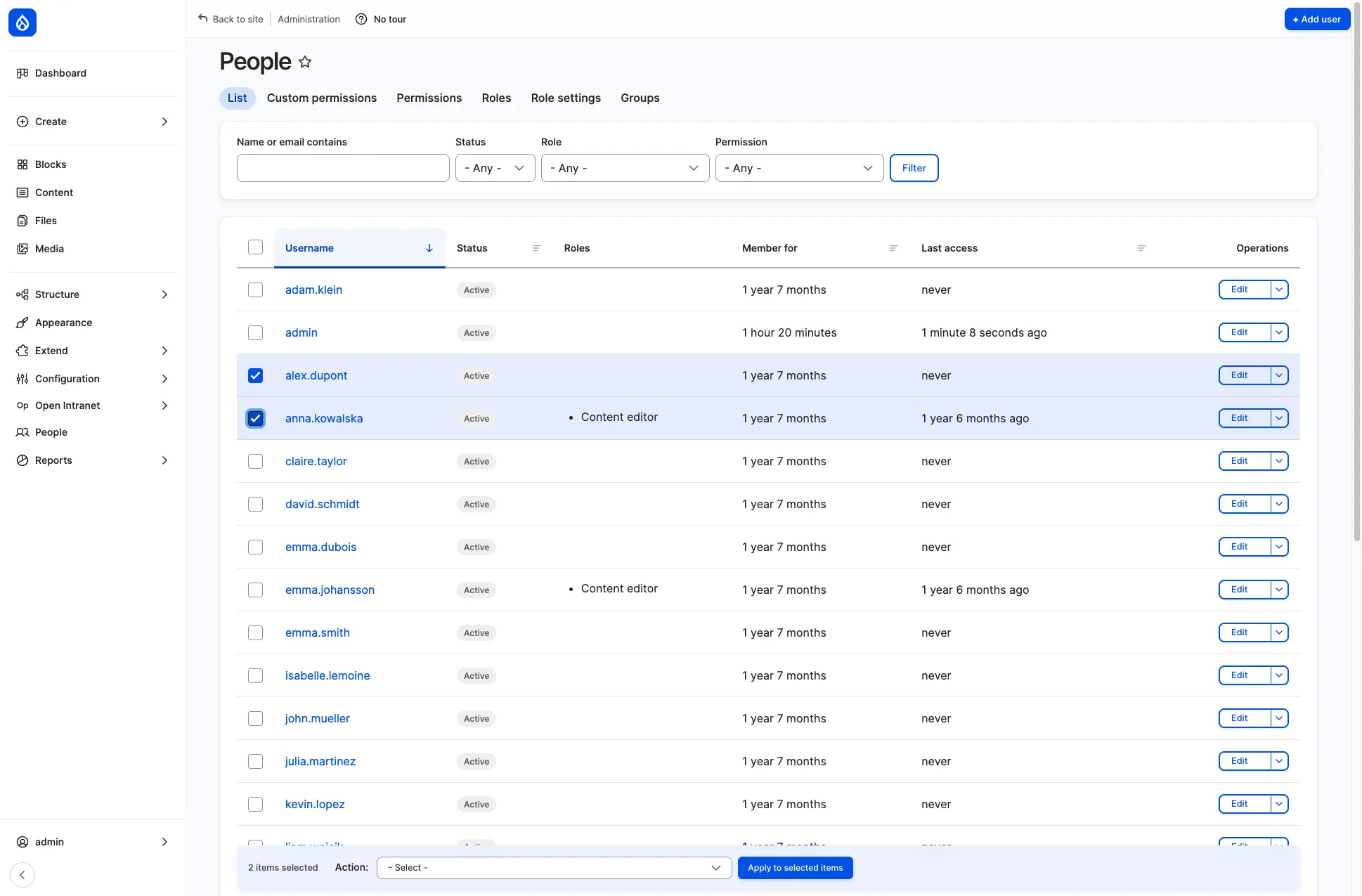
The People list can also be filtered by Role and by Permission. The permission filter answers who can do this? in one click.
Rename or delete a role
Section titled “Rename or delete a role”On the Roles page, Edit changes the role name and the Delete item in the menu next to it removes the role after a confirmation. People keep their accounts but lose what the role gave them.
Who can manage roles
Section titled “Who can manage roles”Managing roles takes two kinds of permission:
- Administer roles and permissions, which allows changing roles and their permissions.
- Three custom permissions that open the administration pages: Access admin people roles, Access admin people permissions and Access admin people role-settings. You see them on the Custom permissions tab.
In a stock install only the Administrator role has the custom permissions. The User Accounts Manager role has Administer roles and permissions, because without it nobody can give roles to users. When we tested a user with only that role:
- The Account tab of any user showed the Roles toggles, including Administrator, and the People list offered the bulk action Add the Administrator role to the selected user(s). So this user can make anyone, including themselves, an administrator.
- The Roles and Permissions tabs were hidden, but the permissions page of any role, including Administrator, and the Add role form opened when typed into the address bar.
Test a role
Section titled “Test a role”Changing permissions is easier to get right when you look at the result. Create a test user, give it the role and log in as that user. On sites with the Masquerade module (shipped with Open Intranet) an administrator can do the same without a password, see Masquerade as another user. Note that Masquerade adds a permission per role (Masquerade as <role name>) with a security warning: grant it only to trusted roles.
Good practice
Section titled “Good practice”- Prefer several small roles to one big one. The default Content Editor - … roles are examples of this.
- Keep the Administrator role for a few people and do everyday editing with an editor role.
- After a change, check the result with a test user, then use the Permission filter on the People list to see who is affected.