

Room Booking
Manage every bookable space in your company — conference rooms, meeting rooms, creative spaces, phone booths and other facilities — with a built-in calendar and per-room metadata.
Looking for how to book a room? See Room Booking in the User Guide.
Overview
Section titled “Overview”The Room Booking feature ships as the Room Booking System recipe (openintranet_rmb). Once enabled, it adds two content types (Rooms and Bookings), a calendar view at /rooms, dedicated menu links and a RMB - Room Manager user role.
The feature uses Drupal core nodes and the fullcalendar_view contrib module under the hood — no custom entity engineering required, so everything you already know about Drupal content (revisions, permissions, multilingual) applies to rooms and bookings out of the box.
Key capabilities
Section titled “Key capabilities”- Two content types —
rmb_roomfor the bookable spaces andrmb_bookingfor individual bookings - Calendar view — Month / week / day / list calendar at
/roomsshowing every booking, opening in week view. Users can drag a booking they are allowed to edit to reschedule it, after a confirmation - Rich room metadata — Capacity, location, description and a multi-select equipment list (whiteboard, projector, video conference system, coffee machine, …)
- Time-range bookings — Each booking has a start and end timestamp via Drupal’s native
datetime_rangefield - Main-menu integration — A “Room Booking” menu group with shortcuts to the calendar and the booking form
- Demo content included — Three sample rooms (Executive Boardroom, Creative Workshop, Phone Booth) install with the recipe so editors can see real examples
- Dedicated role —
RMB - Room Managerfor staff who curate the room catalogue without giving them full admin rights
Enabling the recipe
Section titled “Enabling the recipe”Room Booking is not part of the core Open Intranet install — it is an optional recipe. Enable it once per site:
- Visit Administration → Browse → Recipes (
/admin/modules/browse/recipes) - Find [Open Intranet] Room Booking System
- Click Install
The recipe imports two content types, fields, the calendar view, the RMB - Room Manager role, three menu links and three demo rooms.
After install you can re-apply the recipe from the same page (the Reapply button) to restore default config. This only works while the recipe’s configuration on your site is unchanged. If it fails with “The configuration … exists already and does not match the recipe’s configuration”, fix the settings by hand instead, for example the booking permissions described under Roles and permissions.
Calendar view — /rooms
Section titled “Calendar view — /rooms”The calendar at /rooms is the central hub. Every booking appears as a coloured event. The calendar opens in week view; switch between month, week, day and list with the buttons in the top right. Click an event to open its detail page in a new tab. Clicking an empty slot does not create a booking, use the Add Room Booking link instead.
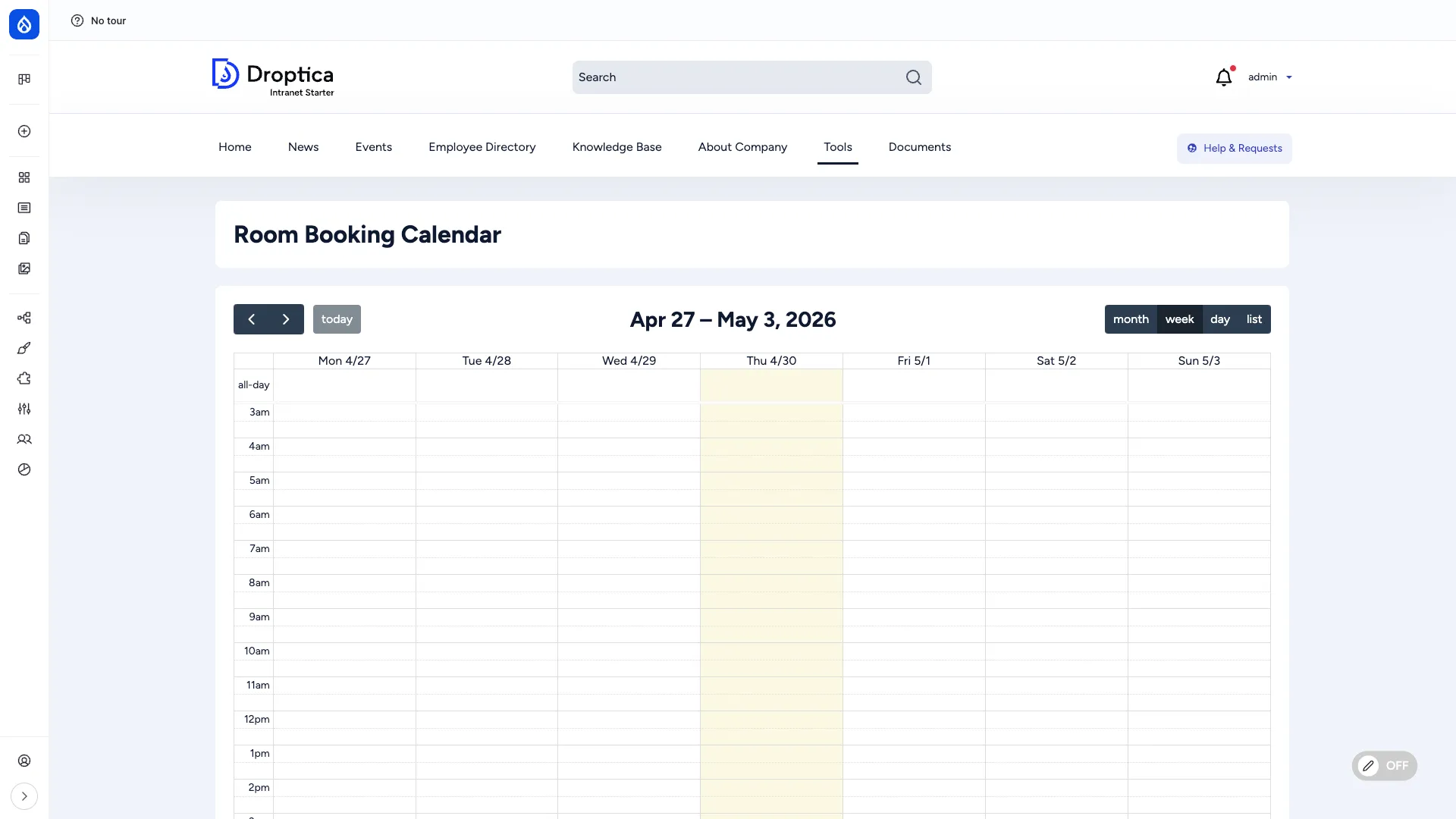
The page link is also exposed in the main menu under Tools → Room Booking → Room Booking Calendar.
Adding a room — /node/add/rmb_room
Section titled “Adding a room — /node/add/rmb_room”Rooms are the bookable spaces. Use Create → [Room Booking] Room or /node/add/rmb_room.
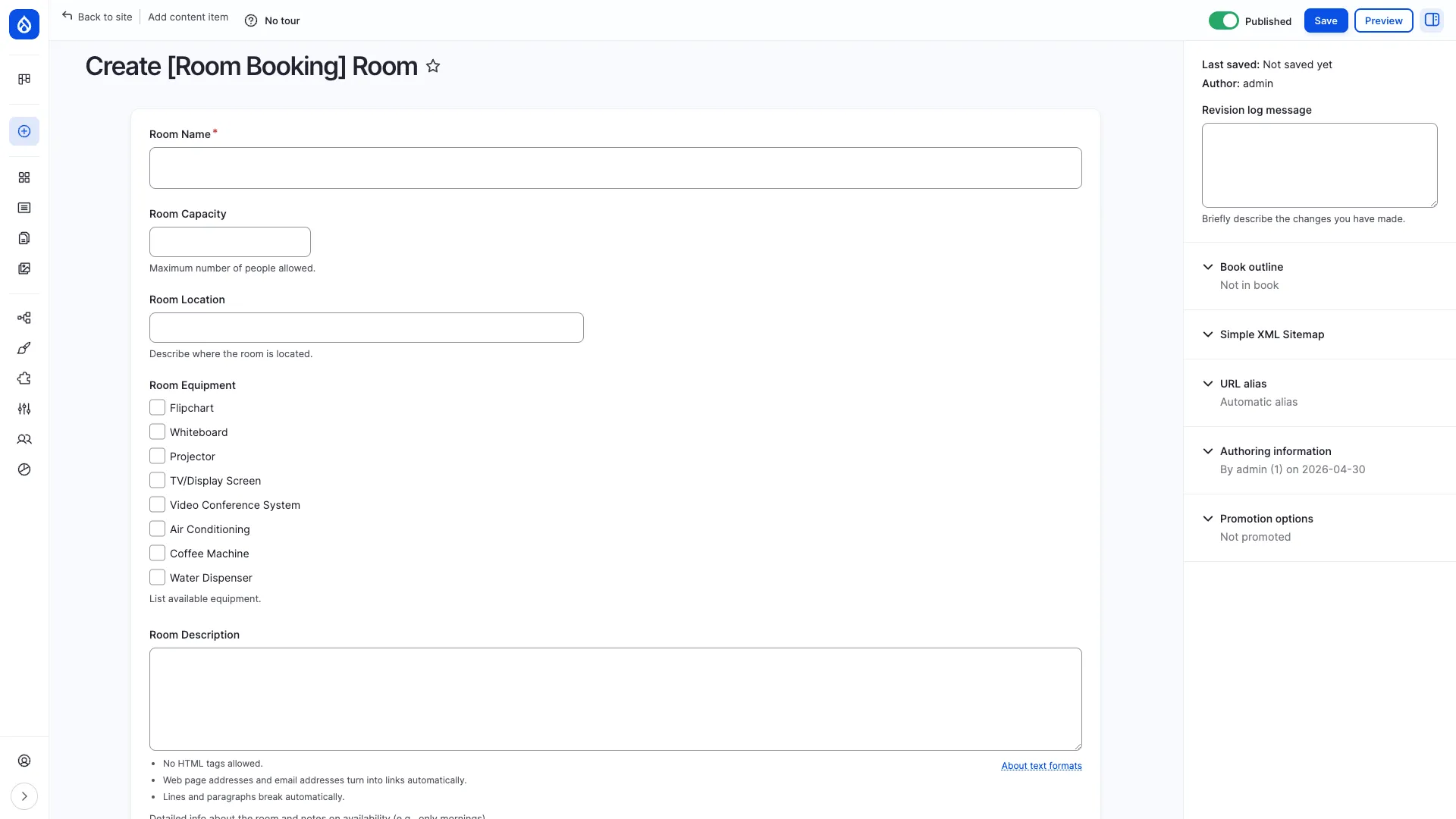
Room fields
Section titled “Room fields”| Field | Type | Notes |
|---|---|---|
| Room Name | Text | Room name shown everywhere (e.g. “Conference Room — Executive Boardroom”) |
| Room Description | Long text | Marketing copy, availability hours, restrictions |
| Room Location | Text | Free-form, e.g. “15th Floor, Executive Wing, Room 1501” |
| Room Capacity | Integer | Maximum number of people |
| Room Equipment | Multi-select | Pre-defined list (see below). Multiple values allowed. |
Equipment options (out of the box)
Section titled “Equipment options (out of the box)”- Flipchart
- Whiteboard
- Projector
- TV / Display Screen
- Video Conference System
- Air Conditioning
- Coffee Machine
- Water Dispenser
You can extend the list by editing the Equipment field on the rmb_room content type at /admin/structure/types/manage/rmb_room/fields.
Adding a booking — /node/add/rmb_booking
Section titled “Adding a booking — /node/add/rmb_booking”Use Create → [Room Booking] Booking, the Add Room Booking menu link or /node/add/rmb_booking. Step-by-step instructions for users are in Room Booking.
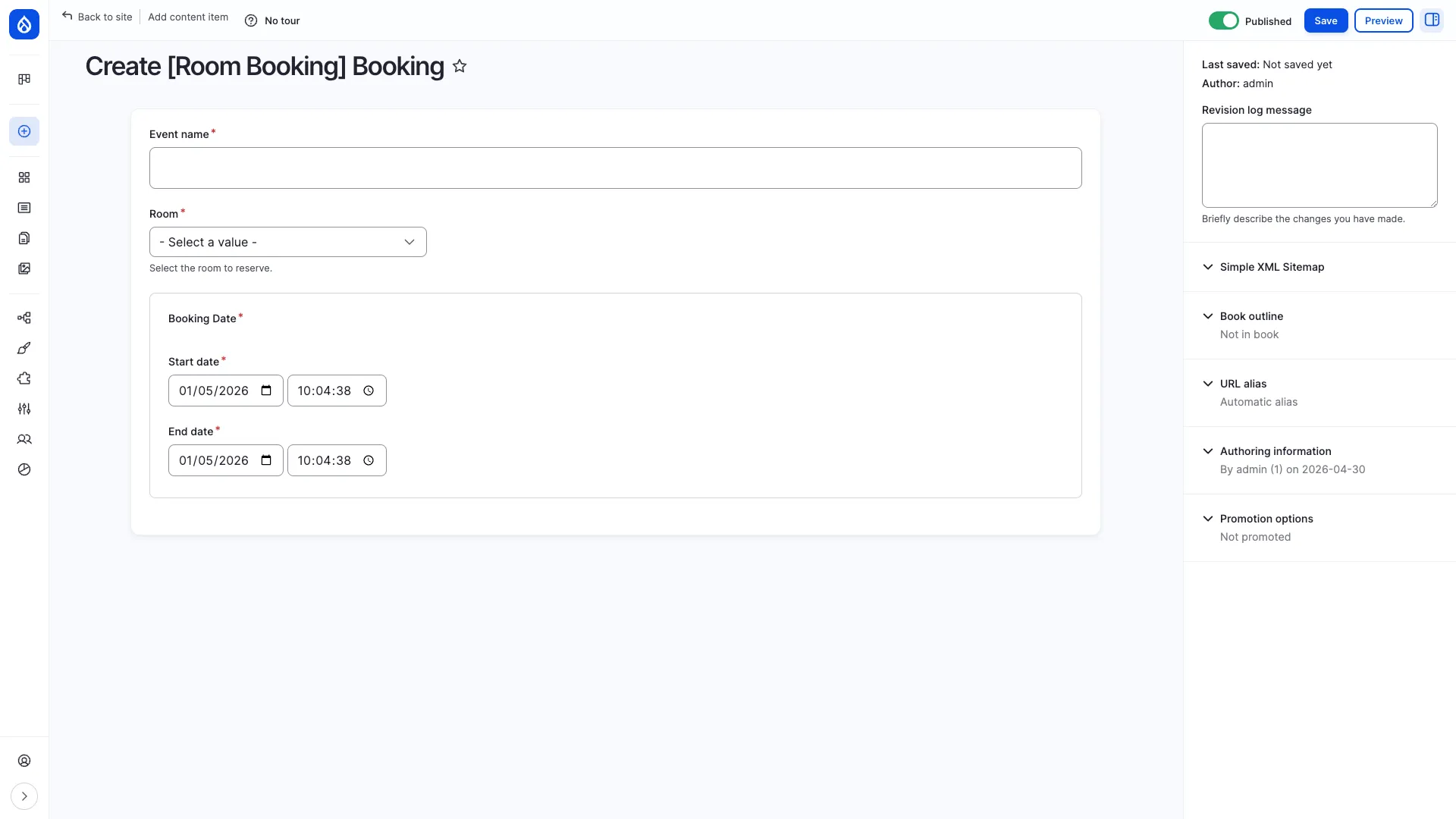
Booking fields
Section titled “Booking fields”| Field | Type | Notes |
|---|---|---|
| Event name | Text | Short description of the booking (e.g. “Q4 strategy review”) |
| Booking Date | Datetime range | Start date and End date, each with a date and a time |
| Room | Entity reference | Pick from existing rooms |
After saving, the booking appears immediately in the calendar at /rooms.
The form does not check for overlapping bookings: two bookings for the same room and time are both saved and both appear in the calendar.
Room detail page
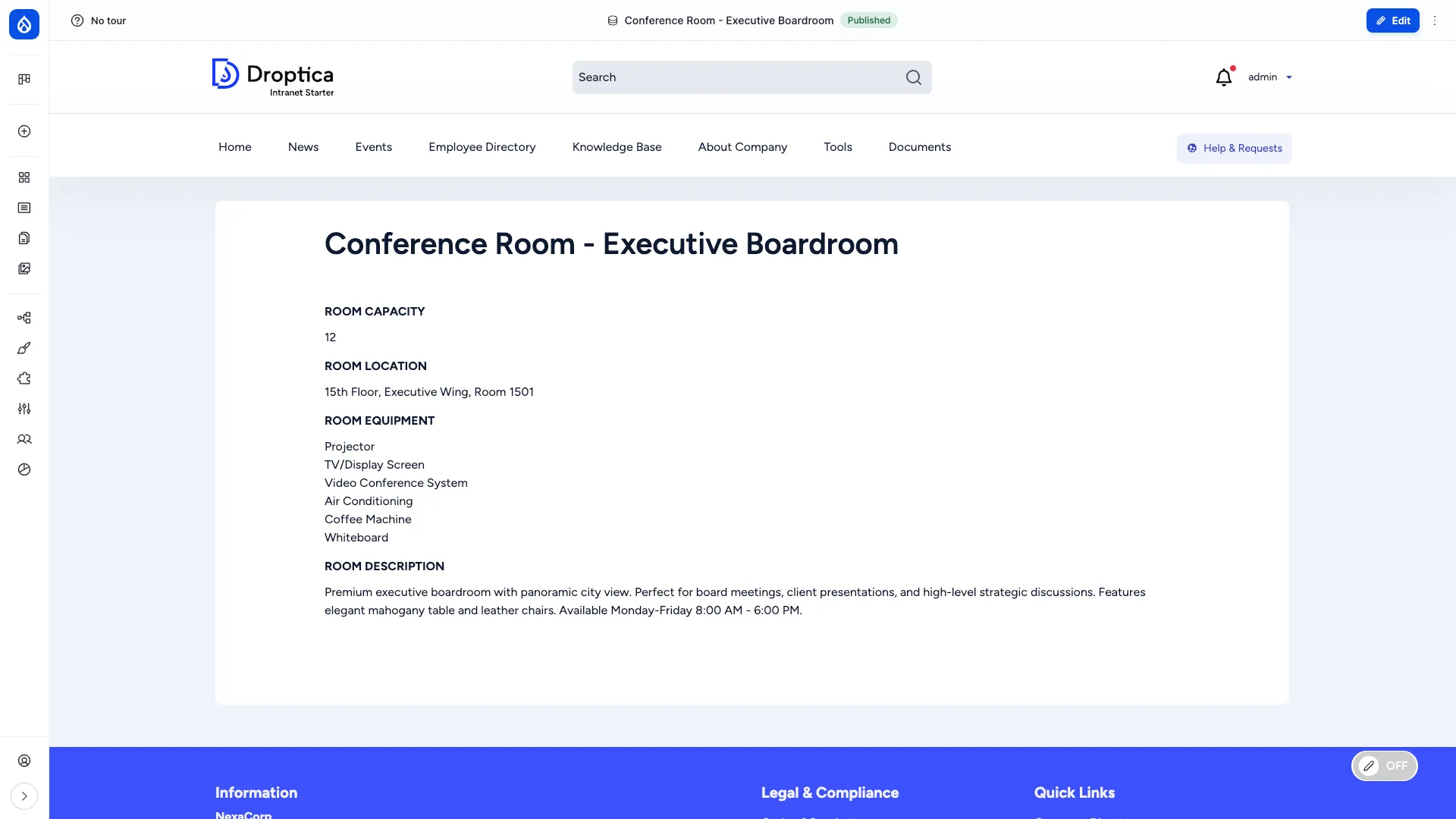
Section titled “Room detail page”Each room has its own canonical page that lists capacity, location, equipment and the room description. Useful to share a direct link with a colleague: “Book us into [Executive Boardroom]”.
Demo content
Section titled “Demo content”The recipe ships three illustrative rooms so editors can see how everything looks before adding their own:
| Room | Capacity | Location |
|---|---|---|
| Conference Room — Executive Boardroom | 12 | 15th Floor, Executive Wing, Room 1501 |
| Creative Workshop Space | 8 | 5th Floor, Innovation Hub |
| Phone Booth | 1 | Multiple floors |
Delete or edit them once you have your real catalogue.
Roles and permissions
Section titled “Roles and permissions”Applying the recipe sets up these permissions:
| Who | Can do |
|---|---|
| Authenticated user | Create bookings, and edit and delete their own bookings |
RMB - Room Manager (rmb_room_manager) | Create rooms, edit and delete any room, create bookings, edit and delete any booking |
Everyone who can view content sees the calendar and all rooms. Assign the RMB - Room Manager role to facility / office managers so they can curate the room catalogue and all bookings without giving them full administrator rights.
If Room Booking was installed before the booking permissions were part of the recipe, your site may lack them and ordinary users get Access denied on the Add Room Booking link. Check the [Room Booking] Booking: Create new content, Edit own content and Delete own content rows for the Authenticated user role at /admin/people/permissions.
Permissions are configurable at /admin/people/permissions — search for “rmb_room” and “rmb_booking” to see all the relevant rows.
Menu links added
Section titled “Menu links added”The recipe adds three entries to the main menu, under Tools, grouped under a Room Booking parent:
- Room Booking (parent / dropdown)
- Room Booking Calendar →
/rooms - Add Room Booking →
/node/add/rmb_booking?destination=/rooms
- Room Booking Calendar →
You can rename, reorder or hide these from Structure → Menus → Main navigation.
Modules used
Section titled “Modules used”The recipe depends on the following Drupal modules — all of them ship with Open Intranet by default:
node,text,options— Drupal coredatetime_range— Drupal coreviews— Drupal corefullcalendar_view— Contrib calendar widget