

Your first day
This page takes about ten minutes. Follow the steps in order, or jump to the one you need.
-
Sign in
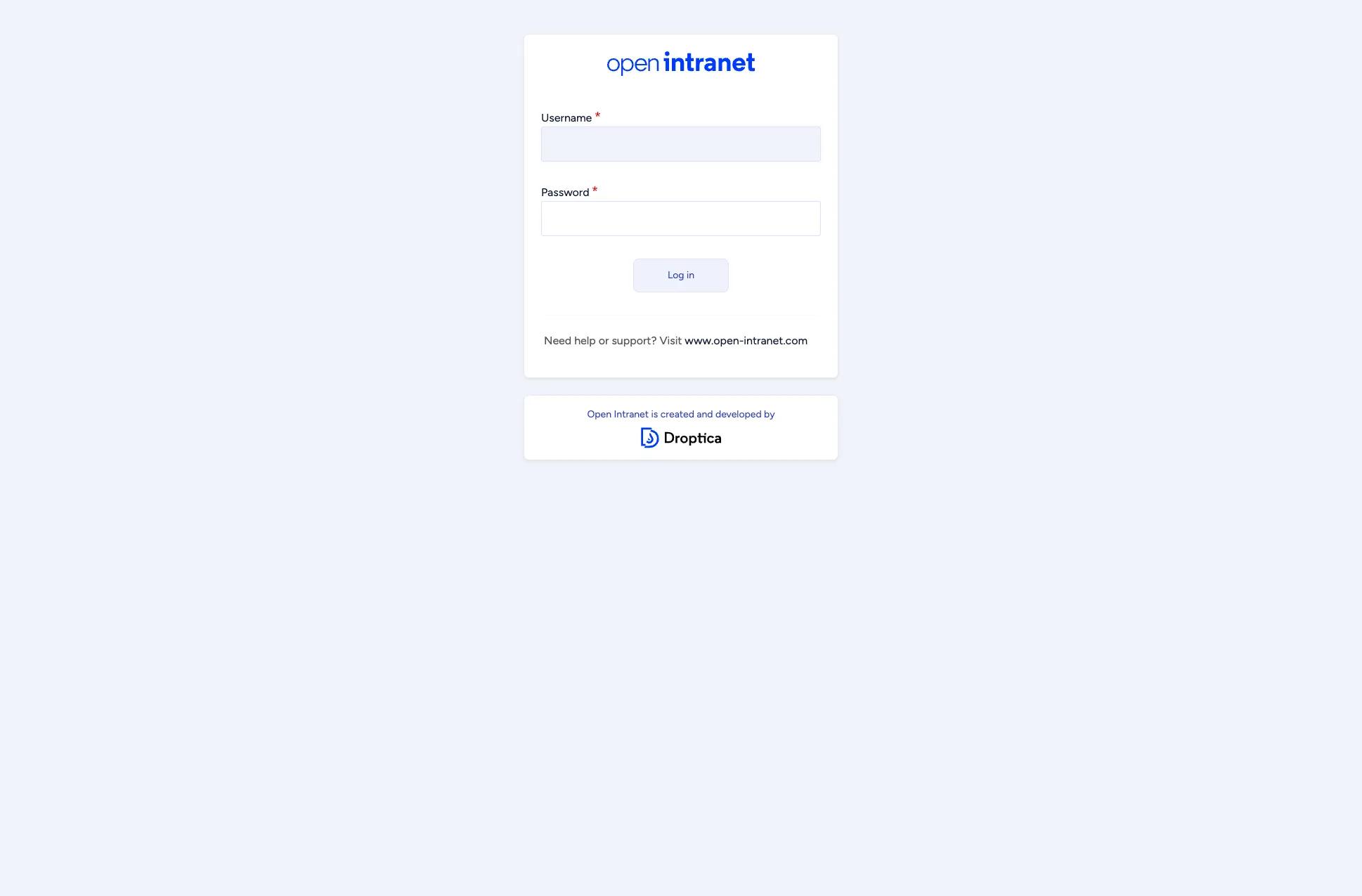
Open your intranet address, enter your Username and Password and click Log in. Your administrator creates your account, so there is no sign-up page. Resetting a forgotten password by email is switched off in a default installation, so if you forget yours, ask your administrator.
-
Look around the homepage
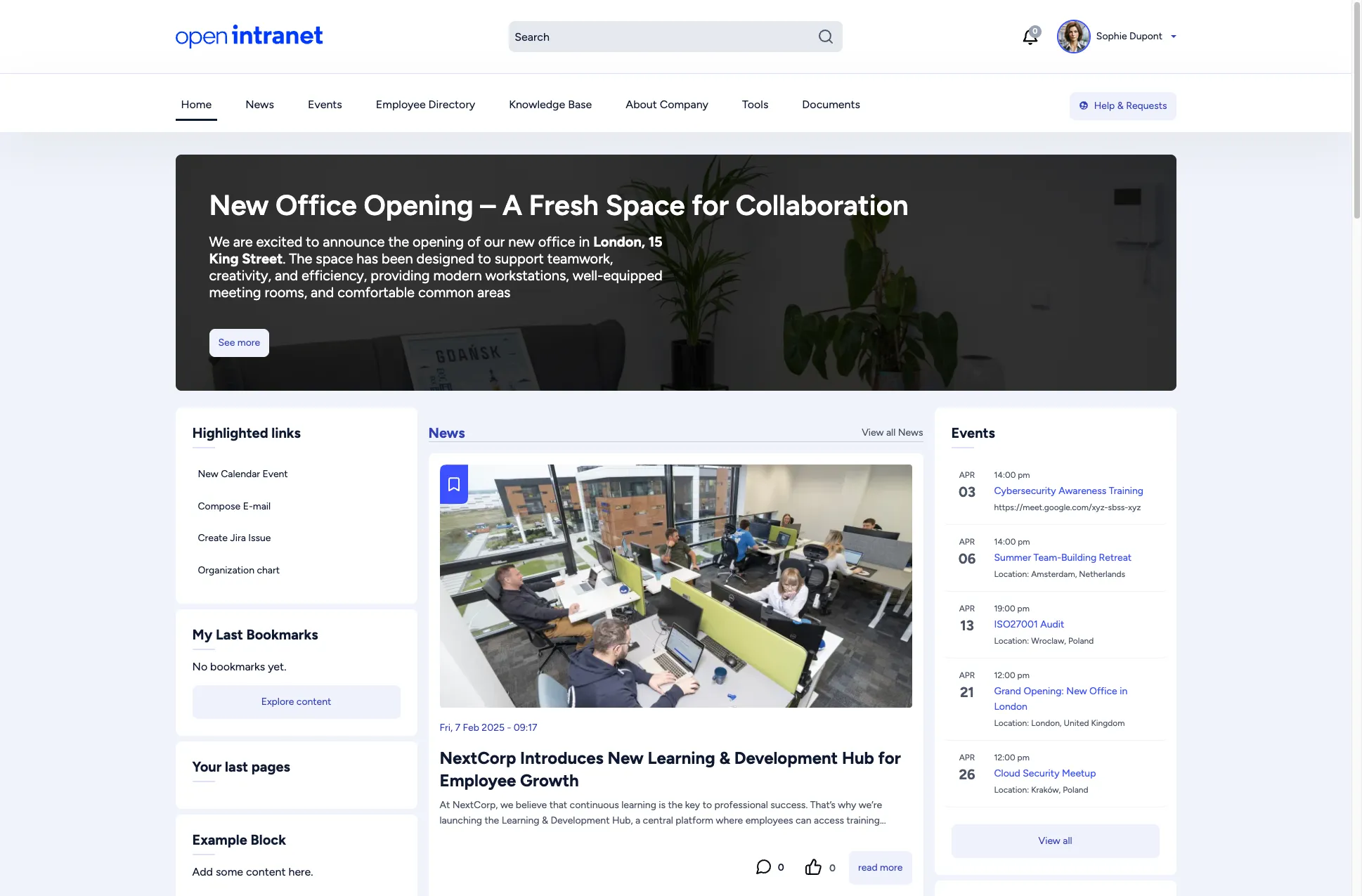
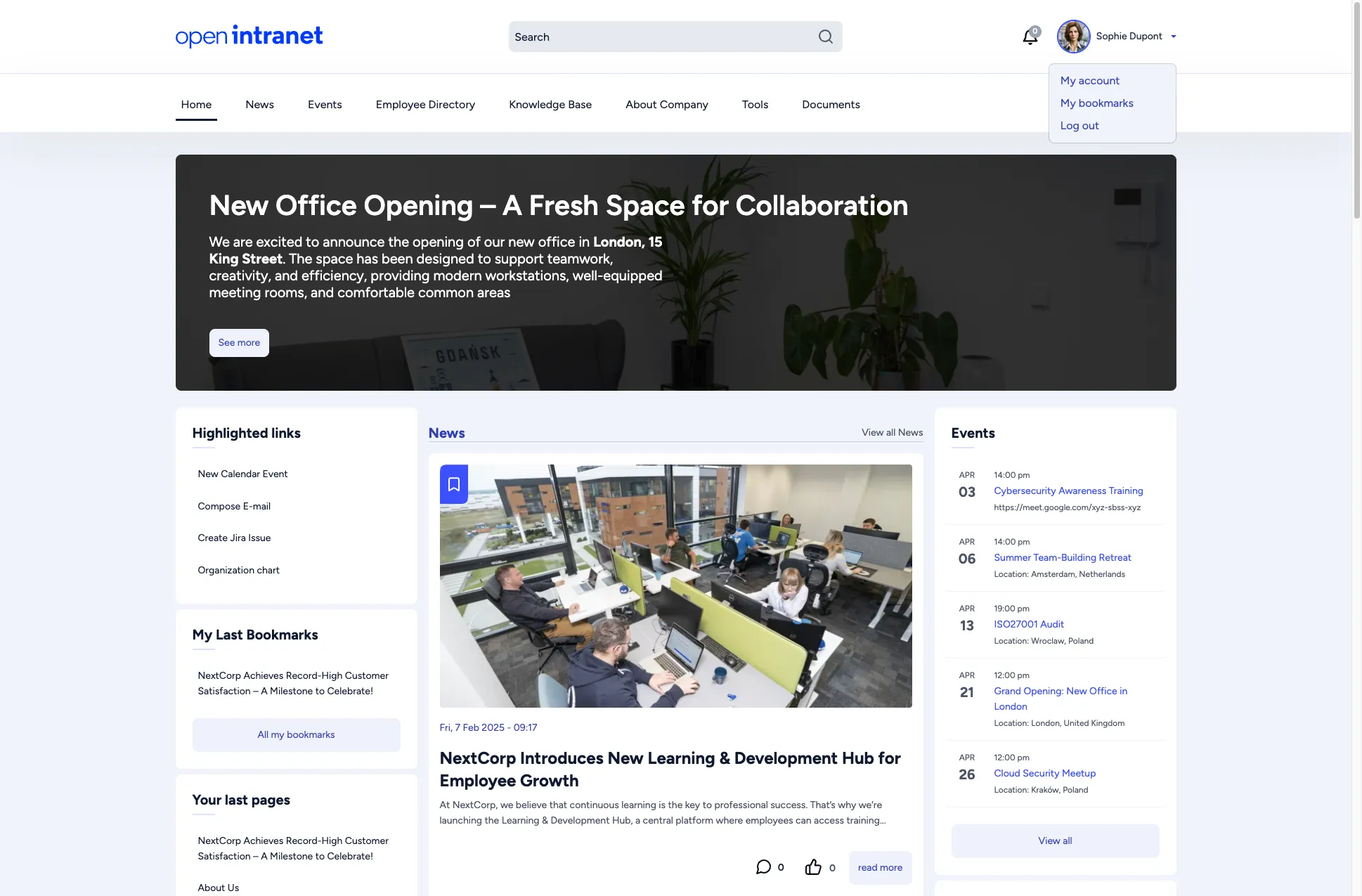
The main menu runs across the top: Home, News, Events, Employee Directory, Knowledge Base, About Company, Tools and Documents. Next to it you find the search box, the notification bell and your name. The homepage shows a banner, Highlighted links, My Last Bookmarks, the latest news and upcoming events. More in Homepage & Navigation.
-
Read the news and react
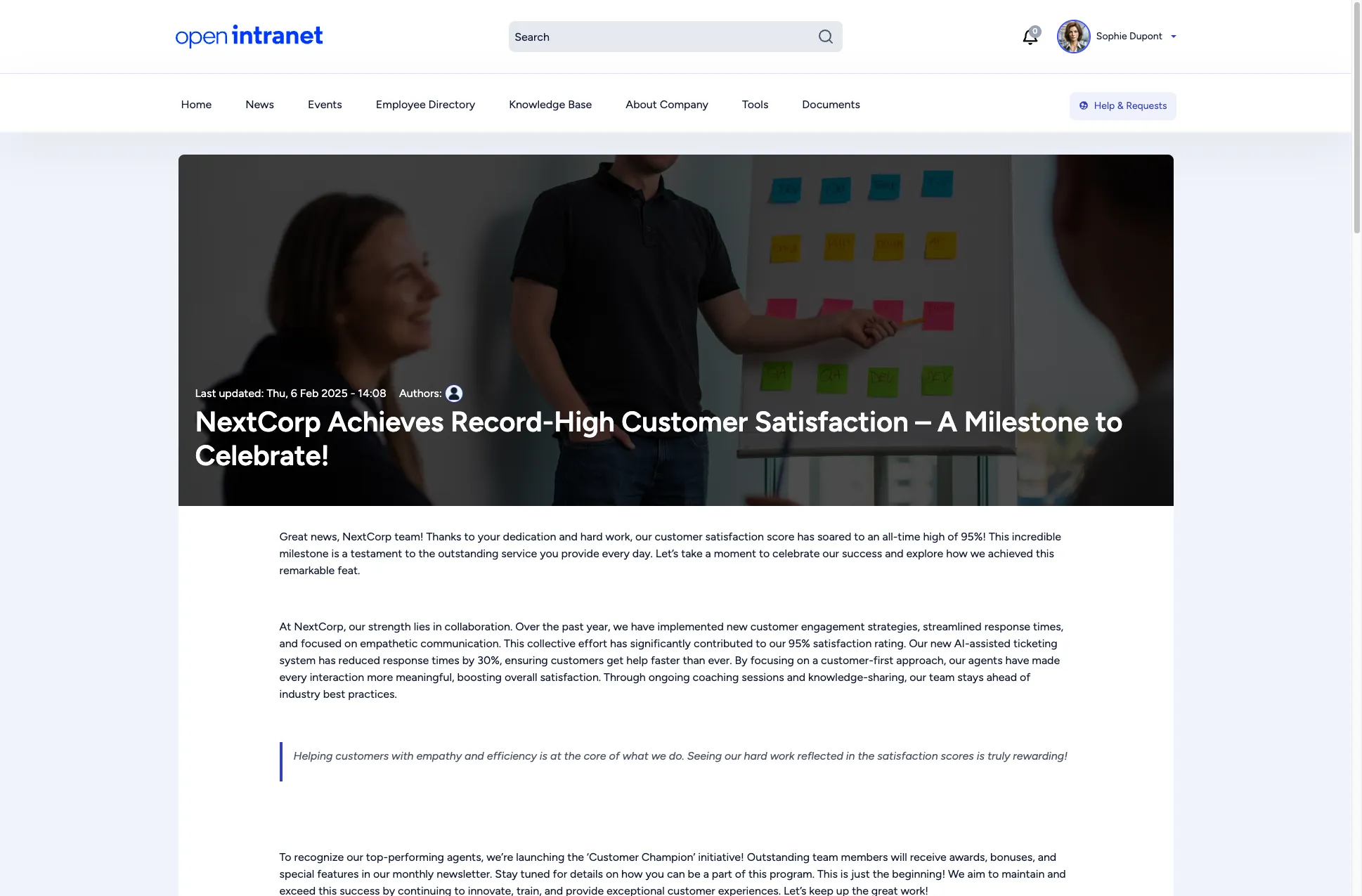
Open News, click an article and read it. Under the article, click I like this to show appreciation, and scroll down to join the discussion in the comments. See Social Features for details.
-
Find something with search
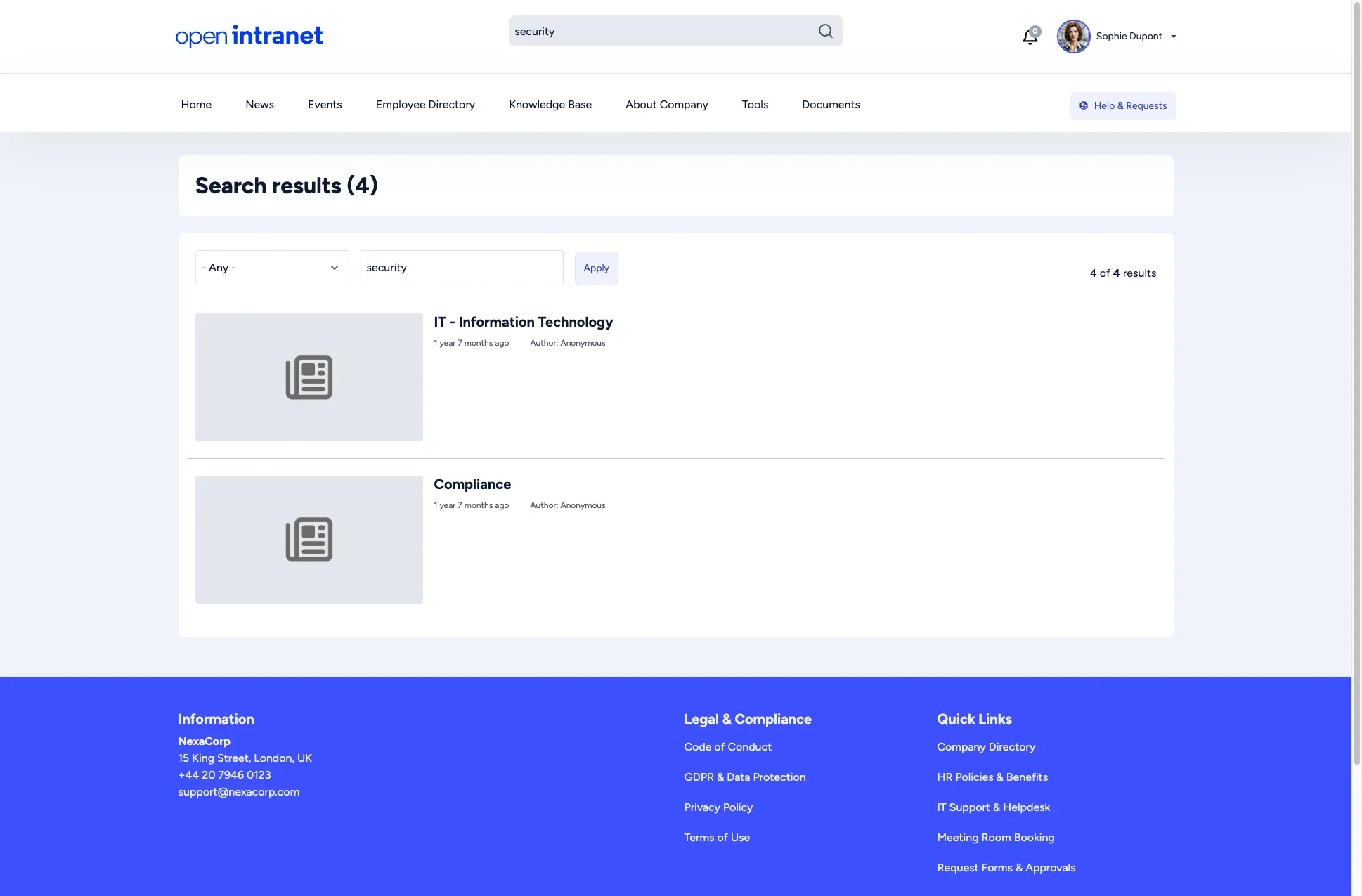
Type a word into the search box at the top of any page and press Enter. The results page lists matching news, pages, knowledge base articles and more. More in Search.
-
Complete your profile
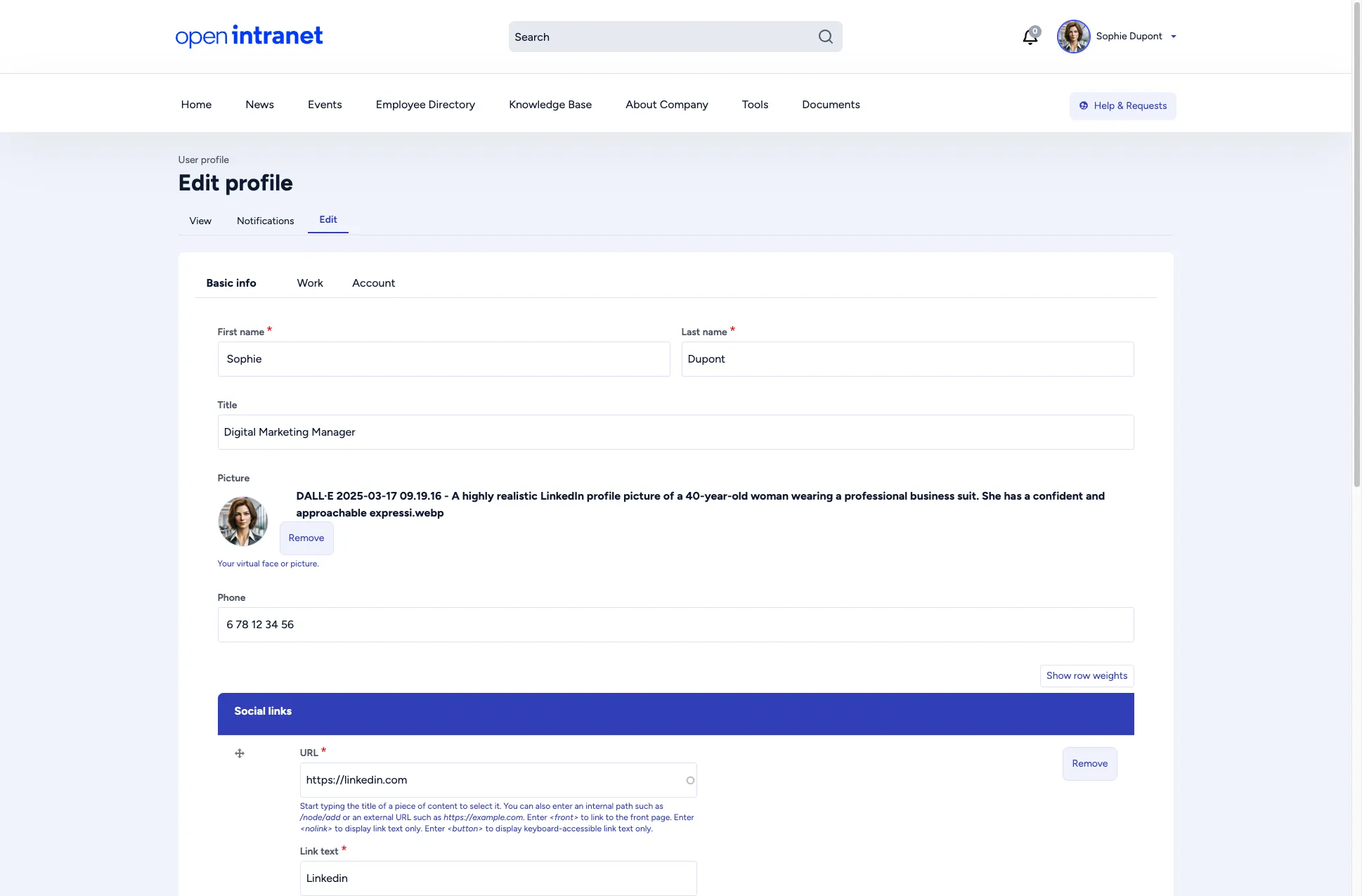
Click your name in the top-right corner and choose My account, then open the Edit tab. The Basic info tab holds your name, title, picture, phone number and social links; the Work and Account tabs hold the rest, including your email address and password. A complete profile helps colleagues find and recognise you. More in Your Profile.
-
Find a colleague
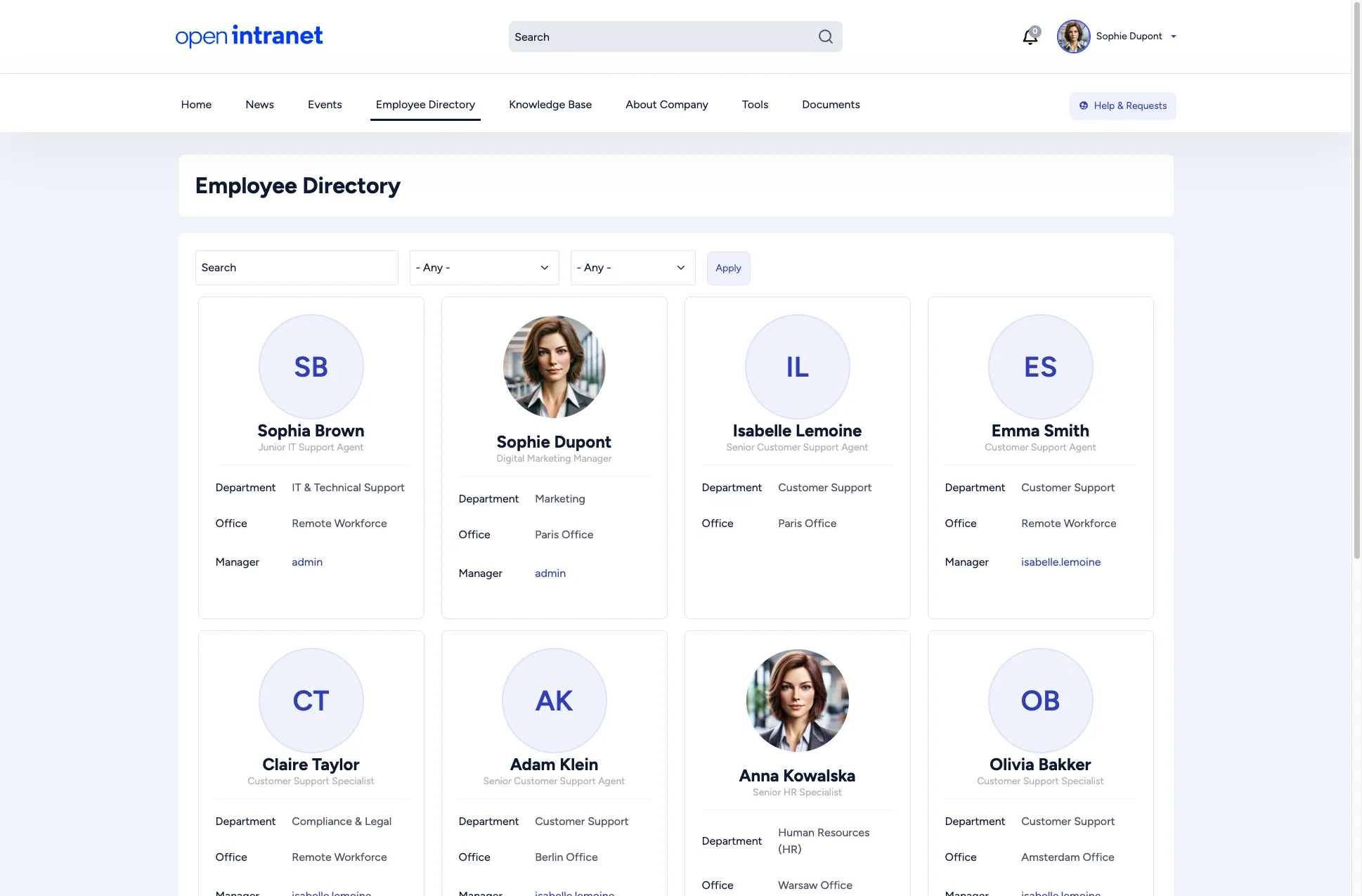
Open Employee Directory, search by name or use the filters. Each card shows a colleague’s name, title, department, office and manager. On the homepage, Organization chart under Highlighted links shows who reports to whom. More in Employee Directory.
-
Bookmark what you want to keep
On an article, click Add to Bookmarks, which you find below the comments. To see everything you saved, click your name and choose My bookmarks.
-
Know where to get help
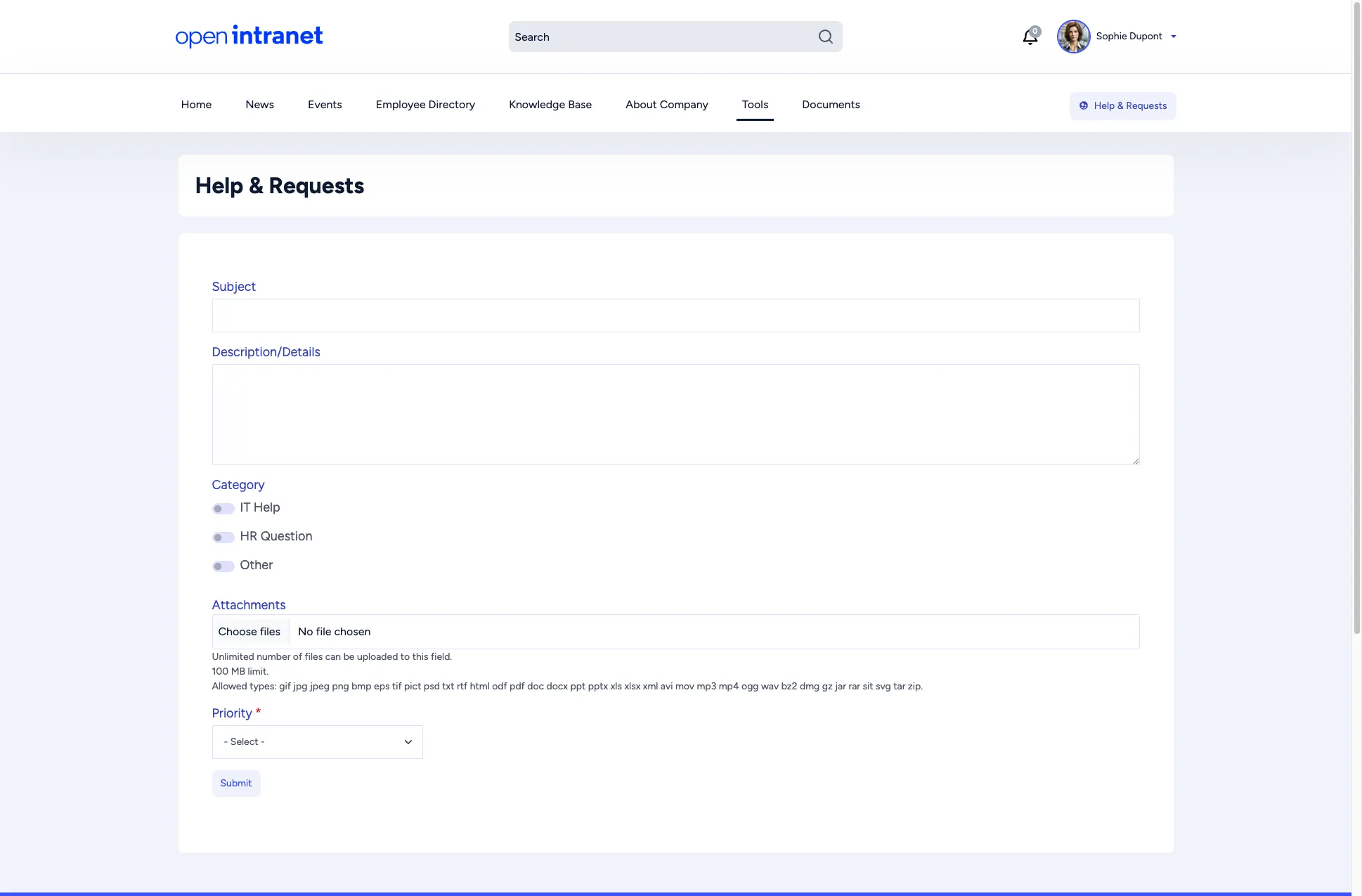
The Help & Requests button in the header opens a form where you describe your problem, choose a category (IT Help, HR Question or Other) and a priority, and attach files. For anything about your account or access, ask your administrator.
What next?
Section titled “What next?”- Documents: browse folders and download files
- Knowledge Base: internal articles organized by topic
- Roles: what you can do: find out why some buttons are missing for you