

Homepage & Navigation
The homepage is the first screen you see after logging in. It gives you a quick overview of what is happening in the organization.
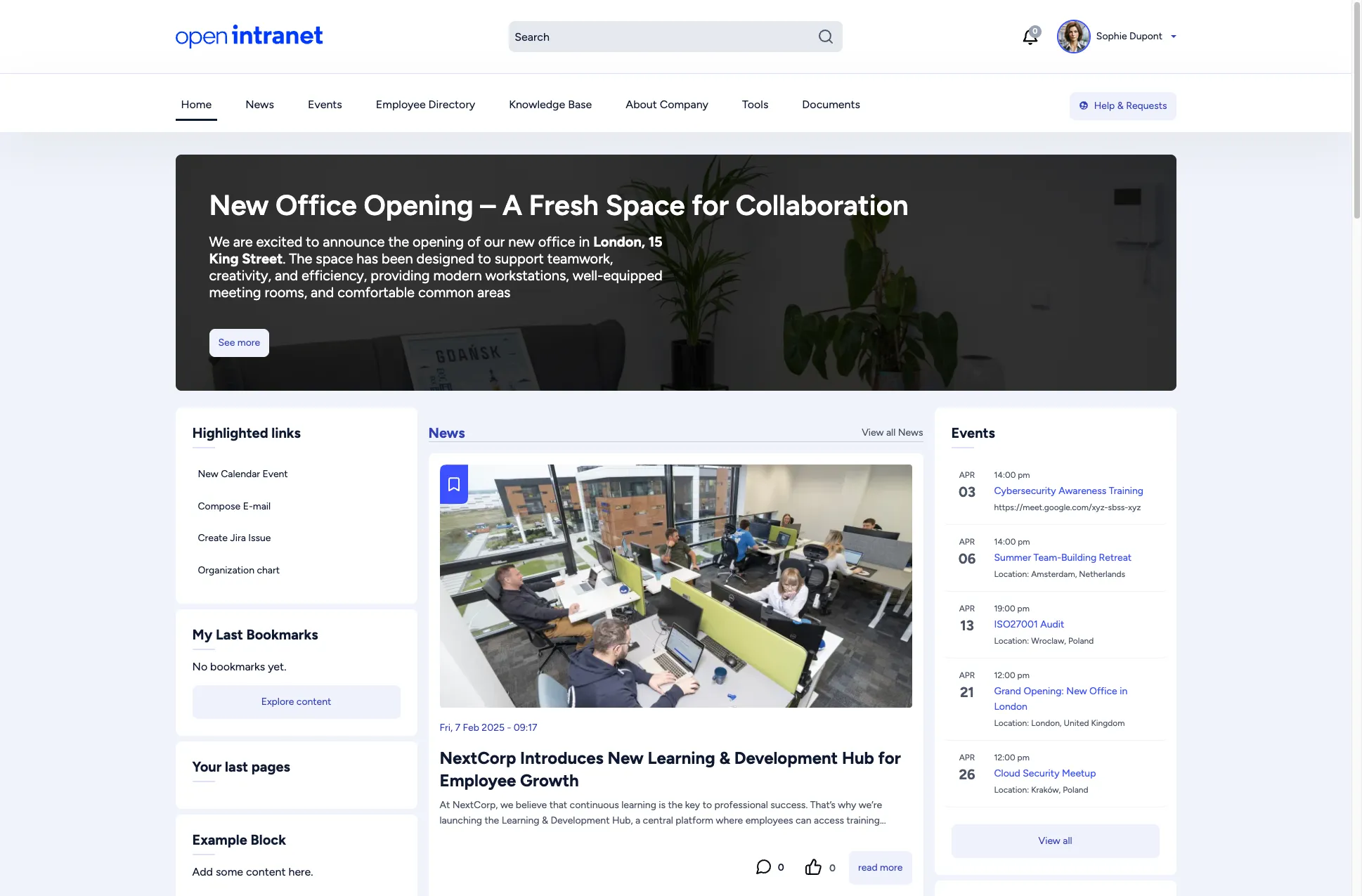
Homepage layout
Section titled “Homepage layout”The homepage is divided into several areas:
- Banner — A large hero area at the top highlighting an important announcement or campaign. Click See more to read the full article.
- News feed — The center column shows the latest news articles with thumbnails, publication dates, and short summaries. Click any title to read the full article, or use View all News to see older articles.
- Events sidebar — The right column lists upcoming events with dates, times, and locations. Click an event title to see details, or View all to open the full events listing.
- Highlighted links — A widget with quick-action shortcuts such as New Calendar Event, Compose E-mail, or Organization chart. These links are configured by your administrator.
- My Last Bookmarks — Shows content you have bookmarked. If empty, click Explore content to start browsing.
- Your last pages — A list of pages you recently visited, making it easy to pick up where you left off.
Header bar
Section titled “Header bar”The header bar is always visible at the top of every page and contains:
| Element | Description |
|---|---|
| Logo | Click the company logo on the left to return to the homepage from any page. |
| Search | A search field in the center. Type a keyword and press Enter to search across all intranet content. |
| Notifications bell | Shows a badge when you have unread notifications. Click to view them. |
| User menu | Your name and avatar in the top-right corner. Click to access your profile, bookmarks, and log out. |
Main menu
Section titled “Main menu”Below the header bar, the main navigation menu provides access to all major sections:
- Home — Returns to the homepage.
- News — All company news articles.
- Events — Upcoming and past events, including a calendar view.
- Employee Directory — Search for colleagues by name, department, or office.
- Knowledge Base — Internal documentation organized by topic.
- About Company — Pages about the organization, departments, and legal information.
- Tools — Links to forms, help requests, surveys, and other utilities.
- Documents — The document management system with folders and files.
- Help & Requests — Quick access to support forms and requests.
Some menu items have sub-menus that appear on hover or click, revealing additional pages.
Footer
Section titled “Footer”At the bottom of every page, the footer provides:
- Company contact information — Address, phone, and email.
- Legal & Compliance links — Code of Conduct, GDPR, Privacy Policy, Terms of Use.
- Quick Links — Shortcuts to frequently used pages like Company Directory, HR Policies, and IT Support.