

Document Management
Browsing, searching and downloading are for everyone. Sections marked Editors need an editor role: Content Editor - Documents to add, edit and delete files, and Content editor to restrict who can see them.
The Documents section is a hierarchical file library shared by the whole company. You can browse folders, upload files from your computer or link to files stored in Google Drive, OneDrive, Dropbox or Box, preview most file types directly in the browser, and search across every folder. Each document tracks its own revision history and — if your administrator has set it up — can be restricted to specific groups (for example, “Finance” or “Berlin Sales”) or to individual users.
This page walks through the user-facing flows. For the admin-side configuration (enabling cloud sources, setting up access groups, the per-document Access tab), see Administration → Documents.
The folder browser
Section titled “The folder browser”Click Documents in the main navigation to open the browser at /documents. You always see the same three building blocks:
- A breadcrumb trail at the top, so you know where you are in the hierarchy and can jump back up at any level.
- An + Add menu and a search bar above the listing.
- A table of subfolders and documents in the current folder.
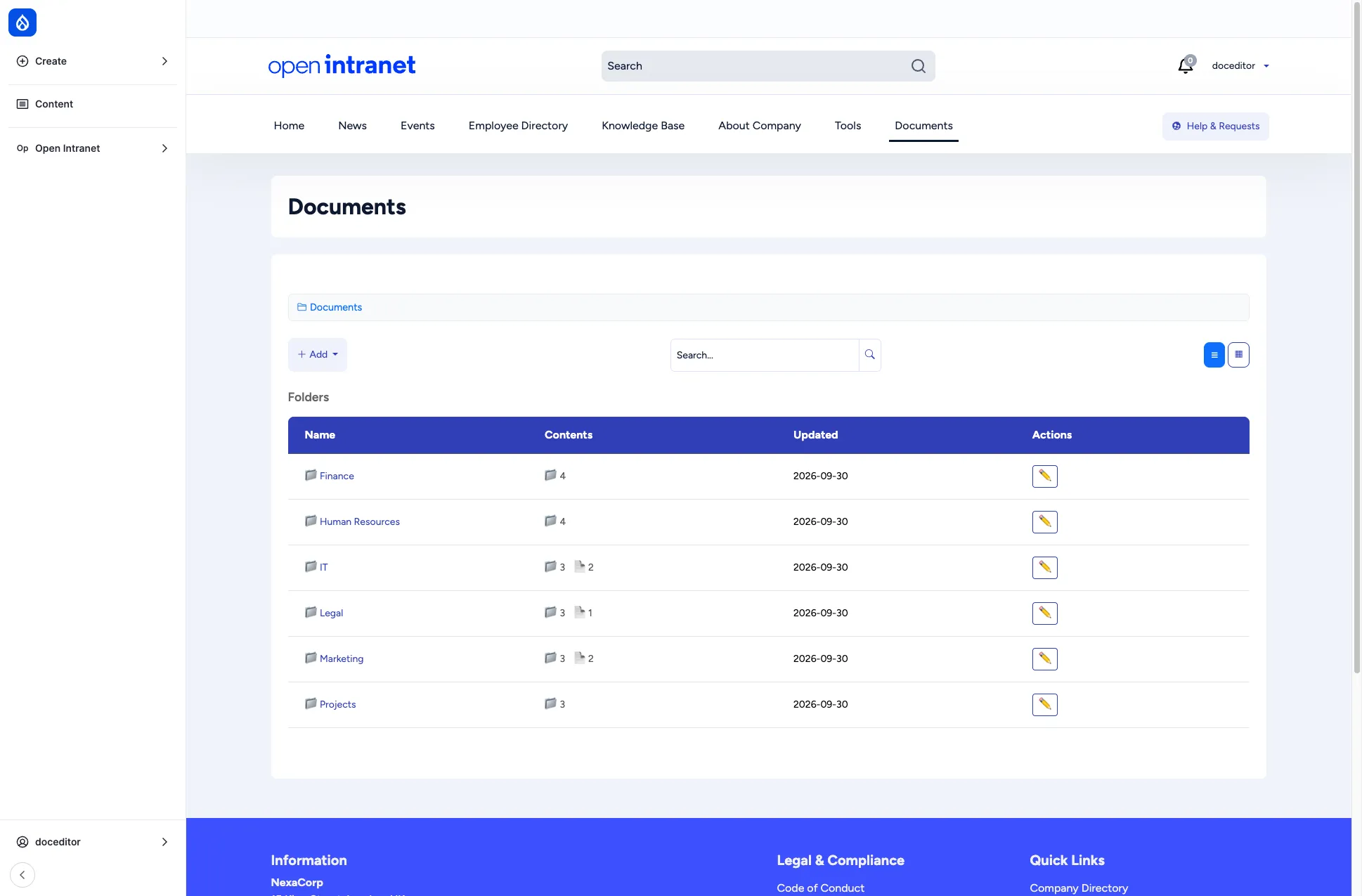
The two icons in the top-right toggle between list view (the default, table layout) and grid view (cards with file-type icons).
The columns mirror what is on disk:
| Column | Meaning |
|---|---|
| Name | Folder or document title. Click to open. |
| Contents | For folders: subfolder count and document count, shown side by side. |
| Updated | The most recent change date. |
| Actions | Inline edit pencil — quick edit without opening the item. |
Adding folders and documents
Section titled “Adding folders and documents”Click + Add above the listing to see the full menu. The available options depend on which sources your administrator has enabled in Settings (see Administration → Documents). Out of the box it shows Add Folder and Upload Local File; once cloud sources are turned on you also get Add from Google Drive, Add from Dropbox, Add from OneDrive, and Add from Box.
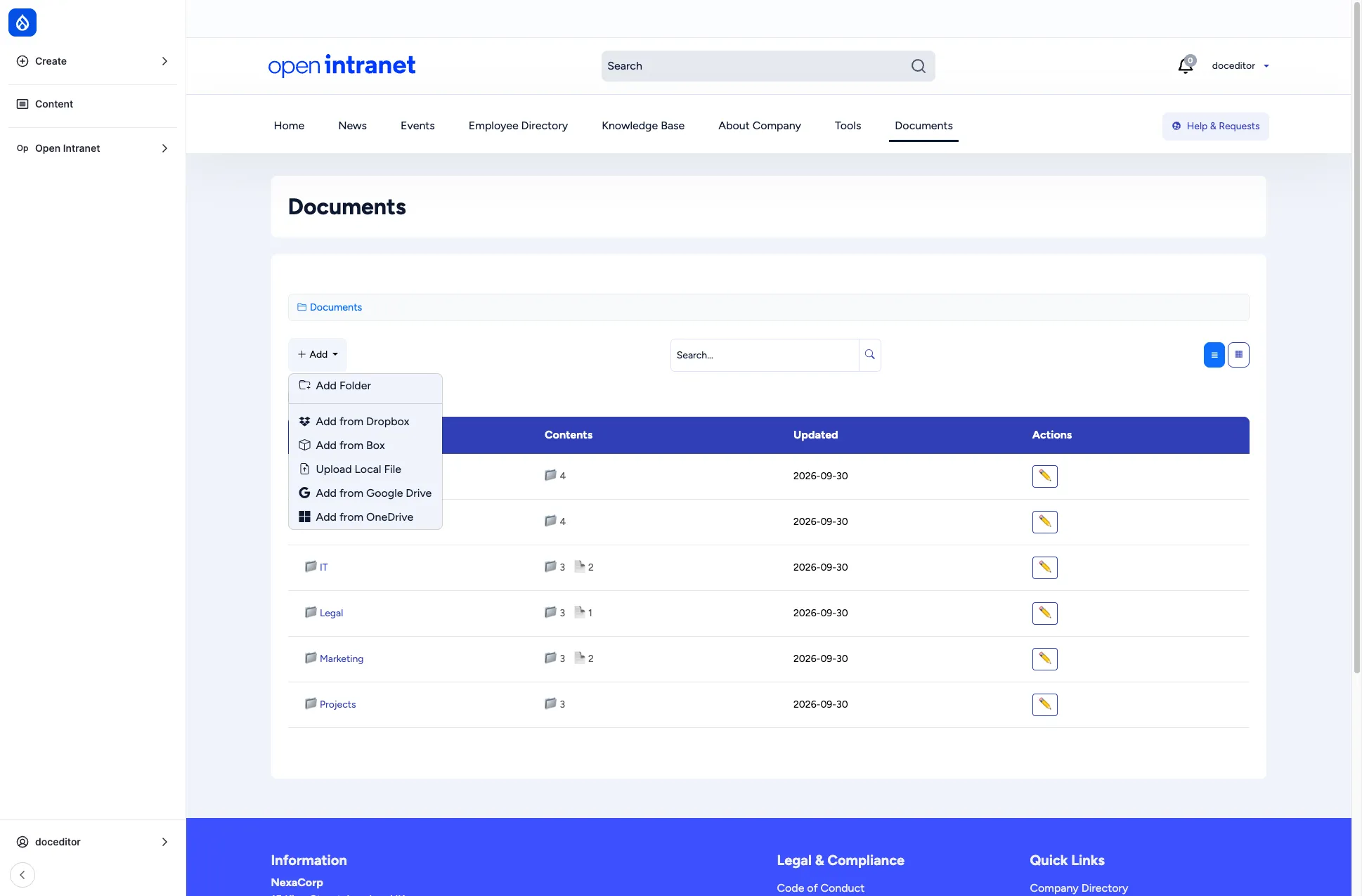
Add a folder
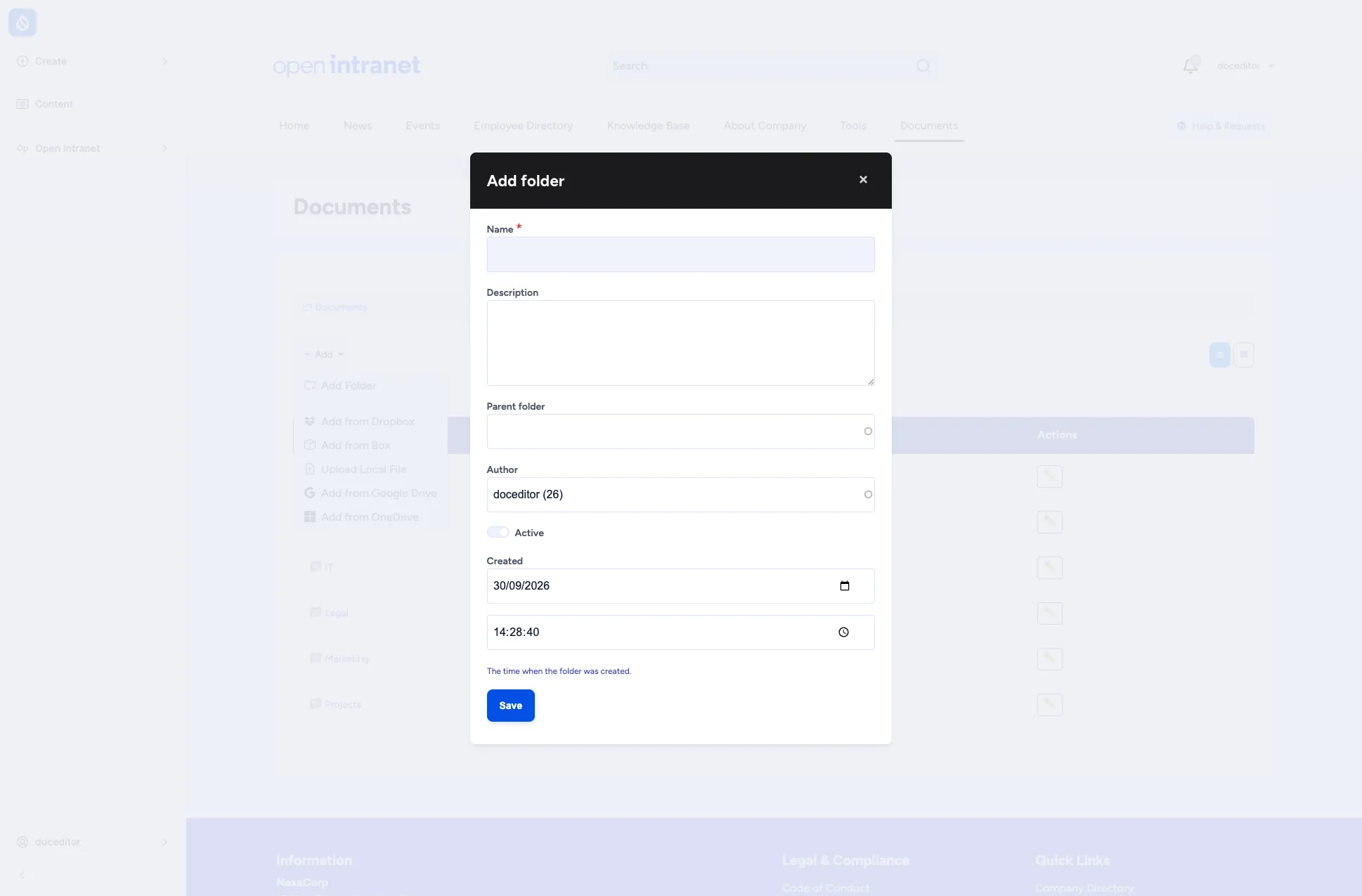
Section titled “Add a folder”- Click + Add above the listing and choose Add Folder.
- Enter a Name. The Description and Parent folder are optional. If you opened the form from inside a folder, using its own + Add menu, the Parent folder is already filled in. Otherwise the new folder is created at the top level.
- Leave Active on to show the folder in the browser. Turning it off hides the folder without deleting it, which is useful for archiving.
- Click Save.
Upload a local file
Section titled “Upload a local file”- Click + Add and choose Upload Local File.
- Enter a Title. This is what colleagues will see, and it does not have to match the filename.
- Optionally add a Description, pick a Folder from the autocomplete and choose your File.
- Click Save.
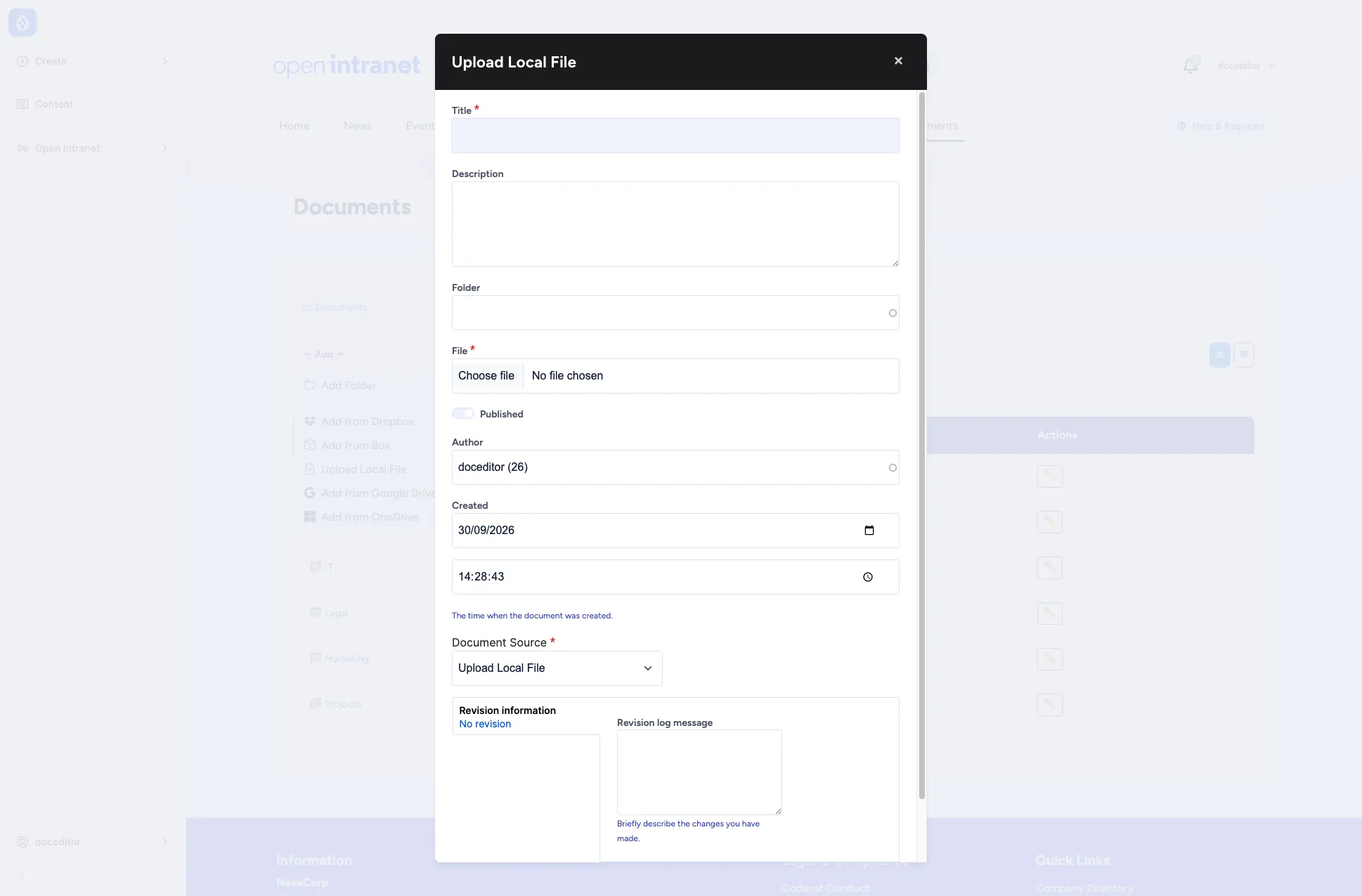
The maximum upload size is set by your administrator (50 MB by default).
Add a file from Google Drive, OneDrive, Dropbox or Box
Section titled “Add a file from Google Drive, OneDrive, Dropbox or Box”Choosing a cloud source opens a similar form, but instead of a file picker you get a URL field named after the source. Paste a sharing link, give the document a Title and optional Description, and pick a Folder. Open Intranet only embeds the link and does not copy the file, so the file must be shared on the source platform for people to see it.
Field: Google Drive URL. Paste the sharing link, for example https://drive.google.com/file/d/.../view. Share the file publicly or with “Anyone with the link”.
Field: OneDrive URL. Paste the sharing link or the embed link. Links from onedrive.live.com, 1drv.ms and SharePoint (*.sharepoint.com) are accepted. Share the file publicly or with “Anyone with the link”.
Field: Dropbox URL, for example https://www.dropbox.com/s/abc123/file.pdf?dl=0. The file must be shared with a public link.
Field: Box URL, for example https://app.box.com/s/abc123xyz. The file must be shared with a public link.
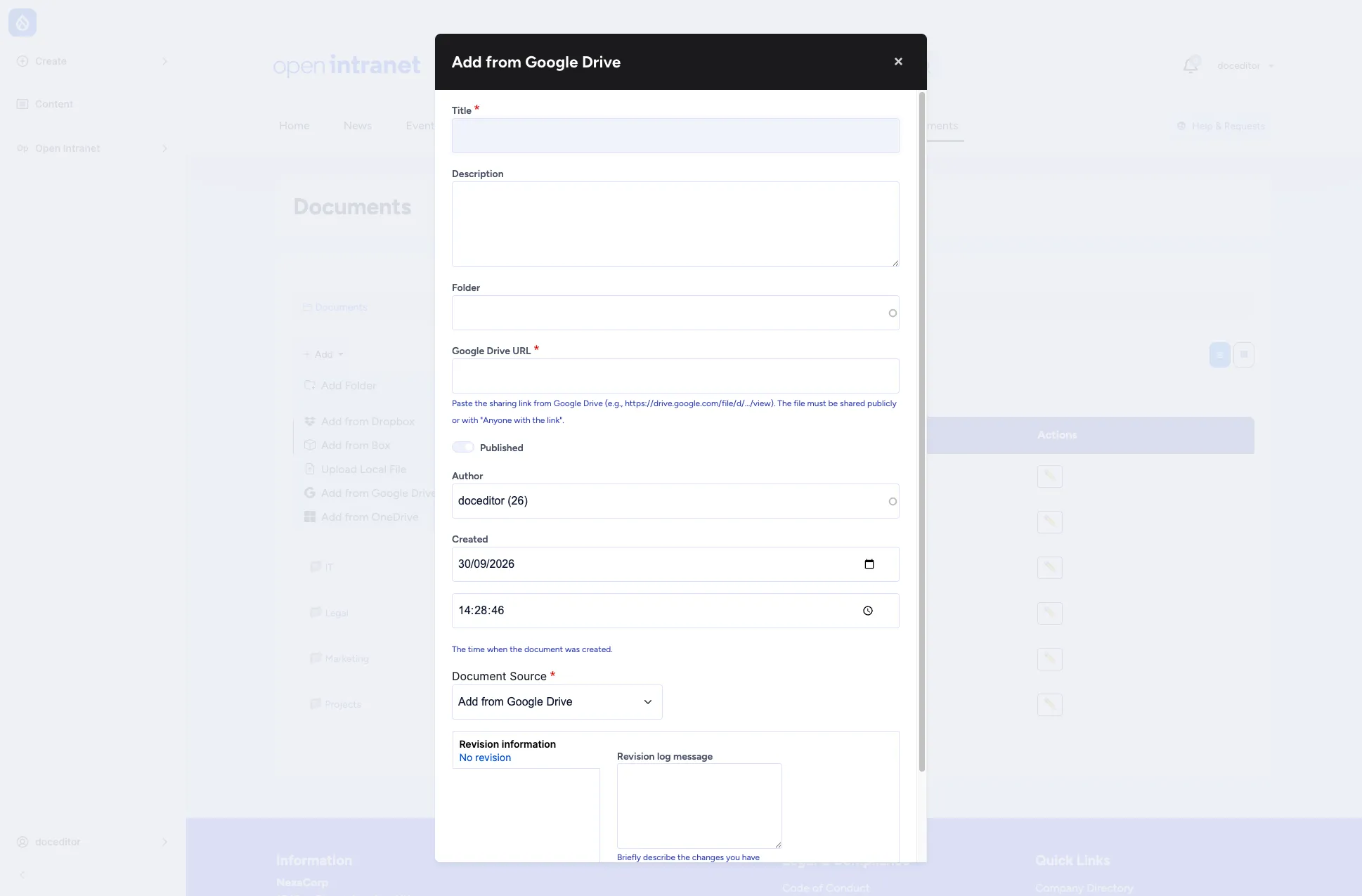
A link that does not match the chosen source, such as a private or unrelated address, is rejected with an error message.
Browsing inside a folder
Section titled “Browsing inside a folder”Clicking a folder name takes you inside it. The browser stays the same, just scoped to that folder: the breadcrumb grows by one segment, the Folders section now lists any subfolders, and a separate Documents section appears below for the files in this folder.
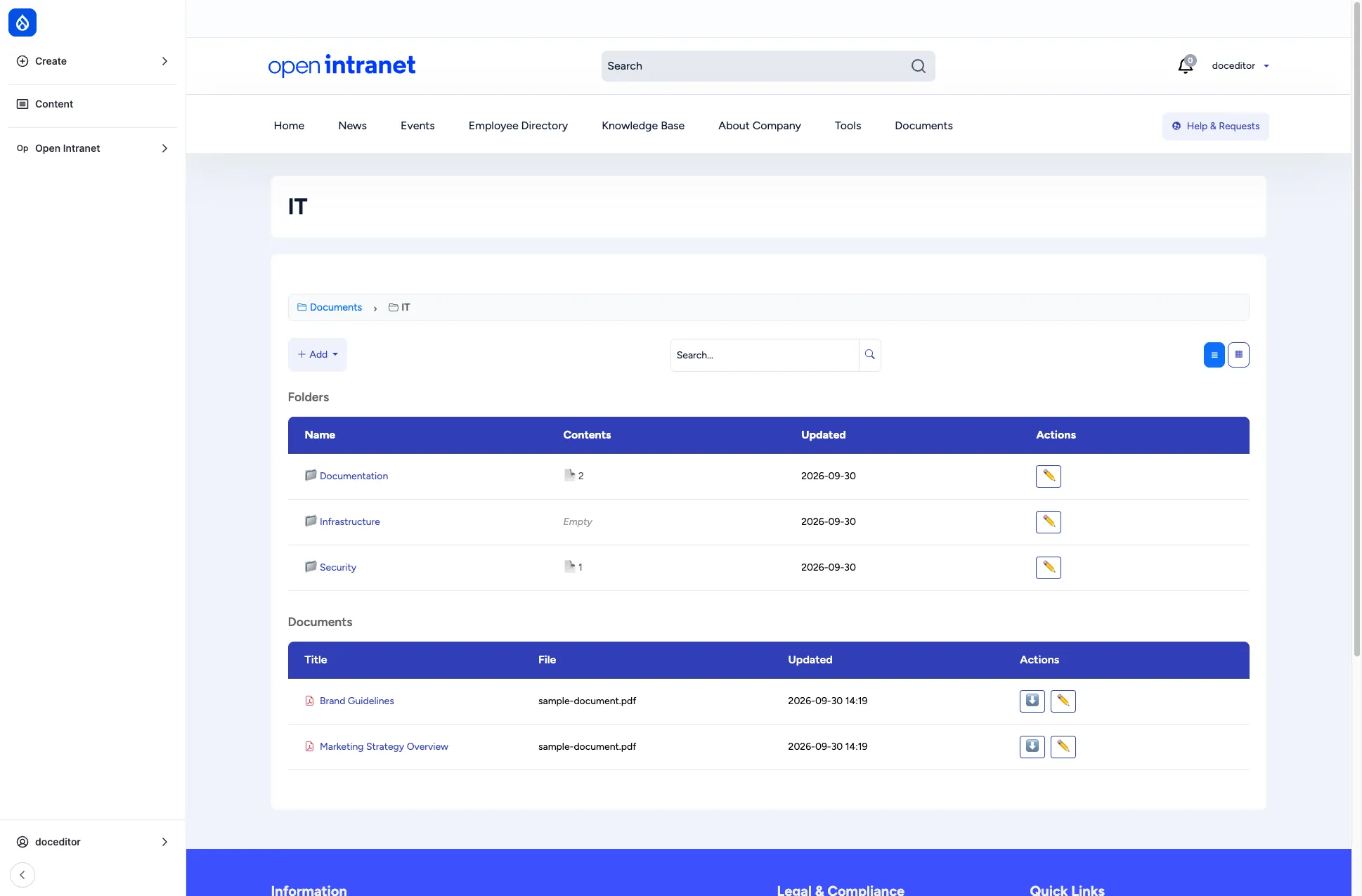
You can nest folders as deeply as you like. Use the breadcrumb to jump straight back up — there’s no need to “go back” page by page.
The document detail page
Section titled “The document detail page”Clicking any document title opens its detail page. This is the central screen for everything you can do with a single file.
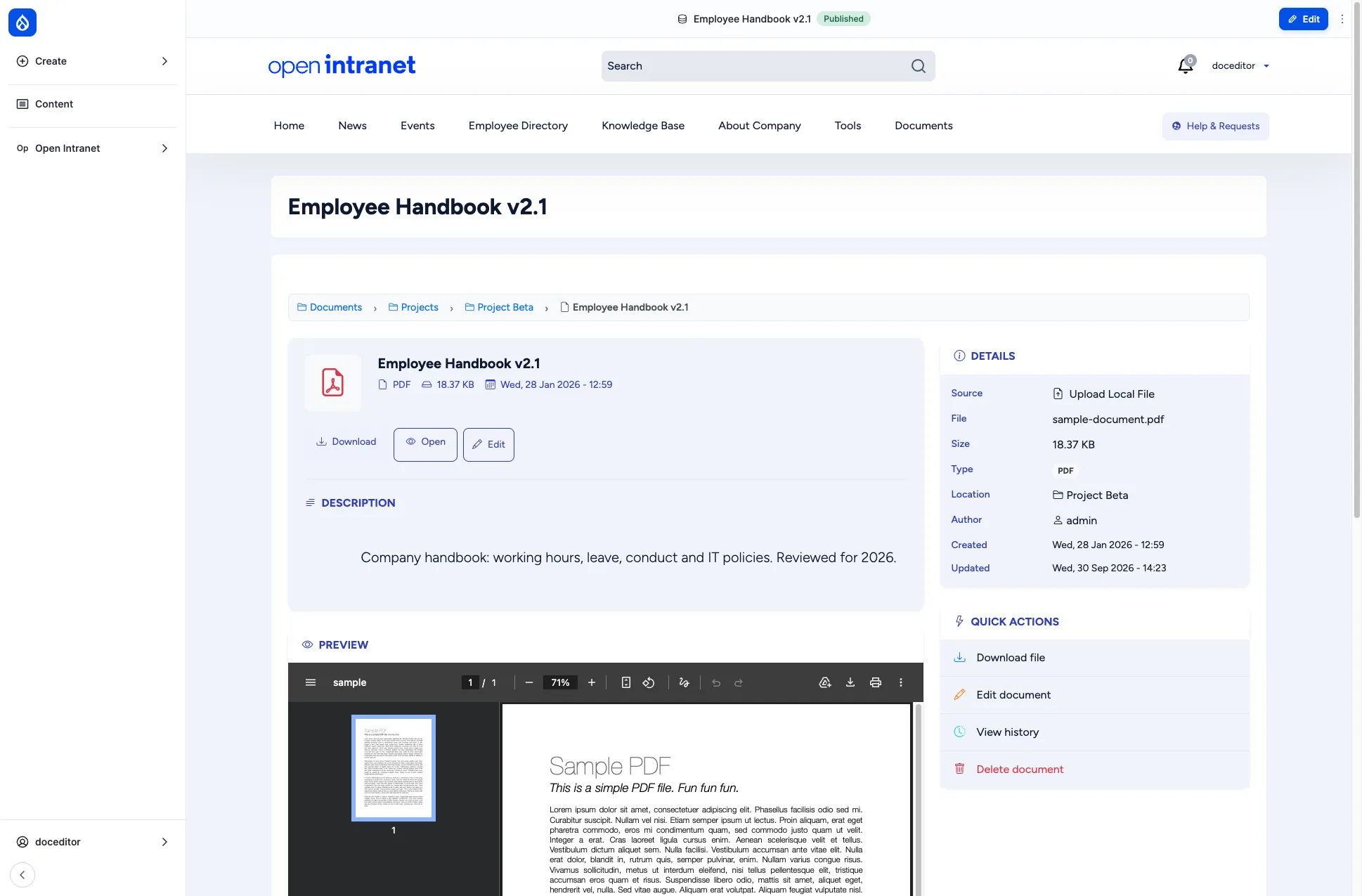
The page has four parts:
- Header bar — title, file-type icon, file size and the date, plus three action buttons: Download (saves the file locally), Open (opens the file in a new tab) and Edit (only shown if you have edit rights).
- Description — the optional description set when the document was added.
- Preview — for images (
.jpg,.png,.gif,.webp) the picture is rendered inline. For PDFs it is shown in an embedded viewer. For Google Drive / OneDrive / Dropbox / Box files the cloud provider’s own embed is loaded. For other file types (Word, Excel, ZIP, etc.) only the download/open buttons are shown. - Details sidebar — a structured summary: source type, original filename, file size, MIME type, the folder it lives in (clickable), the author and the created/updated dates.
- Quick actions sidebar — a compact menu of the most common operations: Download file, Edit document, Manage access, View history and Delete document. Items only show if you have permission to perform them.
If the document is referenced by any other intranet content (a news article that links to it, a knowledge base page that embeds it, etc.) you’ll also see a Referenced by section listing those pages — a quick way to discover where a file is being used before you delete or replace it.
Editing and deleting
Section titled “Editing and deleting”Click Edit on the detail page (or the inline pencil in the folder listing) to change the Title, Description, Folder or replace the File. The Published toggle keeps the document on the site without removing it; unpublishing hides it from non-editors but preserves the entity and its revisions.
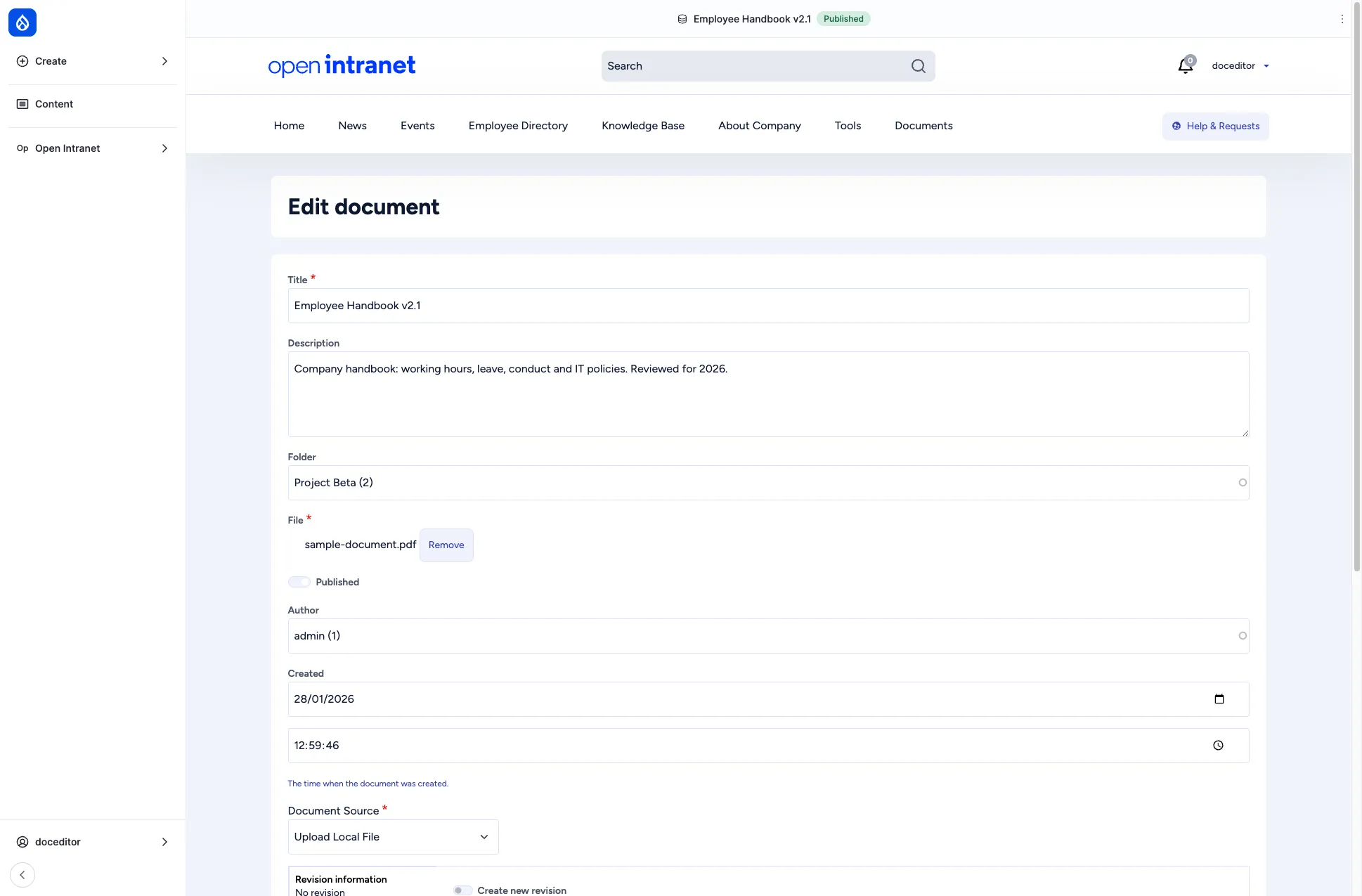
Delete is available on the document detail page (Quick actions → Delete document) and on the folder listing’s actions menu. Deleting a folder asks for confirmation and removes the folder, its subfolders and any documents inside.
Revision history
Section titled “Revision history”Every save of a document creates a new revision. Open the Revisions tab on the detail page to see the timeline.
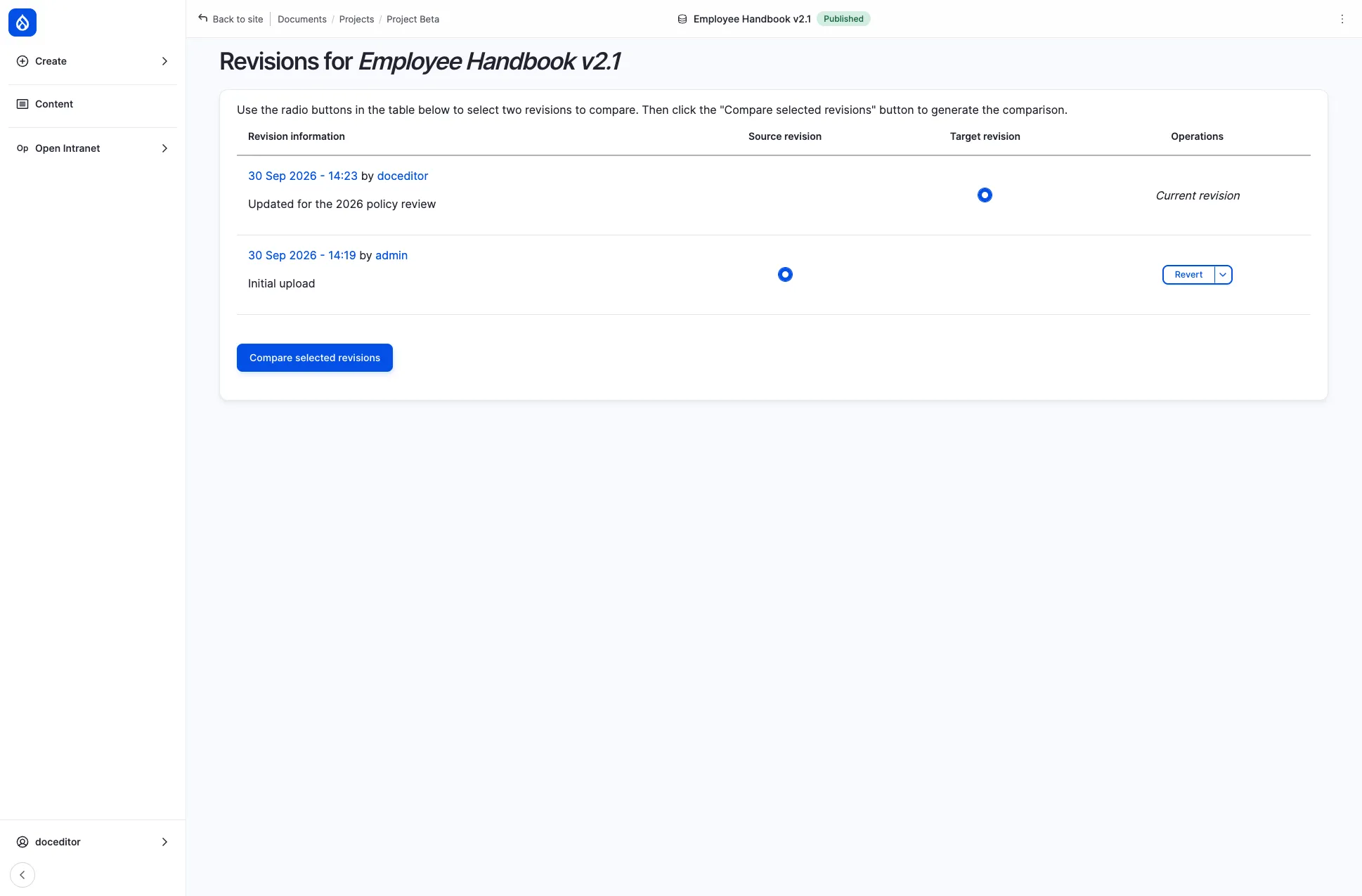
Each row shows the revision date, the user who made it and an optional revision log message explaining the change. The newest revision is marked Current revision. For any older revision you can:
- View it — clicking the date opens that revision in read-only mode.
- Revert to it — promoting that revision to the current one (a new revision is created so nothing is lost).
- Delete the revision (admins only).
Revisions are useful when you need to roll back an unwanted change, recover an older version of a document that was overwritten, or audit who changed what and when.
Searching documents
Section titled “Searching documents”Click the search icon (or visit /documents/search) to search across the entire document library — every folder, no matter how deep. The search matches against three fields:
- Document titles
- Document descriptions
- Original filenames
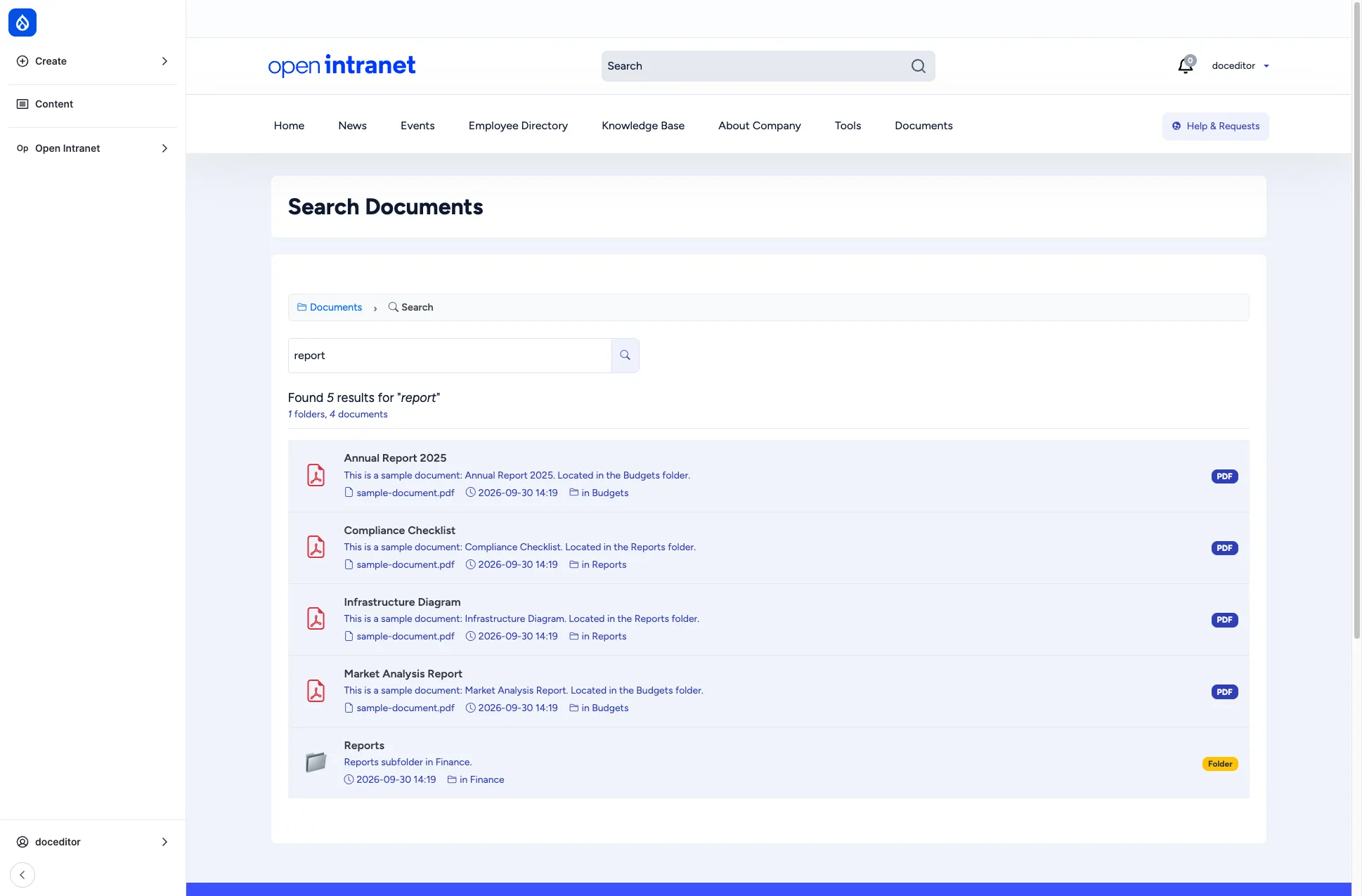
Each hit shows the title, the description, the original filename, the last update date and the folder path so you can jump directly to where the file lives. Folders that match by name are also returned and listed at the top of the results.
Search covers the title, description and original filename of every document. To also index the content of files (the words inside a PDF, Word document, etc.), ask your administrator to install a content-extraction module like Search API Attachments.
Sharing and permissions
Section titled “Sharing and permissions”Most folders and documents in your intranet are visible to all logged-in users. But your administrator can restrict any folder or document to specific groups (for example, Finance, Berlin Office, Warsaw Sales) or to specific individual users. When that’s done, only the chosen people see the item — for everyone else, it’s as if the file doesn’t exist.
Why you might not see a folder or document
Section titled “Why you might not see a folder or document”If a colleague refers to a document and you can’t find it, the most likely reasons are:
- Group restriction — the document is restricted to a group you’re not a member of. Contact the document owner or your administrator to be added to the group, or to confirm whether the file is meant for your team at all.
- Folder inheritance — by default, documents inherit the access rules of their parent folder. So even if a single document has no restrictions, it may still be hidden because its folder is restricted.
- Unpublished — the author has unpublished the document while editing. Only editors and admins see unpublished items.
Owners (the user who uploaded the document) always retain access to their own files, so a question to the document author is usually the fastest route.
Reading the Access tab
Section titled “Reading the Access tab”If you have permission, every document and every folder has an Access tab that shows exactly who can see it. The tab lives at /documents/document/{id}/access and /documents/folder/{id}/access and is described in detail in Administration → Documents → Access control.
The short version: the form has two sections — Groups with access (a checkbox list of all defined groups) and Individual users with access (a free-form user picker). When a folder or document has no boxes ticked and no users picked, it falls back to the standard intranet permissions and is visible to everyone with the View document permission.
Quick reference
Section titled “Quick reference”| Action | How |
|---|---|
| Open a folder | Click the folder name in the listing. |
| Jump up the hierarchy | Click any segment in the breadcrumb. |
| Switch list ↔ grid view | Use the two icons in the top right of the toolbar. |
| Add a folder | + Add → Add Folder. |
| Upload a file from your computer | + Add → Upload Local File. |
| Link a Google Drive / OneDrive / Dropbox / Box file | + Add → Add from … — paste the sharing URL. |
| Edit a folder or document | Pencil icon in the actions column, or Edit on the detail page. |
| Replace the file | Edit the document, click Remove next to the current file, then upload the new one. |
| See older versions | Open the document → Revisions tab. |
| Roll back to an older version | Revisions tab → Revert on the row you want. |
| Search | Search bar in the toolbar, or /documents/search. |
| See who can access a document | Open the document → Access tab (needs the Set entity access restrictions permission). |
Required permissions
Section titled “Required permissions”| To do this, you need this permission | Comes with |
|---|---|
| Browse folders and view documents | View folder and View document (granted to Authenticated user by default) |
| Upload files and create folders | Create document, Create folder (granted to Content Editor - Documents) |
| Edit any document or folder | Edit document, Edit folder (granted to Content Editor - Documents) |
| Delete documents or folders | Delete document, Delete folder (granted to Content Editor - Documents) |
| Revert / delete document revisions | Revert document revision, Delete document revision (granted to Content Editor - Documents) |
| Restrict who can see a folder/document | Set entity access restrictions (granted to Content editor and Administrator) |
| Bypass all restrictions | Bypass access restrictions (granted to Administrator) |
| Configure document sources and module settings | Administer documents (granted to Administrator and Content Editor - Documents) |
The generic Content editor role has no Documents library permissions, and Content Editor - Documents cannot set access restrictions. Give both roles to a person who needs to manage documents and restrict who sees them.
A complete reference, including the access-control permissions and group management, is in Administration → Documents.