

Webforms
Open Intranet ships the Webform module — Drupal’s most popular form builder. It lets administrators build, version and manage any kind of form the company needs (contact, surveys, requests, ticketing, training enrolment, news submissions) without writing a line of code, then expose it as a standalone page or embed it in an article through the Webform Node sub-module.
The default install ships five ready-made webforms — Contact, Employee Survey, Help & Requests, Submit News, Training Request — that demonstrate the breadth of what the builder can do.
What it is
Section titled “What it is”Webforms are first-class Drupal entities. Each form has its own configuration, its own list of submissions, its own permissions, its own URL, its own per-form settings (open / closed / scheduled), and its own set of e-mail and remote handlers. Administrators interact with everything through a single admin tab system: View, Test, Results, Build, Settings, References, Export, Translate, Clone.
The builder uses a YAML representation under the hood — that means a webform can be exported, version-controlled, and re-imported on another site exactly as designed.
Components
Section titled “Components”The forms list
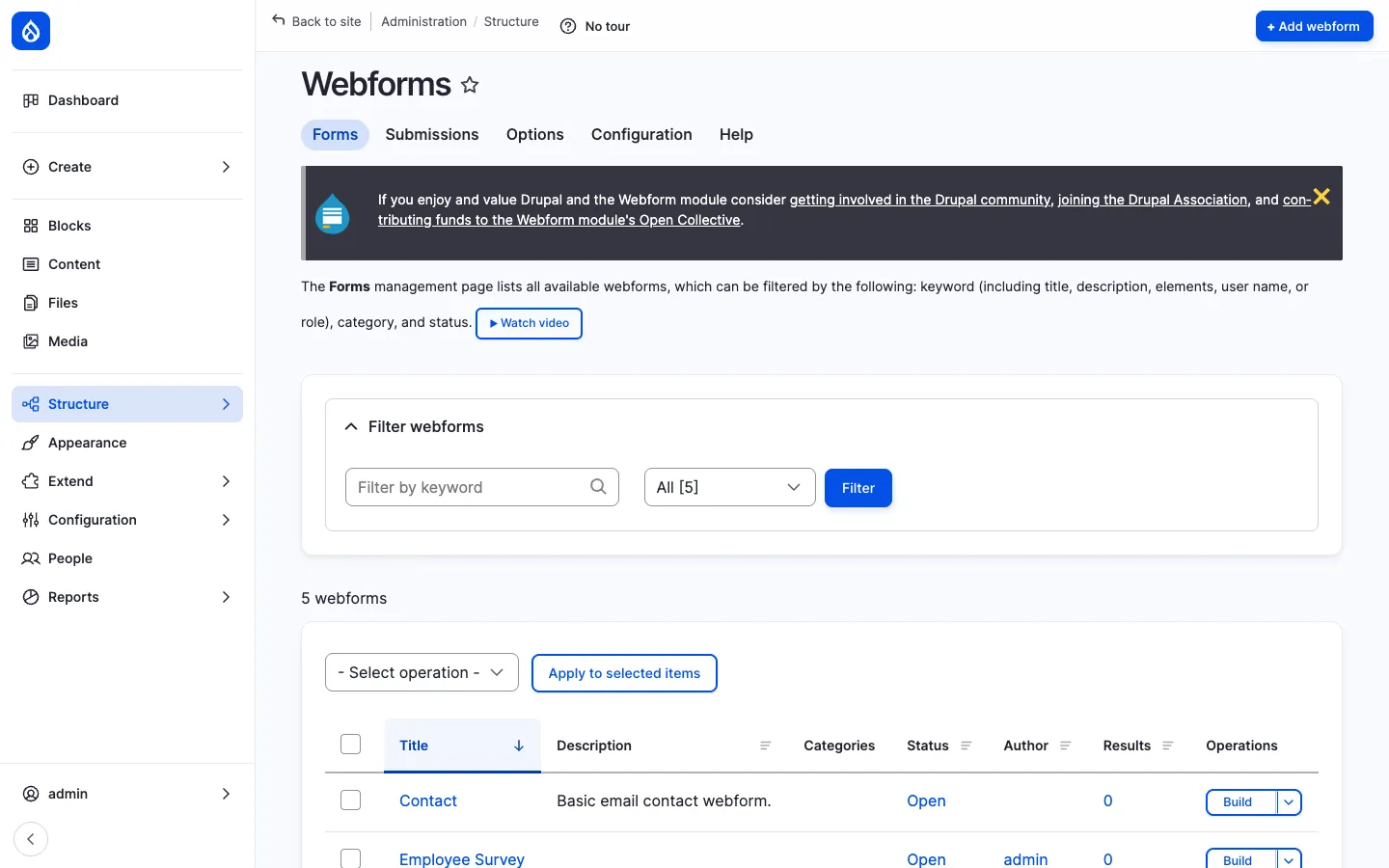
Section titled “The forms list”/admin/structure/webform is the management page. It lists every webform on the site with its title, description, category, status (Open / Closed / Scheduled), author, submission count and a Build operation that opens the drag-and-drop editor.
The list is filterable by keyword, category and status. Bulk operations are available (delete, change status, change category) for housekeeping.
Live form rendering
Section titled “Live form rendering”Every webform automatically gets its own URL at /form/{machine-name}. Users (depending on permissions) see the form rendered with the site’s design tokens and any branding applied through the theme.
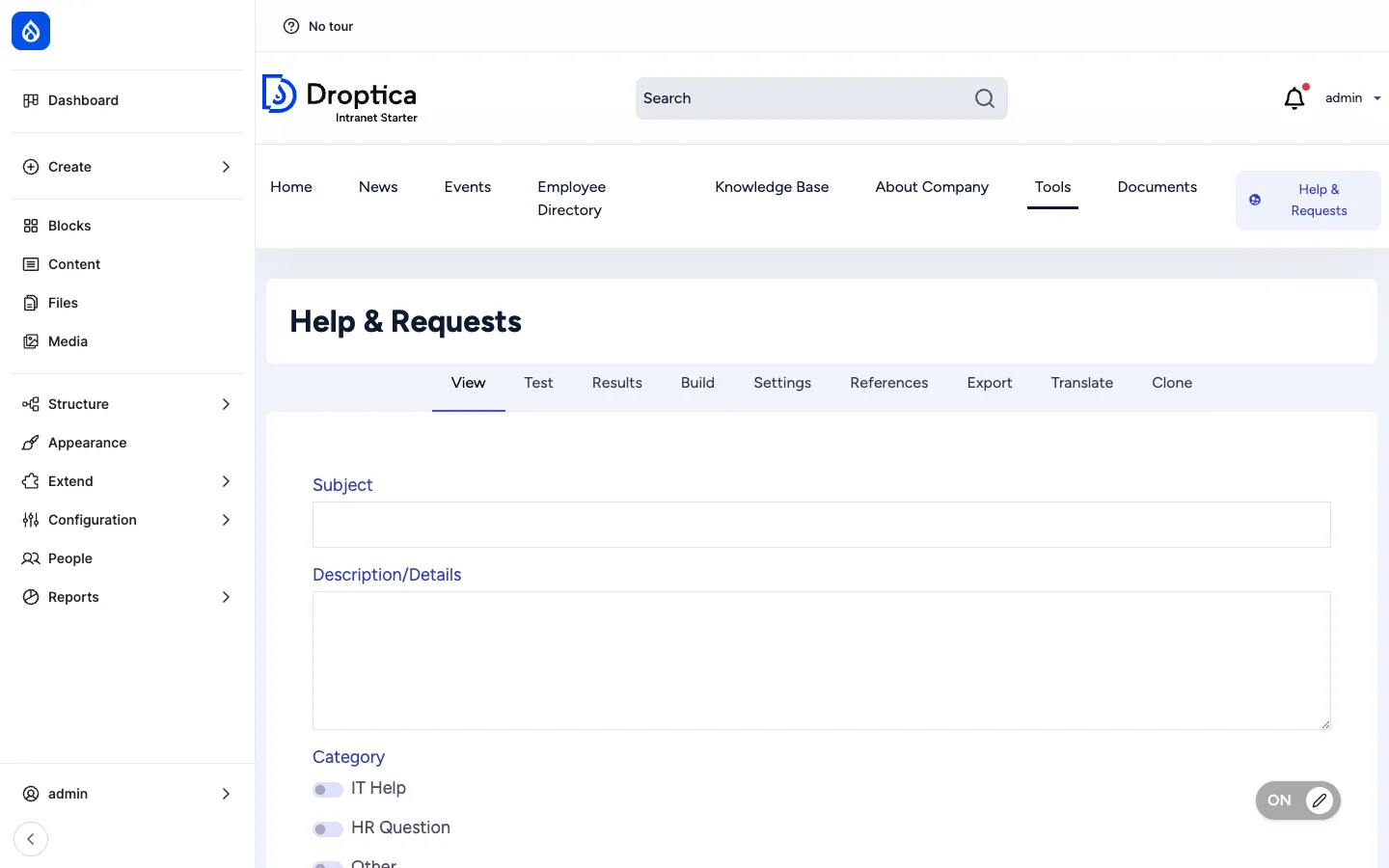
For administrators, the same page also exposes the full set of admin tabs (View / Test / Results / Build / Settings / …) so they can switch between trying the form, seeing what’s in it, and editing it without leaving the page.
The Build screen — drag-and-drop editor
Section titled “The Build screen — drag-and-drop editor”The Build tab is the heart of the editor. It shows the form as a hierarchical list of elements (text, textarea, select, radios, checkboxes, file upload, signature, address, date, …) with drag-and-drop reordering, indent/outdent for nesting (fieldsets, containers, wizard pages), and inline edit / delete.
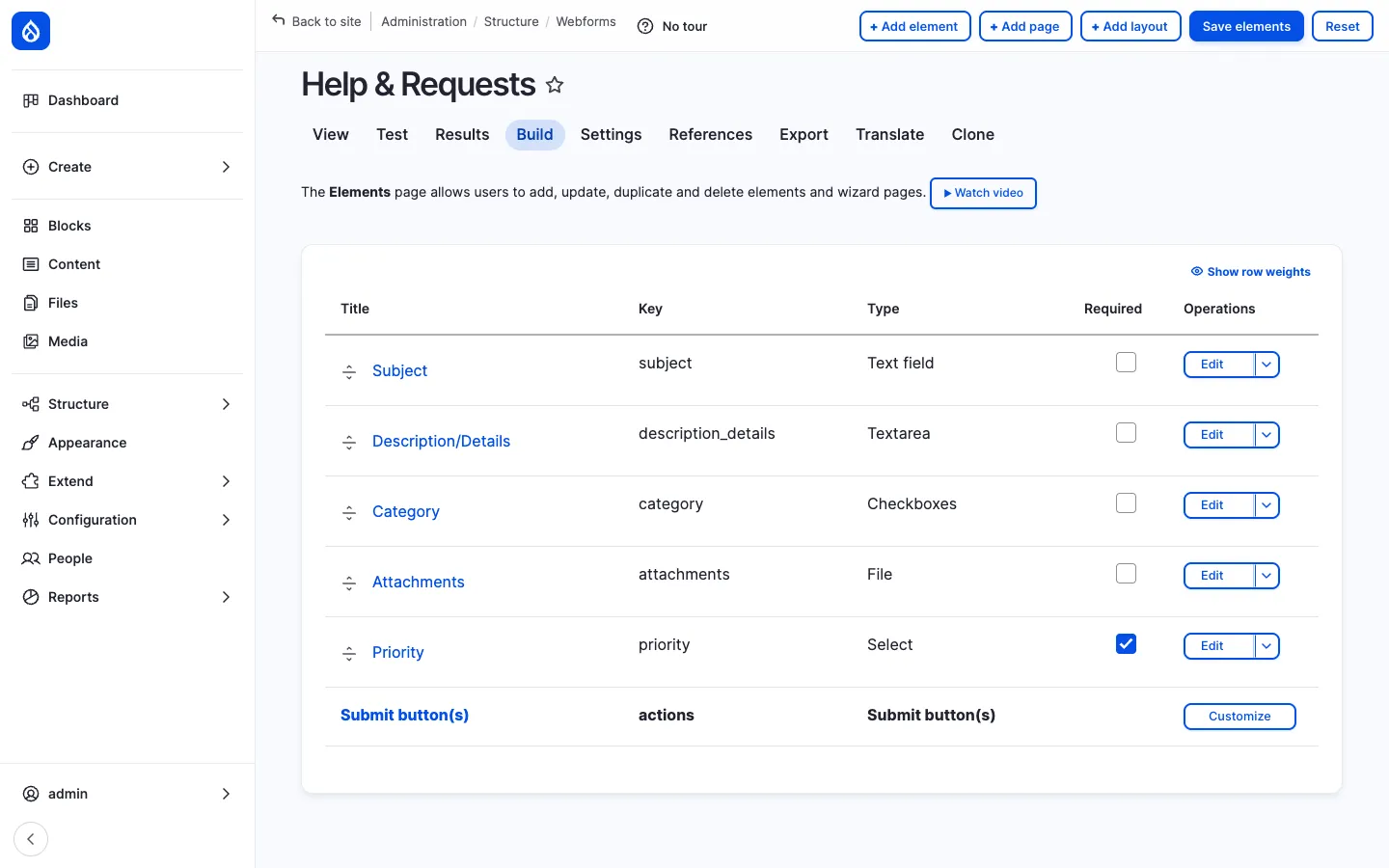
There are 50+ element types available out of the box, including:
- Basic — text, textarea, number, email, telephone, URL, password
- Selection — select, radios, checkboxes, tags, autocomplete (with Drupal entity reference)
- Files — file upload, image upload, signature, drawing
- Composite — address, contact, name, link
- Advanced — date, datetime, time, range slider, rating, captcha, computed fields
- Layout — fieldset, container, details (collapsible), webform wizard page (multi-page forms)
- Markup — HTML, processed text, table, twig template
Each element has its own configuration form: label, placeholder, default value, required state, validation rules, conditional logic, access control per role, multi-value, etc.
Conditional logic
Section titled “Conditional logic”Every element can show / hide / require / disable itself based on the values of other elements. Conditions are configured in plain English (“If Category is IT Help then Required is true”) through the Conditions tab on each element — no code, no JavaScript.
Multi-page wizards naturally combine with conditions: skip a page if a question on the previous page was No.
Submissions — /results
Section titled “Submissions — /results”Every submission is stored as a webform_submission entity with its own ID. The Results tab on each webform exposes:
- A table view of all submissions with sortable columns (per-element).
- An individual view of each submission (formatted like the rendered form).
- A download function — CSV, JSON, XML or Excel export with selectable columns and date filters.
- Bulk operations — delete, change state.
- Search & filter — by date range, status, individual field values.
Submissions can be stored in the database (the default) or sent only to handlers (e-mail, remote API) without being persisted — useful for regulated environments where the form should not retain data.
Handlers — what happens on submit
Section titled “Handlers — what happens on submit”The Settings → Emails / Handlers tab defines what happens when the form is submitted:
- Email handler — Send a templated e-mail to the submitter, an admin, a department address, or any token-resolved recipient. Multiple handlers can fire on the same submission (one to the submitter, one to the IT team, one to the manager).
- Remote handler — POST the submission as JSON to an external URL (Slack incoming webhook, Salesforce, Zendesk, ServiceNow, etc.).
- Action handler — Trigger a Drupal action (create a node, change a field, fire a Rules / ECA event).
- Twilio handler — Send an SMS (with the Twilio module enabled).
- Custom handler — A site builder can add a new plugin with the
#[WebformHandler]attribute for any custom workflow.
Handlers are independently enabled / disabled and can be reordered.
Webform Node — embed in articles
Section titled “Webform Node — embed in articles”The Webform Node sub-module adds a Webform content type. A webform node has a body field plus a Webform reference field — pick one of the existing webforms and it renders inline, surrounded by your content. This is how to:
- Wrap a form in a written introduction (e.g. Why we ask these questions).
- Place the form on a custom URL inside the menu structure (e.g.
/about-us/contact). - Restrict the form to specific groups using the Access layer.
Multi-step / wizard forms
Section titled “Multi-step / wizard forms”A webform with multiple wizard page elements becomes a multi-step form with a progress bar at the top. Each wizard page has its own validation, its own conditional logic, and its own previous / next navigation.
Translation
Section titled “Translation”Each webform can be translated per-element through the standard Drupal config translation system. With languages enabled, the Translate tab shows one form-element column per language and lets translators fill in the translated label / description / placeholder / option labels.
The webform then renders in the user’s active language, with submission data still recorded in the original element keys (so reports work across languages).
Configuration
Section titled “Configuration”/admin/structure/webform/config exposes platform-wide configuration:
- Default e-mail templates, default from address.
- Element library on / off (turn off advanced elements you do not want editors to use).
- Submission storage limits (per-form, per-day, per-user).
- Anti-spam (CAPTCHA, honeypot, time-based).
- Themes (apply a different theme to forms, e.g. for embedded use).
- Libraries (jQuery UI, Select2, etc.).
Integration with other features
Section titled “Integration with other features”- Webform Node — Drop any form into an article with the Webform content type.
- News, Pages, KB — Embed a webform inside a content body using the CKEditor Webform button (with the right text format).
- Messenger — A custom webform handler can fire a Messenger broadcast on submit (e.g. Submit news triggers a notification to the editorial team).
- AI assistant — Build longer-text webform fields using CKEditor with the AI button enabled, so respondents can use Improve writing / Translate.
- Multilingual — Webforms translate per-element through standard config translation; submissions remain consistent across languages.
- Access Control & Groups — A webform-node can be restricted to specific groups via the per-node Access tab; webform-level access is also configurable per role.
- ECA — no-code workflows — A webform submission is an event ECA can react to (post to chat, create a node, fire a multi-step approval).
Permissions
Section titled “Permissions”| Permission | Default role(s) |
|---|---|
| Access webform overview (see the admin list) | Administrator |
| Administer webforms (create / edit / delete forms) | Administrator |
| Administer webform submissions | Administrator |
| Administer webform configuration | Administrator |
| View own webform submissions | Authenticated user |
| Edit own webform submissions | Authenticated user (configurable per form) |
| Submit a specific webform | Configurable per form (anonymous, authenticated, role) |
Permissions can be set at three levels: site-wide, per-webform, and per-element (e.g. “only HR can see the salary expectation field”).
Modules behind it
Section titled “Modules behind it”- Webform — core builder, elements, submissions, handlers
- Webform Node — embed in a content type (sub-module)
- Webform UI — drag-and-drop editor (sub-module)
- Drupal core:
field,entity,views - Optional:
webform_workflows_emailfor approval workflows,webform_attachmentfor generated PDFs,webform_image_selectfor image-based selection
Learn more
Section titled “Learn more”- News and Articles — Submit News webform feeds the editorial pipeline
- Messenger — handler integration for broadcast on submit
- ECA — no-code workflows — react to webform submissions with workflow automation
- Multilingual — per-element translation
- Webform module on drupal.org