

Employee Directory & User Profiles
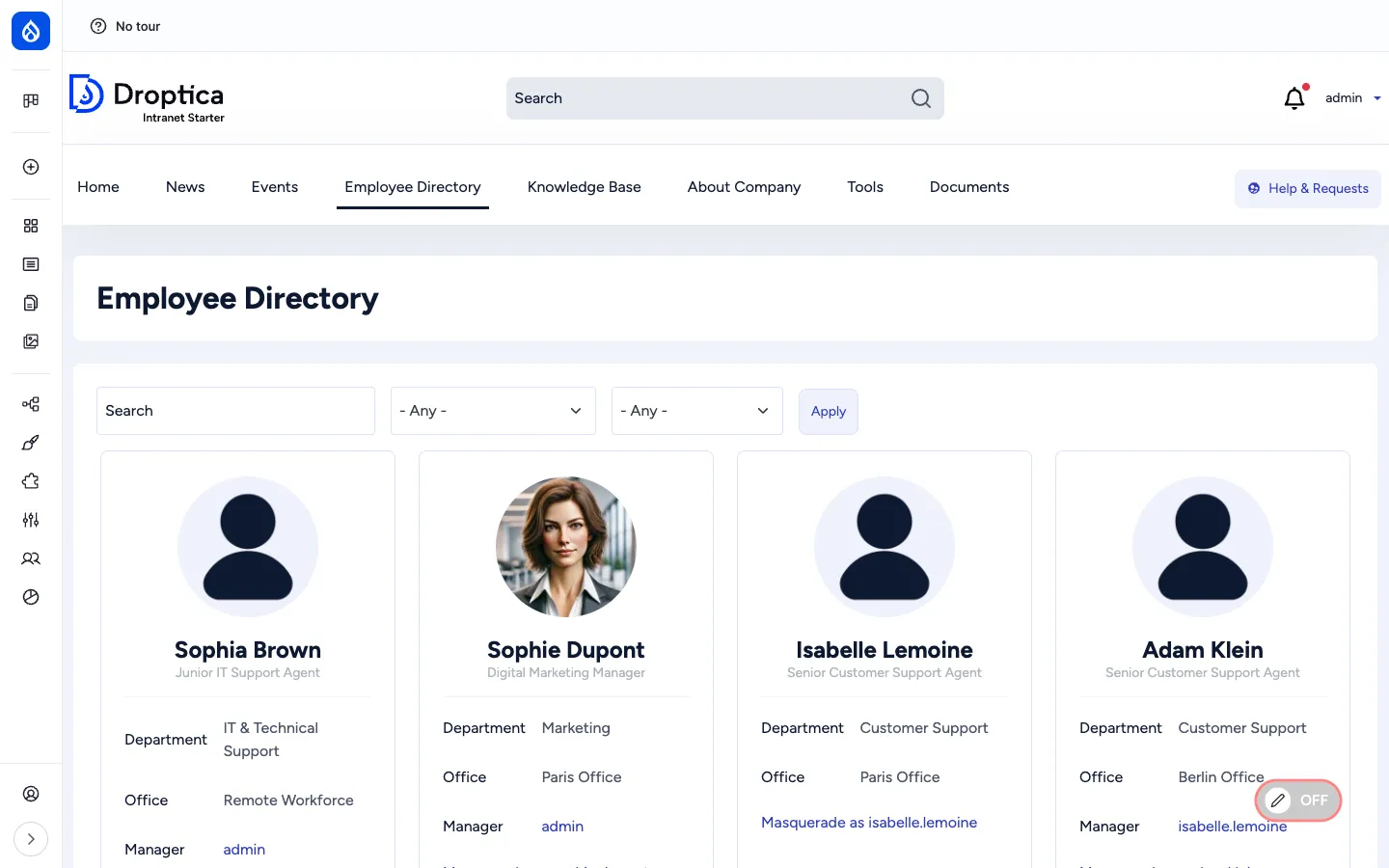
The Employee Directory is the human side of the intranet. Every employee has a rich user profile with a photo, job title, department, office, manager, contact information, social links and a free-form About me section. The directory at /employee-directory lists everyone as searchable cards that can be filtered by department, office and free-text query.
What it is
Section titled “What it is”User profiles are built directly on Drupal’s core user entity. Open Intranet adds ten custom fields on top of the core user (name, email, password) so that every authenticated user becomes a fully-fledged employee record. The directory itself is a Drupal view (employee_directory) rendered as a card grid with three filter facets — search, department, office.
The same set of profile fields is exposed through several view modes so that the user can be rendered differently in different contexts: a compact teaser in the directory, a small avatar+name combo in comment threads, a search-result card in search results, a full profile on /user/{id}, an embedded card on author bylines, and a full edit form at /user/{id}/edit.
Components
Section titled “Components”The user fields
Section titled “The user fields”Open Intranet ships the following custom user fields on top of the core user entity:
| Field | Type | Purpose |
|---|---|---|
First name (field_first_name, required) | Plain text | Given name. |
Last name (field_last_name, required) | Plain text | Family name. |
Display name (field_name) | Plain text | Display variant, used when the formatted “First Last” is not what you want. |
About me (field_about) | Long string | Free-form bio shown on the profile page. |
Department (field_department) | Taxonomy reference | Department membership (Marketing, Engineering, IT & Technical Support, etc.). Used as a directory filter. |
Office (field_office) | Taxonomy reference | Physical office (Paris, Berlin, London, Remote Workforce, etc.). Used as a directory filter. |
Manager (field_manager) | User reference | Direct manager — clickable, links to the manager’s profile. |
Phone (field_phone) | Telephone | Phone number with tel: link. |
Social links (field_social_links) | Link (multi-value) | LinkedIn, GitHub, Twitter, etc. — one row per platform. |
Profile picture (user_picture) | Image | Avatar shown in the directory, profile, comments, author bylines, the toolbar. |
These fields are configurable through Field UI at /admin/config/people/accounts/fields. View modes are at /admin/config/people/accounts/display.
The Employee Directory view
Section titled “The Employee Directory view”/employee-directory is a Drupal view in card grid mode. The exposed filters at the top are:
- Search — free-text against name, email and the About-me field.
- Department — dropdown of all values in the Department taxonomy.
- Office — dropdown of all values in the Office taxonomy.
The grid uses the compact user view mode and shows the photo, name, job title, Department, Office and Manager. Cards are clickable; clicking the name opens the full profile.
For users with the Masquerade permission, a Masquerade as {username} link is rendered on each card, so support / admins can quickly impersonate an employee for troubleshooting.
The single profile page
Section titled “The single profile page”/user/{id} (or /user for “my profile”) renders the full user profile:
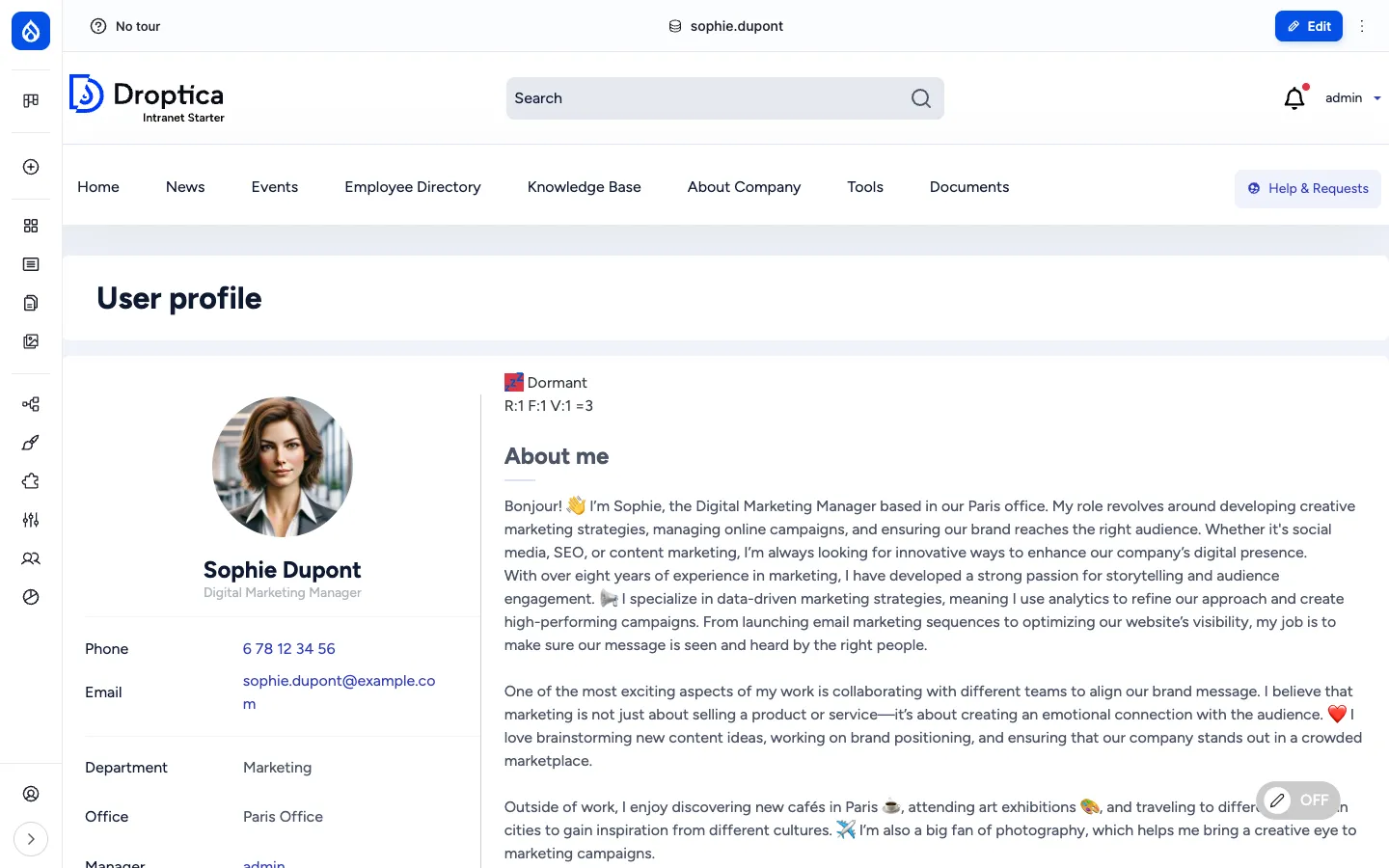
Key elements:
- Left column — large circular avatar, name, job title, then a contact card with Phone, Email, Department, Office and Manager (each clickable where applicable).
- Main column — the engagement segment label (e.g. Dormant, At Risk, Champion) and R / F / V scores, then the About me free-form bio with rich content.
- Sidebar (right) — the user’s social links, recently-read items and bookmarks (subject to view permissions).
The profile page uses Layout Builder, so site builders can drag in additional blocks (recent activity, content authored by this user, contributions to specific groups, etc.) without code.
View modes
Section titled “View modes”The user entity has six view modes shipped with Open Intranet:
| View mode | Used in |
|---|---|
default | Main profile page. |
compact | Employee Directory card grid, mention picker. |
full_embedded | Author byline on articles / pages. |
search_result | Search results page when a user matches the query. |
user_profile | Full standalone profile (the one most people see). |
user_profile_teaser | Small-card variant for “people you might know” / mention search. |
Site builders can add or override view modes through Display modes UI.
The user edit form
Section titled “The user edit form”/user/{id}/edit is the standard Drupal user edit form, with the additional Open Intranet fields grouped together. The user themselves can edit their own profile; managers / admins can edit any profile.
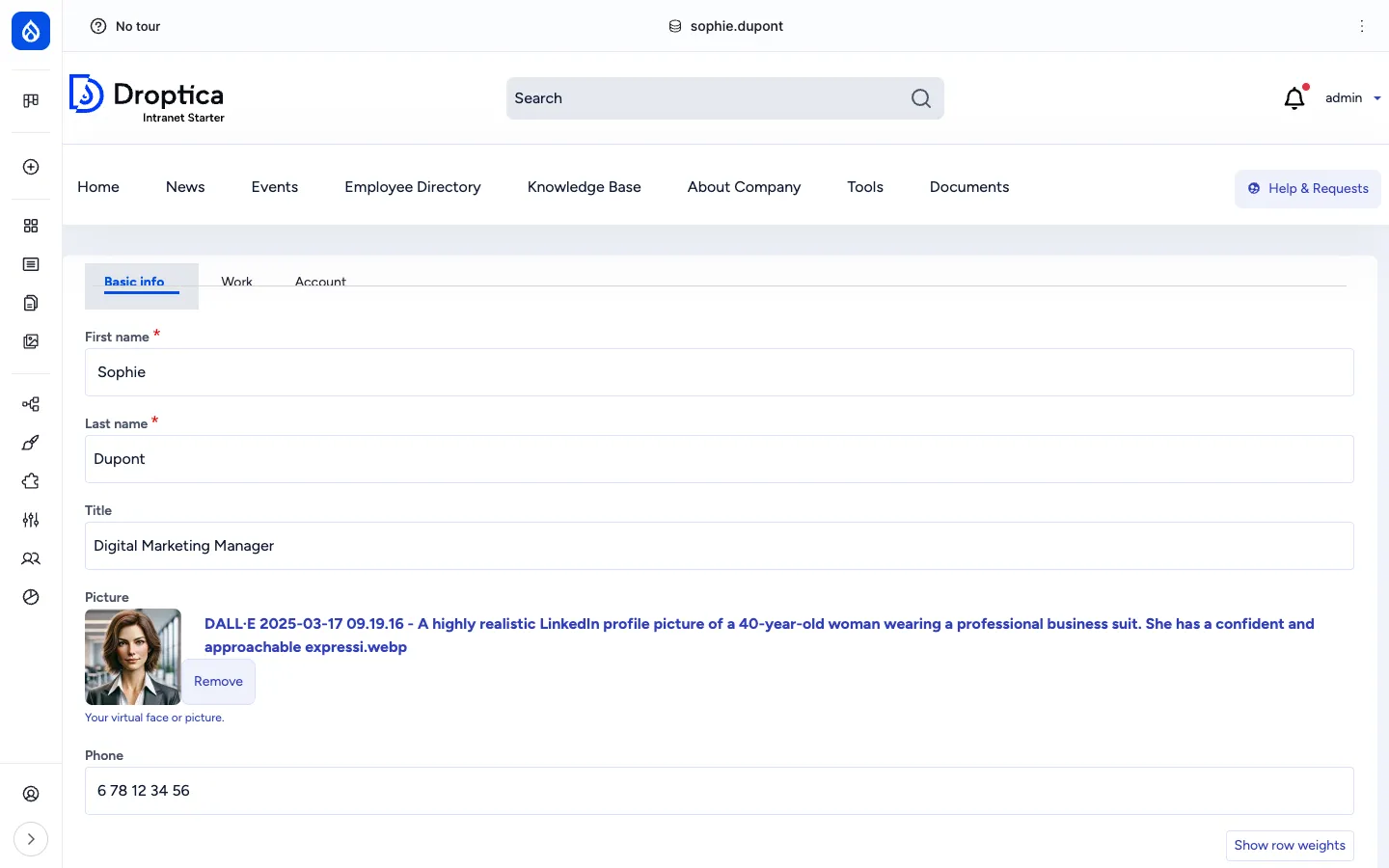
Authentication-related fields (username, current password, email, password, language preference) are at the top; the Open Intranet fields (First name, Last name, Department, Office, Manager, Phone, About me, Social links, Profile picture) follow.
Search
Section titled “Search”Users are indexed by the default_index Search API index. A search for a person’s name, email or About-me content surfaces them as a search result with the search_result view mode (small avatar + name + role + Department + Office).
URL pattern
Section titled “URL pattern”Users keep the standard Drupal /user/{id} URL. The directory itself is at /employee-directory.
Integration with other features
Section titled “Integration with other features”- Engagement scoring — The user profile shows the user’s Engagement segment and R/F/V scores. The reports at
/admin/reports/engagementgroup users by department and office for cohort analysis. - Access Control & Groups — Group membership is managed separately at
/admin/oi-group/{id}/members, but the user’s groups can be displayed on their profile through additional blocks. - Messenger — The Messenger module sends notifications to users by department, office, role, or individual selection — directly from the user fields documented here.
- Comments — The author of a comment is rendered with the
compactuser view mode (avatar + username). - Articles & Authors — News articles, KB pages and other content show authors through the
full_embeddedview mode in the byline. - Search — Users appear alongside articles, pages, KB and documents in the cross-content search.
- Translations — The interface (labels, field names) is translated, but profile data itself is per-user.
- Frontend editing — When enabled, users can edit their own profile fields in place from the profile page.
Permissions
Section titled “Permissions”| Capability | Default role(s) |
|---|---|
View user profiles (access user profiles) | Authenticated user |
| Edit own profile | Authenticated user |
| Edit any profile / change roles | Administrator |
| Masquerade as another user | Administrator (or a dedicated “Masquerade” role) |
| Configure user fields / display | Administrator |
| Register new accounts | Administrator only (default) — registration is admin-only out of the box |
Modules behind it
Section titled “Modules behind it”- Drupal core:
user,views,image,taxonomy,path,layout_builder address— postal address fields where usedtelephone— phone field withtel:linkmasquerade— impersonation for support / adminsviews_organization_chart— org chart view (optional, configurable per site)openintranet_engagement— engagement segment + RFV score badge on the profileopenintranet_messenger— sending notifications to selected usersrecently_read— “recently read” block on the profileflag— bookmarks block on the profile
Learn more
Section titled “Learn more”- How to use it — finding colleagues, viewing a profile, editing your own profile
- User profile — what your colleagues see when they look at your profile, and how to update it
- How to administer users — admin tasks (creating users, role assignments, password policies, masquerade)
- Engagement analytics — the segments and RFV scores shown on profiles
- Messenger — broadcasting notifications based on department / office / role