

Creating Content
Users with the Content editor role (or one of the scoped editor roles, such as Content Editor - News Article; see Default roles) can create and publish content directly from the administration interface. This page walks through the available content types and how to create each one.
Accessing the content creation page
Section titled “Accessing the content creation page”To create new content, click Create in the administration sidebar on the left. It lists every content type you have permission to add.
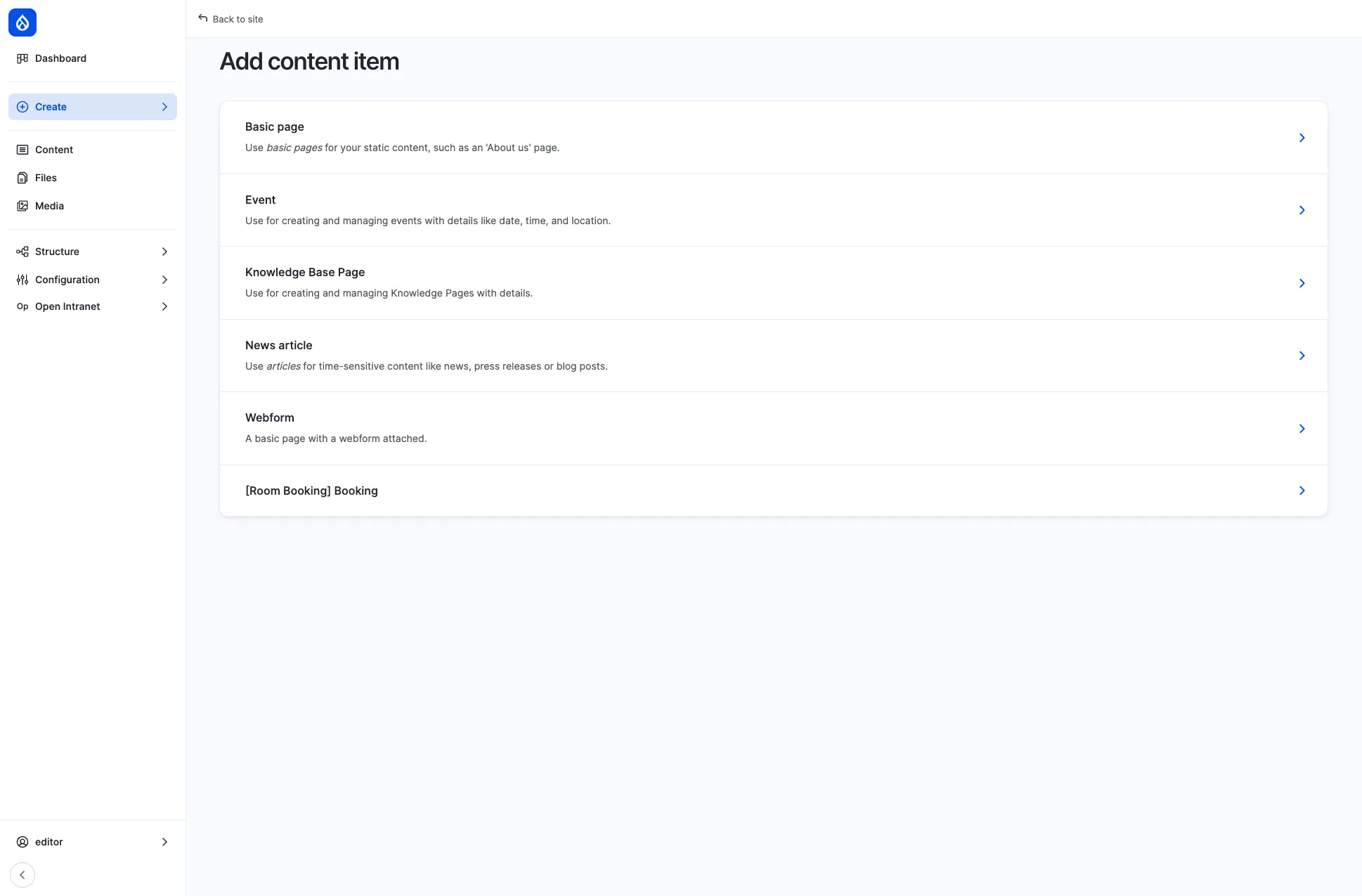
The available content types for a content editor are:
| Content type | Purpose |
|---|---|
| Basic page | Static informational pages (e.g. About Us, department pages, policies) |
| Event | Company events with date, time, location, and an optional map |
| Knowledge Base Page | Internal documentation organized in a hierarchical book structure |
| News article | Time-sensitive updates such as company news, press releases, or blog posts |
| Webform | Pages with an embedded form (surveys, feedback, applications) |
Creating a news article
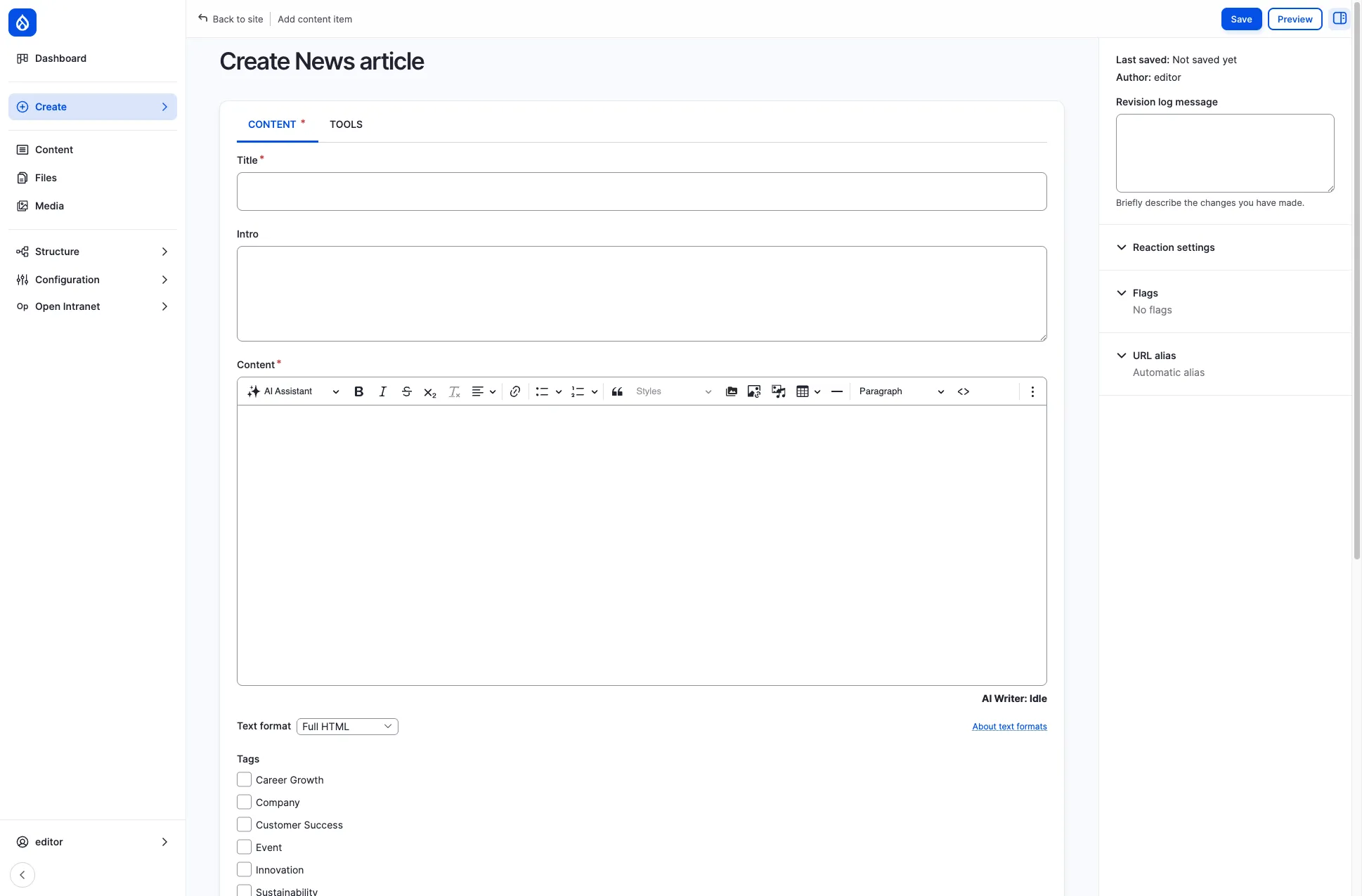
Section titled “Creating a news article”Navigate to Create > News article to open the article form.
Fields
Section titled “Fields”| Field | Required | Description |
|---|---|---|
| Title | Yes | The headline displayed on the news listing and article page |
| Intro | No | A short lead paragraph shown in the listing teaser |
| Content | Yes | The main body, edited with a full rich-text editor (CKEditor). Supports bold, italic, lists, links, headings, images, tables, embedded media, and code blocks |
| Tags | No | Categorize the article (e.g. Company, Innovation, Team Spirit). Multiple tags can be selected |
| Background image | No | A hero/teaser image displayed at the top of the article and in listing cards. Upload or select from the media library |
| Related documents | No | Link to documents stored in the Document Management section |
CONTENT and TOOLS tabs
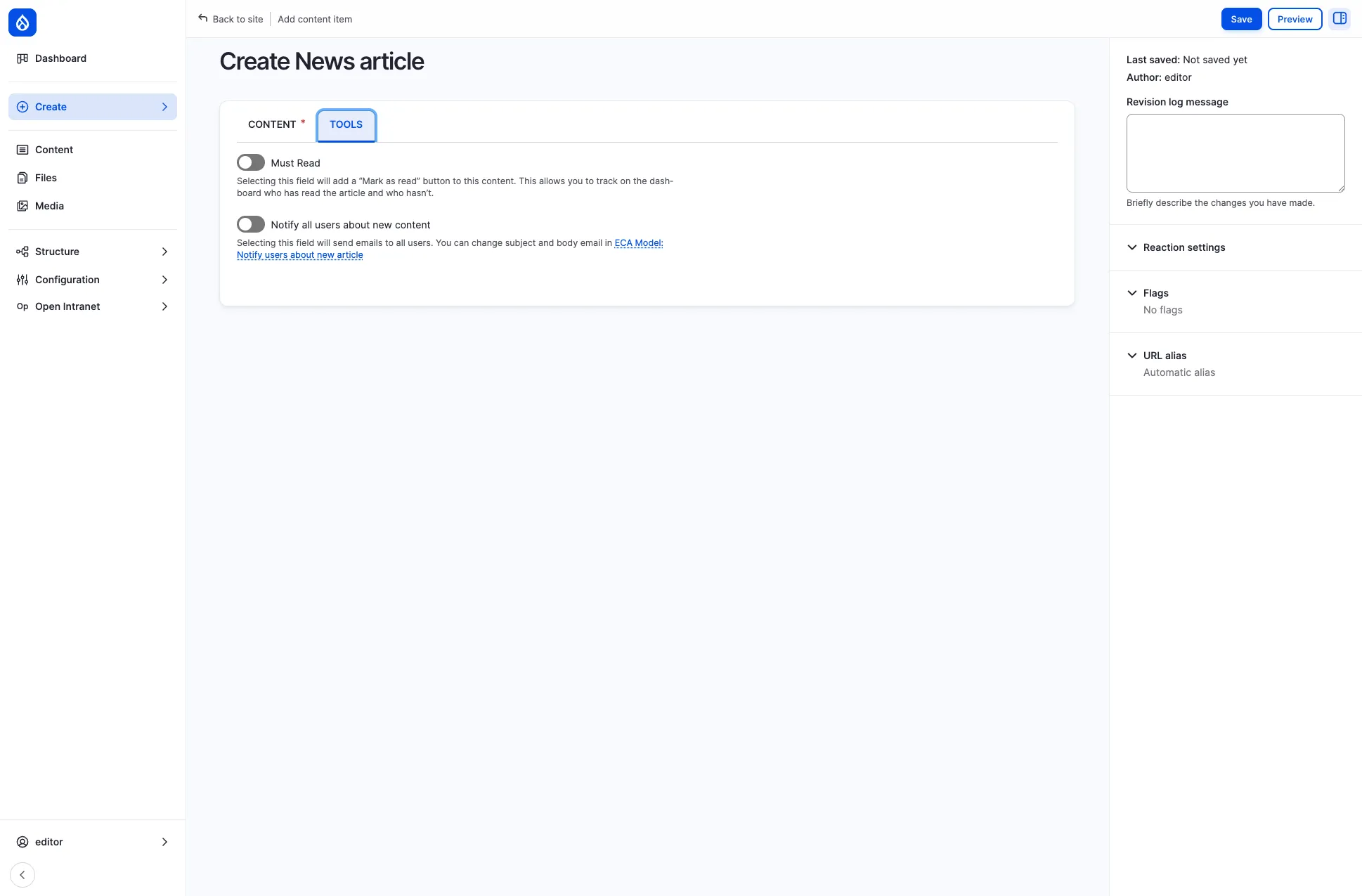
Section titled “CONTENT and TOOLS tabs”The News article form has two tabs. CONTENT holds the fields above. TOOLS holds two switches, both off by default, and stays hidden until you click the tab:
| Switch | What it does |
|---|---|
| Must Read | Adds a Mark as read button to the article and lets you track on the dashboard who has read it and who has not. See Must Read |
| Notify all users about new content | Sends an email to all users about the article. An administrator can change the subject and body in the ECA model Notify users about new article |
Sidebar options
Section titled “Sidebar options”The right sidebar offers additional settings:
- Revision log message — describe what changed (useful when editing existing articles)
- Reaction settings — control whether reactions (likes) are enabled
- Flags — pre-set Bookmark or Read flags for the article
- URL alias — by default an alias is generated automatically from the title (e.g.
/news/my-article-title)
Click Save to publish the article immediately, or Preview to see how it will look before saving.
Creating an event
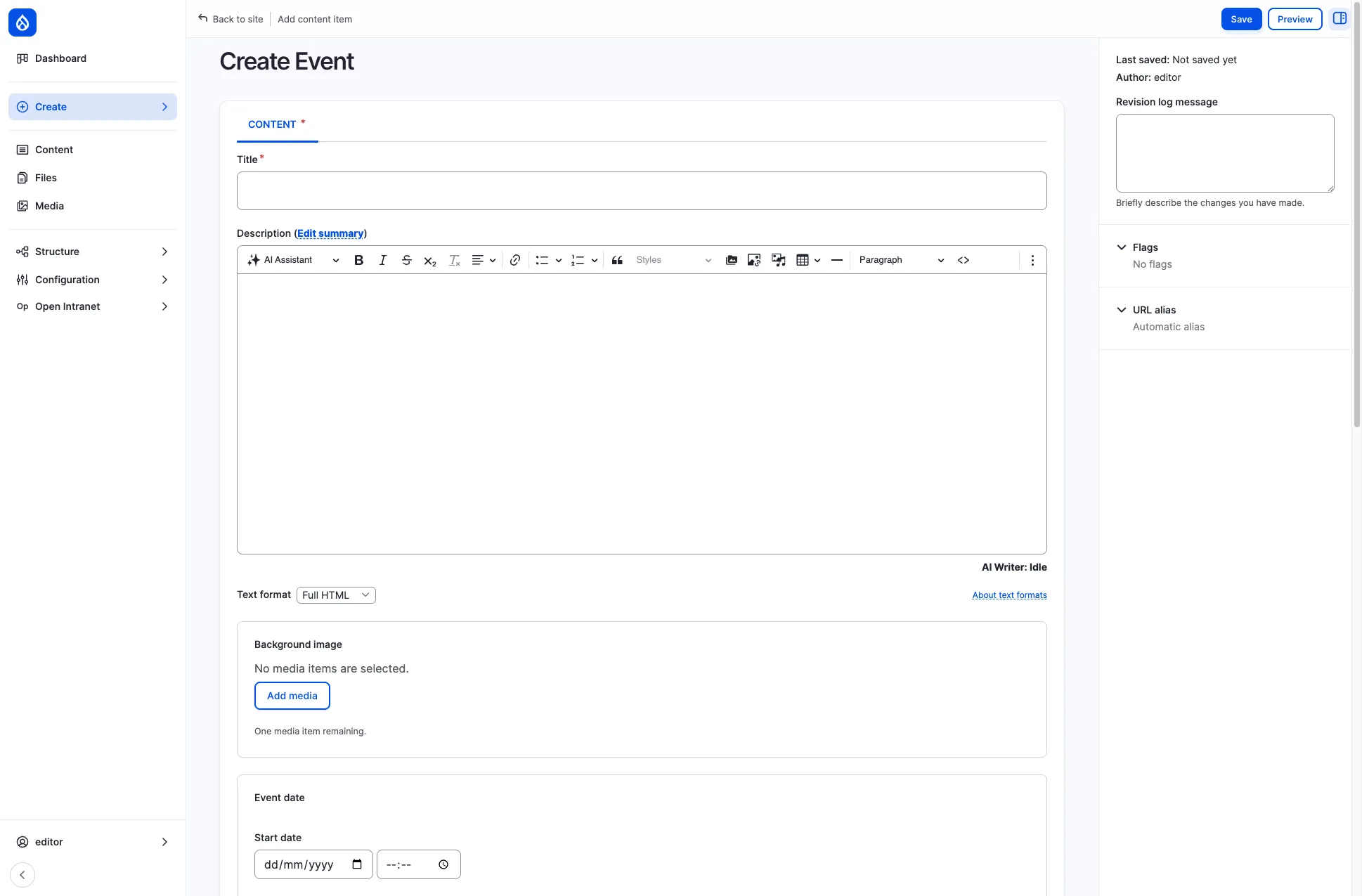
Section titled “Creating an event”Navigate to Create > Event to open the event form.
Fields
Section titled “Fields”| Field | Required | Description |
|---|---|---|
| Title | Yes | The name of the event |
| Description | No | Full event details, edited with the rich-text editor. Click Edit summary to provide a short teaser shown in the events listing |
| Background image | No | A header image for the event detail page |
| Start date | No | Date and time the event begins |
| End date | No | Date and time the event ends |
| Country | No | Select the country to enable the address fields |
| Location Map | No | An interactive map (Leaflet / OpenStreetMap) where you can pin the event venue. Zoom and pan to set the marker |
| Hide location | No | Check to hide the physical location from viewers |
| Event online | No | Mark the event as online-only and provide an Event Online Text (e.g. a video call link) |
Tips for events
Section titled “Tips for events”- If the event is in-person, select a Country first — this reveals additional address fields (city, street, postal code).
- Use the map to give attendees a precise location. They will see it on the event detail page.
- For hybrid events, fill in both the physical location and the Event Online Text.
Creating a knowledge base page
Section titled “Creating a knowledge base page”Navigate to Create > Knowledge Base Page to open the form.
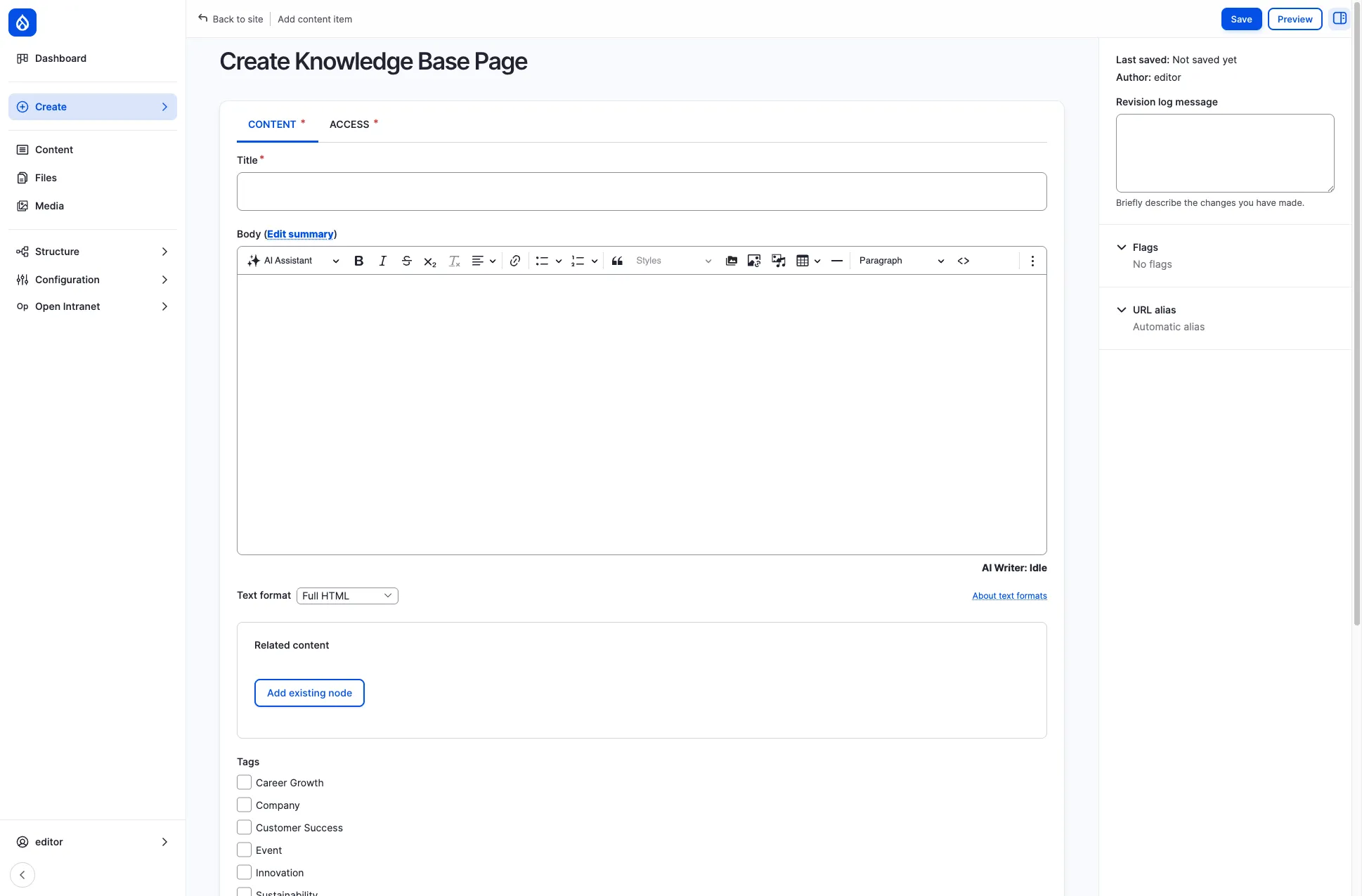
Fields
Section titled “Fields”| Field | Required | Description |
|---|---|---|
| Title | Yes | The page title, displayed in both the article and the book sidebar navigation |
| Body | No | The main content, edited with the rich-text editor. Click Edit summary for a short description |
| Related content | No | Link to other existing nodes. Click Add existing node and start typing a title to search |
| Tags | No | Categorize the page (same tag vocabulary as news articles) |
| Related documents | No | Attach documents from the Document Management section |
Content and Access tabs
Section titled “Content and Access tabs”The Knowledge Base Page form has two tabs:
- CONTENT — all the fields described above
- ACCESS — the required Data classification label (Public, Internal, Confidential or Restricted; Public by default), shown as a badge next to the page title
To restrict who can open a page to specific groups or people, save the page and open its Access tab (next to Edit and Revisions). This needs the Set entity access restrictions permission, which the Content editor role has. See Access Control.
Adding pages to the book hierarchy
Section titled “Adding pages to the book hierarchy”The Book outline and Menu settings panels in the right sidebar are shown to administrators only, so editors do not see them. After you save a Knowledge Base Page, ask an administrator to place it in the book structure, or do it yourself if you are one:
- Edit the page and expand the Book outline panel.
- Choose the Book (the department section) the page belongs to.
- Choose the Parent item: the book’s own top page to place the page directly under the book, or another page to nest it below.
- Optionally set the Weight to change the order among sibling pages, then save.
The page then appears in the sidebar navigation of the Knowledge Base.
Creating a basic page
Section titled “Creating a basic page”Basic pages are static, standalone pages such as an About page, a department overview or a company policy. To add one:
- Click Create in the administration sidebar and choose Basic page.
- Enter a Title (required).
- Write the page in the Content editor (see Working with the rich-text editor). Keep the default Full HTML text format unless you have a reason to change it.
- Optionally add a Background image (Add media) and Related documents (start typing a document title).
- Optionally describe the change in Revision log message in the right sidebar.
- Click Save. The page is published immediately.
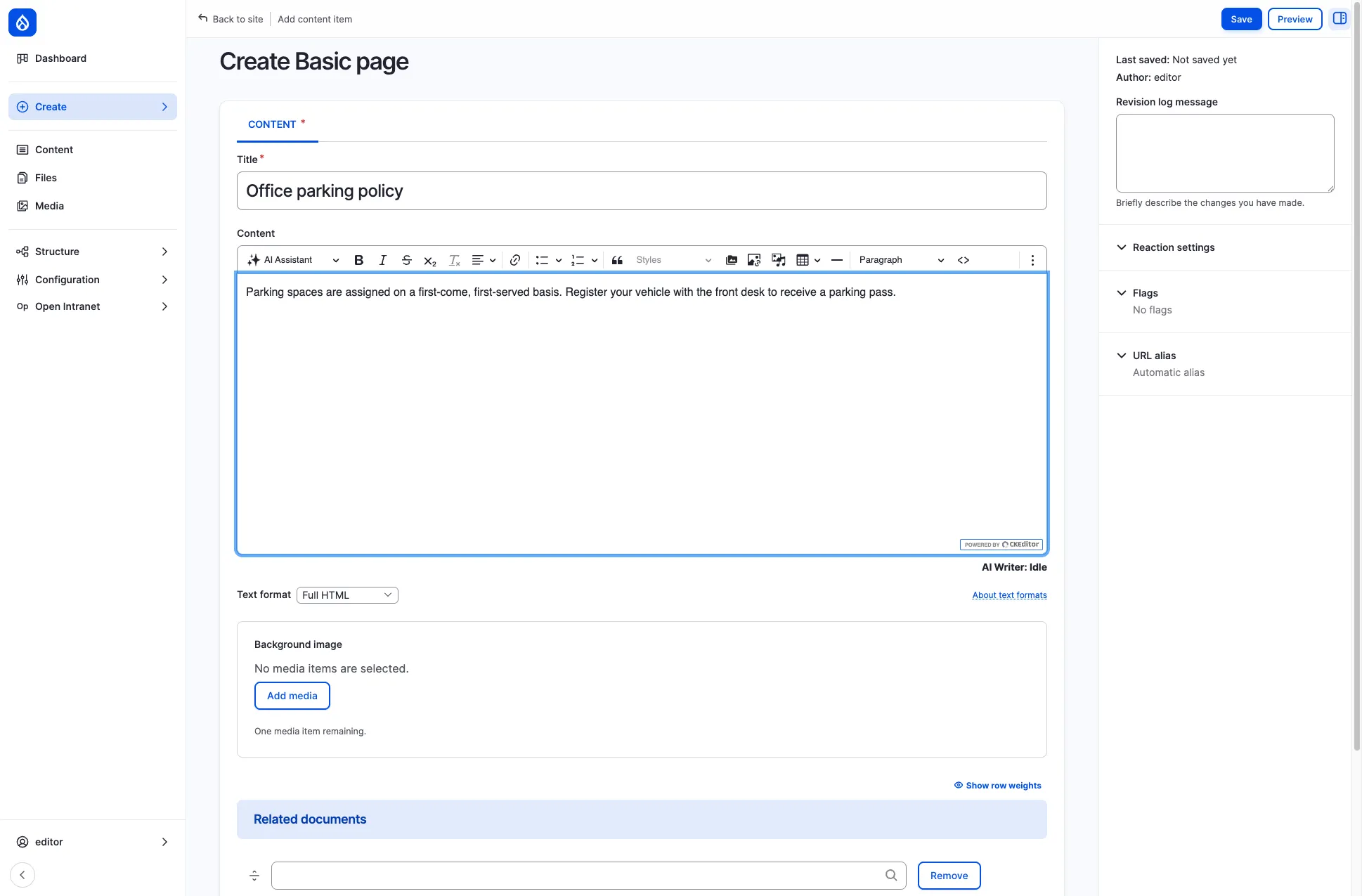
A saved page gets an address based on its title: a page titled “Office parking policy” is available at /pages/office-parking-policy. A new page does not appear in any menu on its own. Share the link, or ask an administrator to add it to the navigation: they tick Provide a menu link in the Menu settings panel of the edit form (see Menu management).
Basic pages do not appear in the book hierarchy — they exist as independent pages accessible via their URL or linked from menus and other content.
Editing an existing page
Section titled “Editing an existing page”Open the page and click the Edit tab, or find it under Content in the administration sidebar. Change it and click Save. Every save creates a revision: use the Revisions tab to see earlier versions, and the Revision log message to note what you changed.
Creating a webform page
Section titled “Creating a webform page”Choose Create > Webform to add a page with an embedded form (surveys, feedback, applications). It has a Title, a Body and a Webform field that selects the form to show. Building the form itself is covered in Webforms.
Working with the rich-text editor
Section titled “Working with the rich-text editor”All content types use a CKEditor-powered rich-text editor with a full toolbar. Common formatting options include:
- Text formatting — Bold, Italic, Strikethrough, Subscript
- Structure — Headings (Paragraph, Heading 1–6), Block quotes, Horizontal lines
- Lists — Bulleted and Numbered lists
- Links — Insert links to internal pages or external URLs
- Media — Insert images (upload, URL, or media library), embed iframes
- Tables — Create and edit tables
- Code — Insert inline code or switch to Source view for raw HTML
- AI Assistant — Use the built-in AI writing assistant for drafting and editing help
Text format
Section titled “Text format”Below the editor you will find a Text format dropdown. In most cases, keep the default Full HTML for the widest formatting options. Other options like Basic HTML or Restricted HTML limit which HTML tags are allowed.
After saving
Section titled “After saving”Once you save content:
- It is immediately published and visible to users with appropriate access.
- A URL alias is auto-generated from the title: news articles get
/news/...(e.g. “Q1 Results” becomes/news/q1-results), basic pages/pages/...and knowledge base pages/knowledge/.... - The content appears in relevant listing pages (news feed, events calendar, knowledge base sidebar).
- Search indexes are updated so the content becomes discoverable via the site-wide search.