

Room Booking
Room Booking lets you reserve shared spaces such as conference rooms, meeting rooms and phone booths, and see which rooms are taken. It is an optional feature. If you do not see Tools > Room Booking in the main menu, ask your administrator whether it is enabled (see Room Booking setup).
The room calendar
Section titled “The room calendar”Open Tools > Room Booking > Room Booking Calendar, or go to /rooms. The calendar opens in week view. Use the buttons in the top right to switch between month, week, day and list, the arrows to move back and forth, and today to jump to the current date. The picture shows the list view.
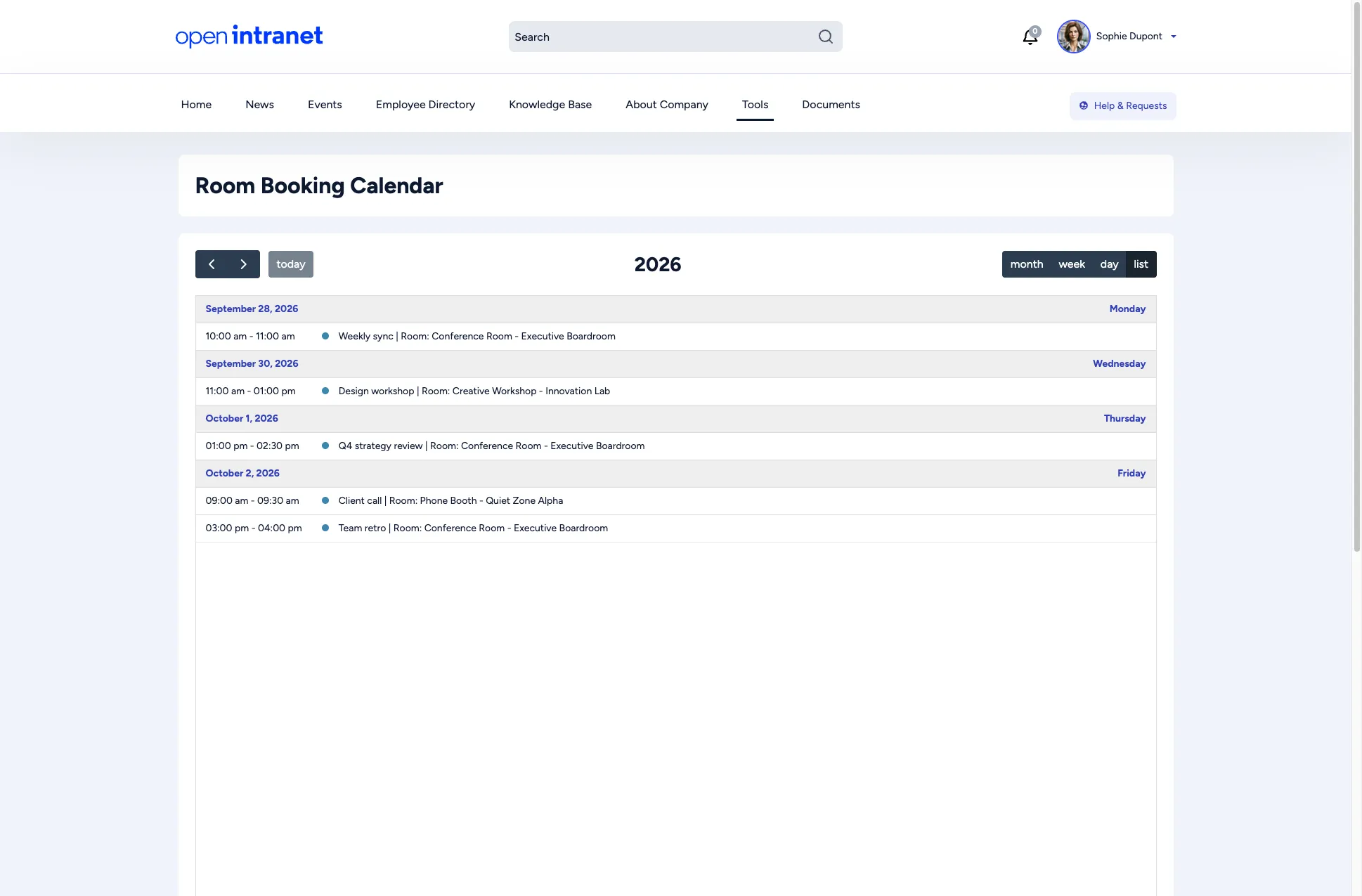
Each booking shows its time, its name and the room. Click a booking to open its details in a new tab.
Booking a room
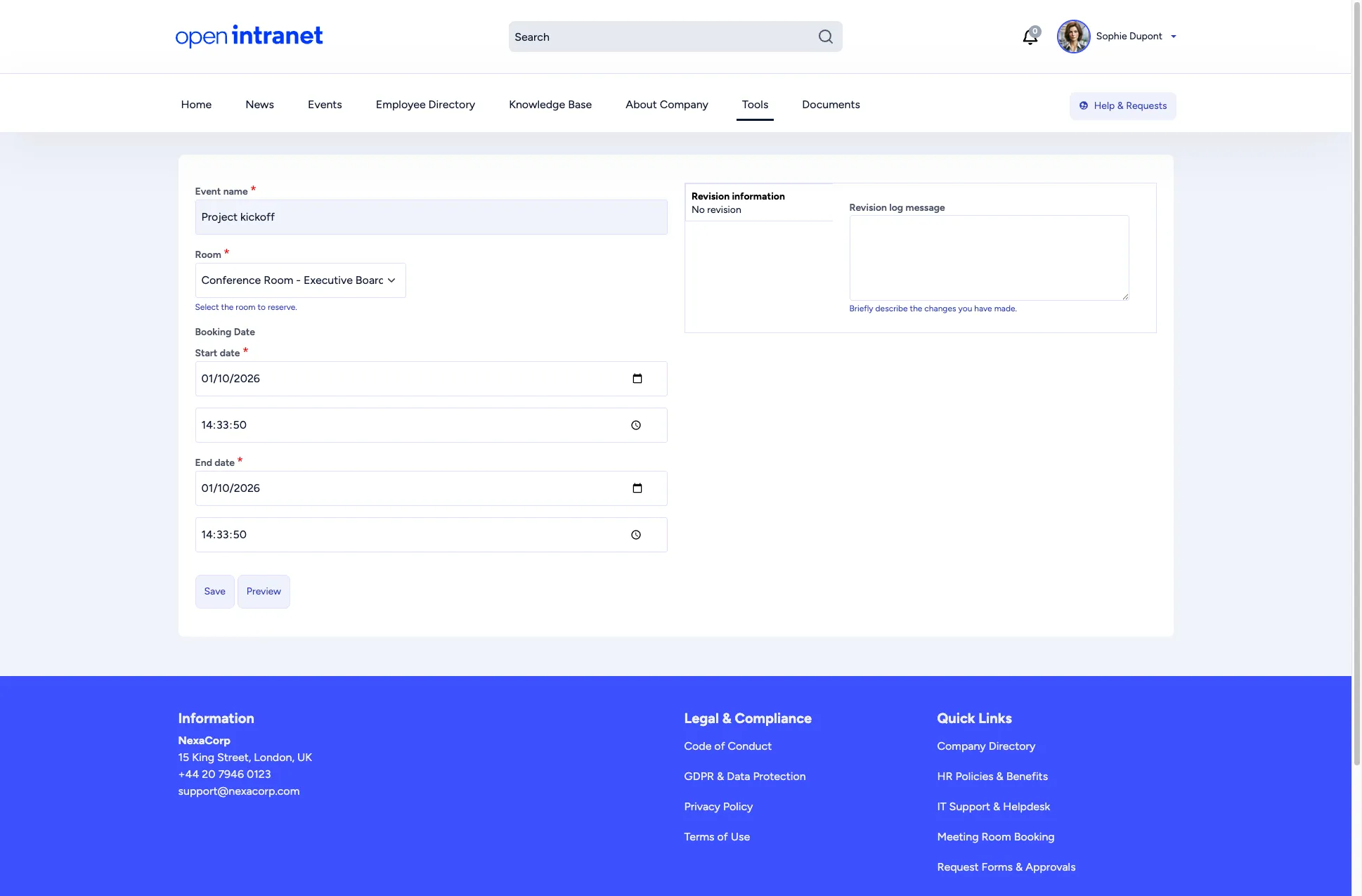
Section titled “Booking a room”- Open Tools > Room Booking > Add Room Booking.
- Enter an Event name, for example “Q4 strategy review”.
- Choose the Room.
- Set the Start date and the End date, each with a date and a time.
- Click Save. You return to the calendar, where the new booking appears.
Clicking an empty slot in the calendar does not start a booking. Use Add Room Booking.
Changing or cancelling a booking
Section titled “Changing or cancelling a booking”Open the booking and use the Edit tab to change it, or the Delete tab to cancel it. You can edit and delete your own bookings. Room managers can edit and delete any booking.
To move a booking, you can also drag it to another day or time in the calendar. Open Intranet asks you to confirm the new time before it saves the change.