Intranet permissions explained: who sees, who edits, who publishes

Can employees see only the information meant for them, while selected people edit and publish it? Yes, but those are separate responsibilities. Intranet permissions define who can read content, who can change it and who can release it to its intended audience.
Getting those boundaries right reduces accidental changes, keeps restricted information private and gives editors a clear scope of responsibility. The practical approach is to define your audiences, assign editorial roles, protect files as well as pages, and test the rules with ordinary employee accounts.
Here is how that approach applies to Open Intranet, including what is available out of the box, what needs configuration and what requires custom work.
In this article:
- What three questions should intranet permissions answer?
- How do you organize users into groups?
- Does access use OR logic or AND logic?
- How should you name editing and publishing roles?
- Are files protected when someone has a direct link?
- What is built in, configured or custom?
- How do you test permissions before launch?
- Ready to start?
What three questions should intranet permissions answer?
Every content area needs answers to three questions. Keeping them separate helps prevent a common mistake: giving someone editing rights simply because they need access to information.
Who can see it?
The audience rule determines who may read a page, news item or file. Some content belongs to all employees. Other content may be restricted to a department, location or job function.
Who can edit it?
Editing permissions determine who may create or change content in a particular area. An employee who needs to read an HR policy does not necessarily need permission to update it.
Who can publish it?
Publishing permissions determine who may release content to its intended audience. Separating editing from publishing creates a review step where your organization needs one.
For example, employees might read an HR policy, HR policy editors prepare updates, and an authorized publisher releases the approved version. These are three responsibilities, even if one person holds more than one.
This distinction matters for updates as well as new content. If policy changes require approval, your publishing workflow must keep an editor’s unapproved changes from becoming visible to readers.
How do you organize users into groups?
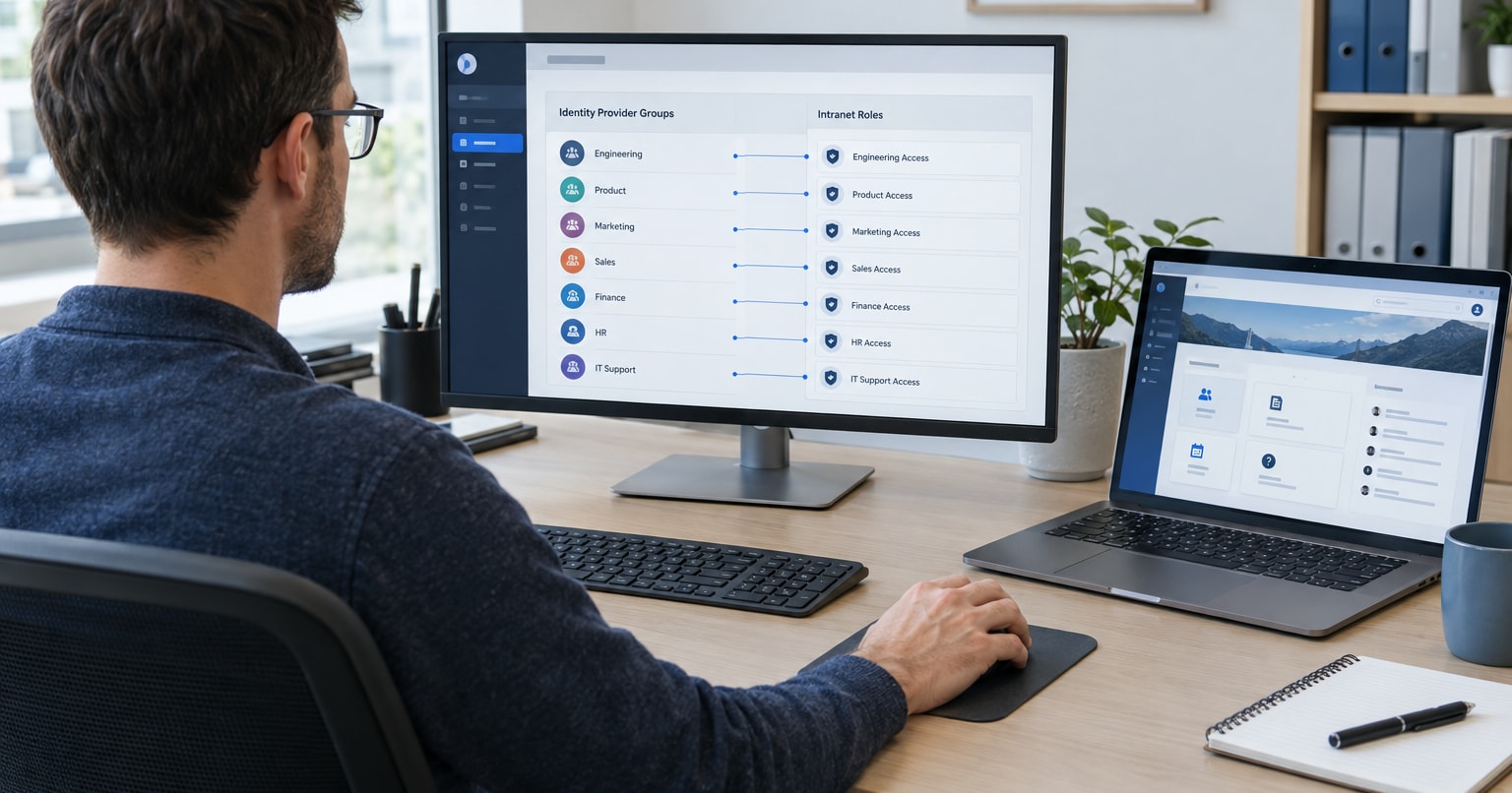
Groups let you maintain access for an audience rather than assigning permissions employee by employee. The key is to build groups around actual access requirements, not every detail of the organizational chart.
Step 1: List audiences that need different access
Start with department, location and job function. For example:
- Department: Finance for information restricted to Finance employees.
- Location: Chicago for content intended for employees at that site.
- Job function: Frontline for information intended for frontline staff.
Ask what each group needs to see that other employees should not. If there is no distinct access requirement, you may not need another restricted audience.
Also distinguish relevance from confidentiality. A cafeteria announcement may be relevant only to one location without needing to be hidden from everyone else.
Step 2: Use consistent group names
Names such as “Department: Finance” and “Location: Chicago” make membership criteria easier to understand than informal team nicknames.
Consistent names also help content owners select the correct audience. An editor should not have to guess whether “Chicago team” means everyone at that location or a particular project team based there.
Step 3: Assign a membership owner
Record who updates membership when employees join, transfer or leave. For each group, identify:
- What qualifies an employee for membership.
- Who approves and maintains membership.
- When membership changes should take effect.
Correct permission rules cannot compensate for outdated membership. Someone who moves out of Finance may retain access to Finance content unless their group membership changes too.
Audience groups and editorial roles serve different purposes. Being part of the HR audience should not automatically make someone an HR policy editor.
Does access use OR logic or AND logic?
Selecting two groups can produce a much wider audience than you expect. Before assigning restricted content to multiple groups, decide whether membership in any selected group is enough or whether every condition must be met.
Step 4: Define whether access means “either” or “both”
Open Intranet uses OR logic by default for group access. Content assigned to Finance and Chicago is visible to members of either group.
That means both of these employees qualify:
- A Finance employee working at another location.
- A Chicago employee working outside Finance.
Strict AND logic requires custom work. With this rule, only employees who belong to both Finance and Chicago qualify. It is not a standard configuration toggle.
Here is the difference for a hypothetical restricted page:
| Employee membership | OR: Finance or Chicago | Strict AND: Finance and Chicago |
|---|---|---|
| Finance, another location | Allowed | Denied |
| Chicago, another department | Allowed | Denied |
| Finance and Chicago | Allowed | Allowed |
| Neither group | Denied | Denied |
This example isolates the audience rule. It assumes the employee has no separate administrative or other access grant.
OR works when information should reach multiple audiences independently. Strict AND is appropriate when access must be limited to an intersection, such as Finance employees at a specific site.
Write down the expected result for all four cases before implementation. Selecting two groups does not, by itself, restrict access to their overlap.
These classifications describe Open Intranet’s group-access behavior and project scope. OR is not a universal rule for every Drupal installation.
How should you name editing and publishing roles?
Clear role names reduce ambiguity when granting access and reviewing it later. “Manager” describes a position, but it does not explain what that person can do in the intranet.
Step 5: Name roles by content area and responsibility
Use names such as:
- News editor.
- News publisher.
- HR policy editor.
- HR policy publisher.
These names connect permission to a specific task. They also make access requests easier to evaluate: “needs to edit employee news” is more precise than “needs manager access.”
A starting permission matrix might look like this:
| Content area | Who can view | Who can edit | Who can publish |
|---|---|---|---|
| Employee news | All employees | News editors | News publishers |
| HR policies | All employees | HR policy editors | HR policy publishers |
These are proposed role names and responsibilities, not a list of preinstalled Open Intranet roles.
Give each role only the permissions needed for its responsibility. A news editor should not need site-administration access to update an article. Likewise, publishing news should not automatically grant permission to publish HR policies.
Open Intranet is built on Drupal, which provides the underlying user, role and permission system. Your content-area boundaries and publishing controls still need configuration using the capabilities available in your installation. The foundation alone does not establish the matrix above.
Where review is required, confirm that the configured workflow supports it for both new content and revisions.
Are files protected when someone has a direct link?
A restricted page does not automatically mean its attachments are restricted. Hiding an attachment link prevents people from finding it in that location, but it does not prove that a copied download URL will deny access.
Step 6: Treat file access as a separate requirement
Restricted files need private storage and server-side access checks rather than publicly accessible file URLs.
There are two distinct checks:
- Is the visitor logged in?
- Is that employee allowed to access this file?
A login requirement can keep anonymous visitors out while still allowing too many employees in. A Finance-only document needs an audience check as well as authentication.
Private storage is part of the setup, but it is not proof that the correct audience rule is enforced. The download mechanism must apply the intended restriction when someone requests the file directly.
Use this test for a group-restricted document:
| Direct-link attempt | Expected result |
|---|---|
| Logged-out visitor | Denied |
| Logged-in employee outside the permitted audience | Denied |
| Logged-in employee inside the permitted audience | Allowed |
Copy the actual download URL and test all three cases. Do not rely only on whether the attachment appears on the page.
Private storage and supported download-access controls are configuration work. If the installed mechanism cannot enforce your required audience rule, additional custom work is needed. Exact file behavior must be confirmed for your Open Intranet installation.
Access controls also cannot recall a copy someone has already downloaded. Account removal should block future access, but sensitive-document handling still needs an organizational policy.
What is built in, configured or custom?
The useful distinction is between having an access-control foundation and having your organization’s rules implemented.
| Scope | What it covers | Important boundary |
|---|---|---|
| Built-in foundation | Drupal users, roles and permissions; Open Intranet’s default OR group-access behavior | Having these capabilities does not mean your permission matrix is already implemented |
| Project configuration | Group structure, membership, editorial roles, permission assignments and supported publishing controls | Ready-to-use roles and workflows depend on the installation |
| Configuration with verification | Private file storage and supported download-access checks | Direct URLs must enforce the intended audience rule |
| Custom work | Strict AND logic between groups; content or file restrictions unsupported by installed mechanisms | Expected behavior must be defined before implementation |
To make the scope concrete, bring three things to the discussion:
- A list of audience groups and membership criteria.
- A view, edit and publish matrix for your main content areas.
- One restricted file with a clear description of who should and should not be able to download it.
These examples reveal requirements that a general request such as “we need permissions” can miss. They also help distinguish configuration from custom development before work begins.
How do you test permissions before launch?
Permission testing needs to prove both that authorized people can work and that unauthorized people cannot. A successful login or download checks only part of the model.
Step 7: Test with representative employee accounts
Create test accounts for:
- A reader inside the target audience.
- An employee outside that audience.
- An editor without publishing rights.
- A publisher.
- Employees with overlapping group memberships.
Do not rely on an administrator account. Its additional access can hide mistakes that affect ordinary employees.
Use the following checklist before restricted content goes live.
Check every route to the content.
Test navigation, search and copied page URLs. Absence from a menu is not proof that direct access is blocked. Unauthorized employees should not see restricted information in search titles or snippets either.
Test viewing, editing and publishing separately.
Confirm that readers cannot edit, editors cannot publish unless permitted, and publishers can release content within their assigned area. If updates require approval, verify that unapproved revisions remain hidden from readers.
Repeat direct-file-link tests.
Try the same file URL while logged out and with accounts inside and outside the permitted audience. Record denied attempts as well as successful downloads.
Check overlapping groups.
Run all four cases in the OR and AND matrix. This is especially important when a page has more than one audience group.
Test membership changes and departures.
Remove a test employee from a restricted group, then check that access is removed as intended. Deactivate a test account and verify that it can no longer access protected content, including through an existing session.
HR or internal communications should confirm the intended audiences and editorial responsibilities. IT should record the actual results against that matrix. Resolve mismatches before publishing restricted material, and repeat the relevant checks when access rules or workflows change.
Ready to start?
A clear permission model gives every content area an audience, an editor and a publisher. It then verifies that pages and files follow those rules, including when someone uses a direct link.
Bring one restricted-content example, your audience groups and a draft view/edit/publish matrix to an Open Intranet demo. Together, we can review what is available, what needs configuration and whether strict AND logic or file-access requirements call for custom work.